Practical guides for office managers building better hybrid workplaces. Learn how to optimize space utilization, automate operations, and support distributed teams.
Oops! Something went wrong while submitting the form.
Visitor Management
Visitor Management System: What It Is and How It Works
A visitor management system replaces the paper sign-in sheet with a digital process that screens, logs, and tracks every guest who enters your office. It captures who's on-site, notifies the host, and creates a searchable record for security and compliance reviews. For growing offices, this single change closes a security gap most reception desks still carry today.
A visitor management system digitizes guest check-in, replacing paper logs with pre-registration, badge printing, host notifications, and a searchable visitor record.
✓
Visitor management software reduces front-desk workload while creating the audit trail organizations need for security screening and regulatory compliance.
✓
A standalone visitor tracking system solves check-in but leaves desk booking, room booking, and office data in separate tools, creating gaps in a company's overall presence picture.
✓
PULT combines visitor management with real-time presence, desk and room booking, and emergency response in one platform, so security teams see who's on-site, employees and visitors alike, from a single source of data.
What Is a Visitor Management System?
A visitor management system is software that replaces the manual guest sign-in process with a digital, trackable one. It records a visitor's details, their arrival and departure, and notifies the employee they're there to see, all without a paper logbook at the front desk.
Companies adopt one for three reasons: security, compliance with regulations like GDPR, and a faster, more professional check-in experience for guests.
Standalone check-in tools handle the front desk in isolation. Platform-based visitor management, like PULT's, feeds that same data into a company's broader presence and office management system, so security teams see visitors and employees in one place.
What Does a Visitor Management System Do?
A visitor management system replaces manual sign-in with a digital workflow that handles the entire guest experience, from pre-registration to check-out. It records a visitor's details, notifies the right host, can issue a badge, and stores visits in a searchable log. Visitor management software runs this process on a tablet, kiosk, or mobile phone instead of a clipboard.
Core Features of a Modern Visitor Management System
✓
Pre-registration and invites: hosts send a visitor a link before arrival, with the visit details and parking or building information included.
✓
Self-service check-in: guests confirm their name, host, and purpose at a kiosk or tablet in under a minute.
✓
Optional ID and watchlist screening: depending on the platform, the system can check visitor IDs or flag names against a security or denied-entry list before a badge is issued.
✓
Badge printing and QR codes: guests can receive a visible, time-stamped credential that identifies them for that day's visit.
✓
Host notifications: the employee being visited gets an instant alert by email, Slack, or Teams, with the guest's details and, if enabled, a photo.
✓
NDA and agreement signing: legal documents are signed digitally during check-in, with a copy stored automatically for compliance records.
✓
Visitor logs and reporting: every visit is timestamped, searchable, and exportable, so front-desk trends are easy to review monthly.
✓
Emergency roll-call export: the current visitor list can be pulled during an evacuation, showing who is recorded as still in the building.
Visitor Management Software vs. a Paper Logbook
Criterion
Paper Logbook
Visitor Management Software
Data accuracy
Illegible entries, missing fields
Structured, mandatory fields
Security screening
None
Watchlist and ID checks
Emergency roll call
Manual count from paper
Instant, exportable list
Compliance records
Hard to search or retire
Searchable, with retention rules
How Does the Visitor Journey Work, From Invite to Check-Out?
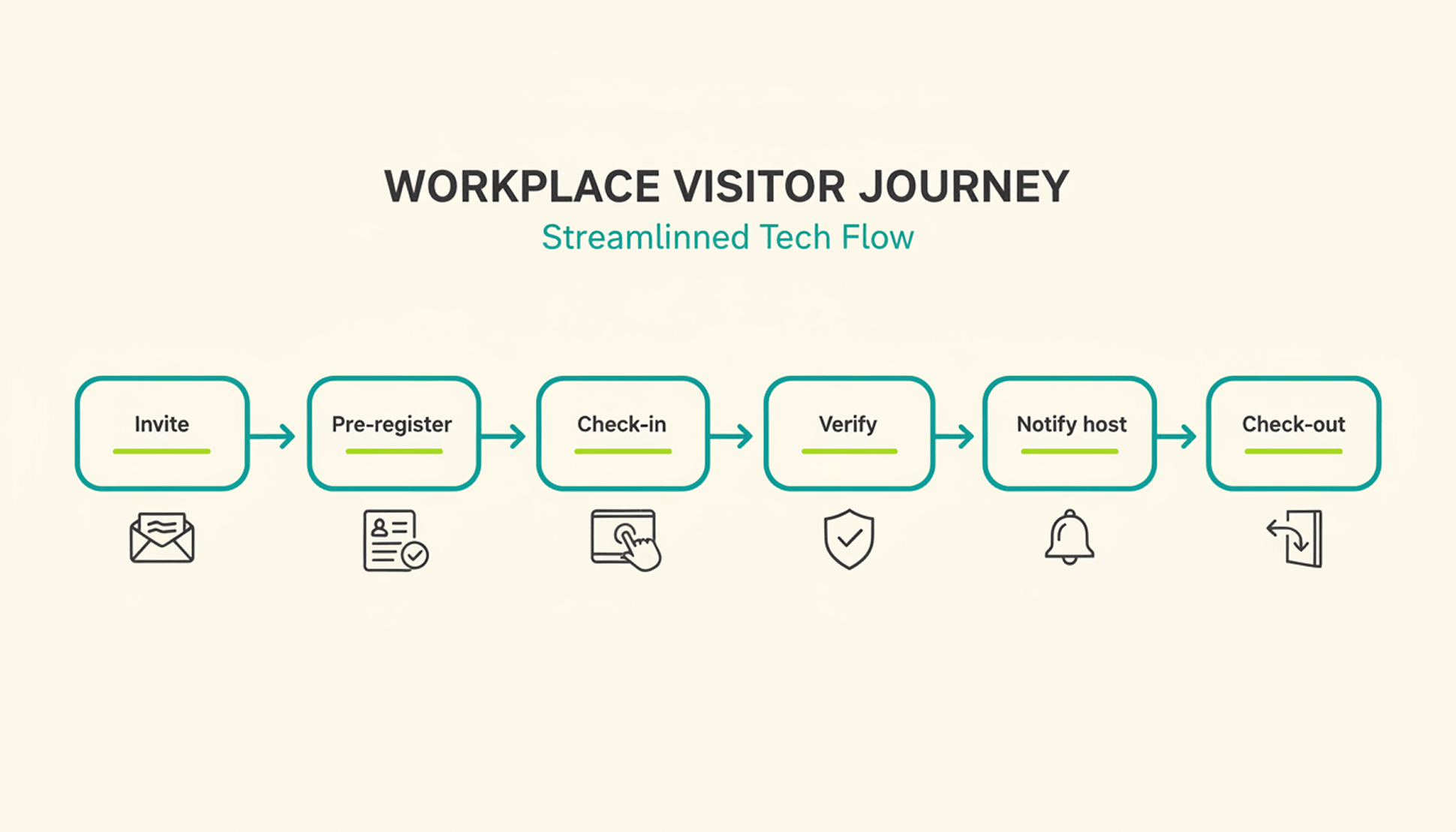
A typical visit runs through six steps. The host sends an invite, the visitor pre-registers, the visitor confirms their details on arrival, a badge can be issued, the host gets notified, and the system records check-out when the visitor leaves or at a configured time.
1
Pre-registration: the host schedules the visit and sends a link with arrival details, parking instructions, and building access notes.
2
Arrival and check-in: the visitor confirms their details at a kiosk or on a tablet or their own phone, usually in under a minute.
3
Optional identity and watchlist verification: depending on the platform and configuration, additional ID or security-list checks can be performed before building access is granted.
4
Badge issuance: a printed or digital badge identifies the visitor for the building and can be limited to that day's visit.
5
Host notification: the employee being visited receives an instant alert to come to reception, with the visitor's name and, if enabled, photo.
6
Check-out and logging: the visitor checks out on departure, or the system can close the visit automatically at a configured time, keeping the record administratively up to date.
What Are the Benefits of a Visitor Management System for the Office?
The clearest benefit is a complete, searchable record of who was on-site and when, something a paper log or verbal check-in can't provide.
Security and Compliance Benefits
A visitor management system can screen guests against a watchlist before they reach the office floor, depending on the platform and configuration. It can keep a timestamped log of visits for security and compliance reviews. Under GDPR, visitor data counts as personal data, so it needs a lawful basis for collection, an appropriate retention period or criteria for determining it, and safeguards against unauthorized access. A digital system can support these controls directly in the check-in process, reducing reliance on manual steps.
Visitor accountability also matters during an emergency. OSHA guidance notes that visitors need to be accounted for after an evacuation, and many employers use the sign-in list to run that headcount. A missing name on that list can delay an all-clear by several minutes, minutes that matter during a real evacuation.
Because PULT Presence tracks employees and visitors in one live view, a facilities team can pull an accurate roll call the moment an alarm sounds, not after searching through a paper binder.
Front-Desk Efficiency and Visitor Experience Benefits
Automated check-in cuts the time your team spends on manual sign-in, badge writing, and phone calls to announce a guest. A receptionist freed from clipboard duty can focus on greeting visitors and other front-desk work. Visitors move through reception faster, often in under a minute, and the first impression of your office improves the moment someone walks in the door. For client meetings or investor visits, that faster, more polished check-in becomes part of how your company presents itself.
How Do You Choose the Right Visitor Management Solution?
The right visitor management solution depends less on feature count and more on how well it fits your existing security setup, office size, and tool stack. A system built for a five-person startup office looks very different from one built for a 500-person campus with multiple buildings and a dedicated security team.
Calendar, HR, and communication tools your team already uses
Security and compliance
Data retention controls, audit logs, GDPR-aligned handling
Scalability
Pricing and setup across multiple locations
Price
Per-location vs. per-user pricing models
Ease of use
Kiosk setup time and how quickly staff can learn the system
Is a Standalone Visitor Management Platform Enough for a Modern Office?
A standalone visitor management platform solves the front-desk problem, but most offices also run desk booking, room booking, and parking through separate tools. Connecting these systems into one platform gives security and facilities teams a single, live view of who is on-site, employees and visitors together.
That connection matters most during a security incident or an office move, when facilities teams need one current view of occupancy rather than four separate logins to check. PULT pairs visitor management with desk booking software, room booking, and presence data, so a single dashboard shows recorded on-site employees and visitors. Office managers evaluating a broader workplace management software setup typically start here, since visitor data becomes far more useful once it's connected to the rest of the office.
{{onpage-cta}}
Turn Visitor Check-In Into a Security Advantage
A visitor management system turns a vulnerable front desk into a controlled entry point, giving you a searchable record of who checked in and when. The real payoff comes when it connects to the rest of your office, from desk booking to real-time presence data, giving you one live picture of recorded on-site users. For growing offices, that visibility is worth seeing in action.
✓
Visitor check-in, desk booking, room booking, and presence data live in one platform, so you manage all of it from a single login.
✓
A real-time view shows who is on-site, employees and visitors together, for faster emergency roll calls.
✓
Every visit is recorded in a searchable log, with records available for security and compliance reviews.
✓
Microsoft Teams and Slack support visitor notifications, while Personio and HiBob connect employee data through built-in integrations.
{{onpage-cta-2}}
How can the work council influence desk sharing?
The Works Constitution Act (BetrVG) provides for several instances of co-determination that may apply depending on the specific details of the desk-sharing arrangement. Those who are unaware of the rules risk injunctions and significant project delays.
What say does the works council have regarding desk sharing?
Anyone who wants to introduce desk sharing in their company will quickly face an important question: Does the works council need to be involved, and if so, to what extent? There is no one-size-fits-all answer.
The Works Constitution Act (BetrVG) provides for several instances of co-determination that may apply depending on the specific details of the desk-sharing arrangement. Those who are unaware of the rules risk injunctions and significant project delays.
How the work council can influence desk sharing: The Basics
Desk-sharing itself is not subject to employee participation. The employer may implement it within the scope of its managerial authority. The specific details of its implementation almost never are.
Section 87(1)(1) of the Works Constitution Act (BetrVG) applies whenever rules concern employees’ conduct.
Section 90 of the Works Constitution Act (BetrVG) requires employers to inform the works council early and in detail as soon as the planning phase begins.
A workplace agreement is the most legally sound approach to desk sharing.
What does the Works Constitution Act (BetrVG) stipulate regarding desk sharing?
In principle, an employer may require desk sharing. However, the specific details are almost always subject to co-determination. This applies in particular when rules regarding workplace use, digital booking tools, occupational health and safety, or changes to the work environment are involved.
The BetrVG contains several sections that may be relevant to desk sharing:
Section 87(1)(1) of the Works Constitution Act (BetrVG) – Order in the workplace: The line between conduct regarding workplace order that is subject to co-determination and work-related conduct that is exempt from co-determination is blurred. Rules that directly require work performance (e.g., finding an available seat every day) are considered work-related conduct and are not subject to co-determination. Rules regarding workplace coexistence, such as the handling of personal belongings or the use of lockers, are considered organizational conduct and are subject to co-determination.
Section 87(1)(6) of the Works Constitution Act (BetrVG) – Technical Monitoring Devices: Certain aspects of desk sharing, such as the use of booking or occupancy tools, fall under Section 87(1)(6) of the Works Constitution Act (BetrVG) if they involve monitoring of employees’ performance and behavior. As soon as a booking tool collects data on attendance times or usage patterns that can be traced back to individual employees, the right to co-determination applies.
Section 87(1)(7) of the Works Constitution Act (BetrVG) – Health Protection: Ergonomic requirements, risk assessments, and hygiene regulations for shared workstations may satisfy this criterion. The Baden-Württemberg Regional Labor Court rejected a right to co-determination under § 87 (1) No. 7 BetrVG in a specific case, as the introduction of desk sharing alone did not lead to a concrete risk to employees. A risk assessment would first have to establish this.
§ 90 BetrVG – Duty to Inform: § 90 BetrVG requires the employer to inform the works council in a timely and comprehensive manner about planned changes to workstations, work processes, or the work environment. This duty to inform applies as early as the planning phase. Anyone who informs the works council only after the restructuring measures have already begun has missed this deadline.
§ 111 BetrVG – Operational change: According to the case law of the Federal Labor Court, the introduction of desk sharing is generally not considered an operational change within the meaning of § 111 BetrVG. The situation is different if desk sharing is part of a larger restructuring.
What does case law say about the works council’s right to co-determination?
Case law on the subject of desk sharing and works councils is anything but consistent. In the past, the same concept has been interpreted differently by various courts. According to this view, it is not the concept as a whole that matters, but rather the individual provisions within it. Three court decisions illustrate where the courts draw the line.
Frankfurt/Main Labor Court: The Frankfurt/Main Labor Court granted a works council’s motion seeking to prevent the introduction of desk sharing. The court found that several aspects of co-determination were affected. The unilateral introduction of this work system by the employer was therefore deemed impermissible. The works council was ultimately able to halt further implementation by means of a preliminary injunction.
Düsseldorf Regional Labor Court (Case No. 3 TaBVGa 6/17): The Düsseldorf Regional Labor Court ruled in another case that the works council had no right of co-determination because the specific plan did not contain any provisions subject to co-determination. The question of where exactly the line is drawn between the specification of work duties not subject to co-determination and conduct subject to co-determination remains largely unresolved even after this decision. A fundamental ruling by the Federal Labor Court is still pending.
Baden-Württemberg Regional Labor Court (Case No. 21 TaBV 7/24, August 2024): According to this ruling, neither the decision to introduce desk sharing nor an accompanying clean-desk policy is, in and of itself, subject to works council co-determination. Both pertain to employees’ work conduct, which is not subject to co-determination. However, regulations governing the handling of personal belongings may affect workplace conduct subject to co-determination pursuant to Section 87(1)(1) of the Works Constitution Act (BetrVG). Regulations governing the use of certain company premises for break and work purposes may also be subject to co-determination.
In practice, this means that it is not the concept as a whole but each individual provision within it that must be reviewed for compliance with the requirement for employee participation. Those who make sweeping generalizations are almost always wrong.
See PULT in action
✓ Collect booking data in compliance with GDPR, without the risk of surveillance
✓ Anonymous team-level analytics, no individual profiles
✓ Win over works councils with transparent data processing
What must be included in the workplace agreement on desk sharing?
In practice, a works council agreement is the most reliable way to implement the project in a legally compliant manner. This applies regardless of whether a genuine right to co-determination exists in a particular case or not.
To ensure that desk sharing and labor law are compatible, a legally sound company agreement must address these key points:
Scope of Application: Which locations, departments, and employee groups are covered by the agreement? If it applies across multiple locations, the general works council is generally responsible.
Booking rules: How do you reserve a workspace? Through the app, at a terminal, or on the spot? What are the advance notice requirements and cancellation deadlines?
Clean Desk Policy: What personal items are allowed, how are they stored, and who provides lockers or rolling cabinets?
Data Protection and Booking Systems: Digital booking systems may fall under Section 87(1)(6) of the Works Constitution Act (BetrVG) if they collect data on booking times, duration of presence, or individual usage patterns. The agreement must specify what data is collected, how long it is stored, and who has access to it. Tools like PULT avoid this issue from the outset: analyses are conducted exclusively at the team level in aggregated form, without any references to individuals, and thus meet the requirements that works councils typically impose under Section 87(1)(6) of the Works Constitution Act (BetrVG).
Ergonomics and Occupational Health and Safety: Guidelines for the setup of shared workstations (monitor, keyboard, chair), for cleaning, and for the special needs of individual employees.
Special provisions: Pregnant employees, employees with disabilities, or those in certain job roles may be entitled to a dedicated workspace and special desk-sharing rules.
Control mechanisms: How is booking data analyzed? Is it analyzed only at the team level, or also at the individual level? The latter typically requires employee participation and raises data protection concerns.
What is the best way to involve the works council in desk sharing?
Time and again, managers make the mistake of informing the works council about the introduction of desk sharing only after the decision has already been made. This is unwise and, in many cases, violates Section 90 of the Works Constitution Act (BetrVG).
As soon as the idea of introducing desk sharing arises internally, the obligation to provide information takes effect. The works council receives planning documents, space allocation plans, and schedules. In the next step, the concept is jointly reviewed for provisions subject to co-determination: Which areas are covered by Section 87(1)(1), (6), or (7) of the Works Constitution Act (BetrVG)? This review prevents individual provisions from becoming stumbling blocks later on.
Once the areas subject to co-determination have been identified, formal negotiations on a works agreement begin. If the employer and the works council cannot reach an agreement, the conciliation board makes the decision. This process can delay projects by months. Once the agreement is finalized, implementation begins. An evaluation clause also specifies when and how the parties will jointly review the plan and adjust it as needed.
If you communicate transparently from the outset and establish a clear policy, you will have already prevented most conflicts before they arise. The same principle applies to the booking system.
Work models describe how, when, and where employees perform their work. Full-time and part-time? That’s ancient history. By 2026, hybrid, remote, flex time, the four-day workweek, and job sharing will define the German labor market.
If you choose the wrong model, you’ll quickly find yourself facing unnecessary problems such as excessive administrative costs and dissatisfied employees. That’s why, in this article, we’ll explain the most important models, outline their pros and cons, and highlight which legal changes are particularly relevant this year.
Work Models: The Basics
Work models define the scope (full-time, part-time), schedule (flexible hours, trust-based working hours, four-day workweek), and location (office, home office, hybrid, remote) of work.
By 2026, hybrid work will be the most common model in German companies. About 60 percent of office workers will work from home at least one day a week.
Since 2022, employers in Germany have been required to systematically track working hours, regardless of the chosen work model .
The Pay Transparency Act was strengthened in 2026 and now applies to companies with as few as 100 employees, with direct implications for part-time and job-sharing arrangements.
What are work models?
An employment model defines the framework within which an employee performs their work. It specifies three dimensions:
Hours worked: How many hours per week does a person work? Full-time, part-time, or on a very limited basis?
Schedule: When are employees scheduled to work? Fixed hours, flex time, shift work, or trust-based working hours?
Work location: Where is the work done? In the office, from home, in a hybrid setup, or entirely remotely?
These three dimensions can be combined. A full-time employee can work on a flex-time schedule and in a hybrid model. A part-time employee can work exclusively in the office on a fixed shift. These combinations give rise to the modelswe examine in this article.
{{onpage-cta}}
The main work models by working hours
The number of hours worked forms the basis of every employment contract. These four models cover over 95 percent of all employment relationships in Germany.
Full-time
In Germany, full-time employment generally involves 35 to 40 hours per week, depending on the collective bargaining agreement or the industry. Full-time positions remain the norm, particularly in manufacturing, skilled trades, and traditional administrative professions.
Advantages: Full salary, comprehensive benefits, clear career path.
Disadvantages: Less flexibility for family, continuing education, or side jobs.
Part-time
Part-time work involves fewer hours than the full weekly work schedule. Since 2019, employees have been entitled under the Bridge Part-Time Work Act to a temporary reduction in working hours with the right to return to full-time work.
Advantages: Better work-life balance, more time for other commitments.
Disadvantages: Lower income, often slower career advancement, lower pension benefits.
Part-time employment (mini-job)
Since 2026, mini-jobs have been capped at 603 euros per month. They are suitable for students, retirees, or as a second job.
Advantages: Tax- and social security-free for employees, flexible scheduling, easy entry into the job market.
Disadvantages: No automatic coverage under health and unemployment insurance, limited pension benefits, no protection in the event of unemployment.
Four-day workweek
The four-day workweek reduces the number of working days to four, often without a reduction in pay. In Germany, it was tested in several pilot projects in 2024. Initial results show higher productivity per hour, but also challenges in service industries with fixed opening hours.
Benefits: More time to recover, lower absenteeism rates, a strong selling point in recruitment.
Disadvantages: Difficult to implement in shift-based and service-oriented businesses, higher demands on process efficiency, potential losses in terms of availability.
Work Models Based on Work Hours Distribution
While the total number of hours sets the framework, the distribution of working hours determines daily life. These four models are the most common in Germany.
Flexible work hours
Under a flex-time schedule, employees determine the start and end times of their daily work within a set framework. A core period (for example, 10 a.m. to 3 p.m.) generally specifies when all employees must be available. Outside of these hours, employees are free to manage their own schedules.
Benefits: Better compatibility with doctor's appointments, family commitments, or commuting times; higher employee satisfaction; lower absenteeism.
Disadvantages: Requires reliable time tracking, makes it difficult to coordinate spontaneously outside of core hours, and makes team coordination more complex.
Flexible work hours
What counts here is only the result, not the number of hours worked. Employees organize their own working hours.It is important to note that even trust-based working hours are not exempt from the legal requirement to track working hours. Employers must document when work was performed, even if the distribution of those hours is left up to the employee.
Advantages: High degree of autonomy, a strong selling point when recruiting skilled workers, focus on results rather than attendance.
Disadvantages: Risk of unpaid overtime; difficult to implement without a mature management culture; requires documentation despite flexible scheduling.
Shift work
Shift schedules (early, late, and night shifts) are primarily found in manufacturing, healthcare, logistics, and retail. They require reliable shift schedules and transparent communication.
Advantages: The company is always open, employees often receive shift premiums, and there is a clear separation between work and personal time.
Disadvantages: Health risks due to irregular work schedules (especially night shifts), difficulty balancing work and family life, higher employee turnover in industries with unattractive shifts.
Job sharing
In job sharing, two or more people share a full-time position. It is becoming increasingly popular, especially in leadership positions. However, with the stricter Pay Transparency Act of 2026, legal requirements are also coming to the forefront here, as both job-sharing partners must be paid equally for work of equal value and the company must be able to document this comparability.
Advantages: Makes leadership positions accessible on a part-time basis, combines two skill sets in a single role, and ensures continuity in the event of illness or vacation.
Disadvantages: Significant coordination effort required between partners, complex reporting and documentation requirements, and, in practice, often additional work for the supporting team.
Work Models by Location
The workplace has undergone the most significant changes in recent years. Four models now define the day-to-day operations of German companies.
Office work (in-person)
For decades, the traditional office setup was the standard model. It still works today in situations where physical presence is necessary. For companies, this model involves the least organizational effort, as it features fixed workstations and predictable utilization. The trade-off is high fixed costs for office space and a limited pool of applicants, since many talented individuals today expect hybrid or remote options.
Advantages: Easy coordination, direct communication within the team, strong corporate culture, minimal technical requirements.
Disadvantages: High fixed costs for office space, long commutes for employees, and reduced appeal to job candidates.
Work from home
In this model, employees work from home on a permanent basis or at least on a regular basis. There is still no legal right to work from home in Germany, but many companies offer it on a voluntary basis. This is also necessary these days, as many qualified workers expect at least the option to work from home.
Advantages: No more commuting time, improved concentration, better work-life balance.
Disadvantages: Risk of isolation and weaker team cohesion, more difficult to coordinate spontaneously, higher demands on self-organization and technical equipment at home.
{{hint-box}}
Hybrid Work
Hybrid work combines in-office work with location-flexible work according to clear guidelines. There are several typical models:
Office-First: Three to four days in the office, one to two days working from home.
Remote-First: Remote work is the default; employees come into the office only on specific days or for specific occasions.
Free Choice: Employees decide where to work each day within defined guidelines.
The choice of model primarily affects the organizational effort required. However, the advantages and disadvantages of the hybrid model generally apply to all three variants:
Advantages: Combines periods of focused work at home with collaboration in the office, reduces office space through desk sharing, and serves as a strong selling point in recruitment.
Disadvantages: Greater coordination effort, requires booking and attendance systems, risk of unequal opportunities between office-based and remote workers (“proximity bias”).
Remote Work
Remote work refers to working entirely from any location, often from abroad. Tax, social security, and labor law issues become complex as soon as someone works from another EU country for more than 25 days a year.
Advantages: Access to an international talent pool, no office space costs, and maximum flexibility for employees.
Disadvantages: Complex legal and tax issues related to assignments abroad, challenges in building a team culture, and higher demands on leadership and digital communication.
Try PULT free for 14 days
✓ Clear guidelines for hybrid work
✓ Accurate attendance data instead of chaotic tracking
Work Models of the Future: What Will Change in 2026?
The labor market never stands still. Almost in lockstep, new regulations and laws are emerging, designed to protect both employers and employees while maintaining a balance. Four legal and technological developments are shaping work models in Germany in 2026:
Digital time tracking requirement now fully in effect: Since the Federal Labor Court (BAG) ruling in 2022, employers have been required to systematically track working hours. What has been missing so far is specific legal implementation: The planned Time Tracking Act is set to make electronic tracking mandatory in the course of 2026.
Pay Transparency Act Expanded: The EU Pay Transparency Directive has been transposed into German law and now applies to companies with 100 or more employees. Companies must be able to disclose their pay structures. This has a direct impact on part-time, job-sharing, and hybrid models, as anyone filling a reduced-hour position must be paid proportionally the same as a full-time employee performing the same duties.
AI Governance in Human Resources: With the introduction of the EU AI Act, stricter rules for AI-powered HR systems will take effect in 2026. Tools used in recruiting or performance evaluation are considered high-risk applications and are subject to documentation and transparency requirements. Furthermore, attendance analyses and workload reports must not generate movement profiles of individual persons. Evaluations must be anonymized at the team or facility level.
Space optimization as a cost factor: Office costs are among the largest fixed expenses for many companies. Companies that allow employees to work in a hybrid model and don’t know who is actually in the office and when end up paying for unused square footage. Accurate occupancy data is essential for making informed space-related decisions and ensures that companies can reduce costs.
PULT automatically transmits this occupancy data via Wi-Fi.
There is no one-size-fits-all model. Companies that copy an approach simply because it has worked reliably for others underestimate how much the right choice depends on their own specific circumstances. Four factors set the direction:
Industry and job profile: Knowledge work allows for more flexibility than the manufacturing sector.
Team size and culture: Small teams often get by with informal agreements, while larger teams need clear rules and tools.
Employee expectations: Young talent expects hybrid and remote work options. According to PwC, for 44 percent of employees, the option to work from home is a decisive factor in choosing an employer, while for another 42 percent, it is important but not decisive.
IT infrastructure: Hybrid work only works with reliable time-tracking software, attendance tracking, and an integrated HR system.
Anyone introducing hybrid or flexible models should therefore clarify early on how desk sharing will be organized and how utilization will be measured.
Implementing Hybrid and Flexible Work Models: What Matters Most
Flexible, new work models often fail during implementation. Four problems in particular tend to arise in practice.
The first issue is the discrepancy between bookings and reality. Employees reserve desks in advance but then don’t show up, or conversely, come into the office spontaneously without having made a reservation. The result is occupancy data that cannot be relied upon for decision-making.
The second issue concerns the office manager. Without automatic attendance tracking, the only option is to manually ask team members who is in the office today. This takes time and still doesn't provide reliable data.
Then there’s the matter of compliance. Time tracking, occupational safety training, and first-aid responder quotas require the ability to document at any time who was on site and when. In hybrid teams, this is nearly impossible to do manually.
Finally, the “word of mouth” between systems should not be underestimated. Booking data is stored in one tool, HR data in another, and room schedules in a third. This does not result in a unified overview.
The solution lies in the combination of clear rules and a system that enforces these rules in the background:
Define booking rules (who is allowed to work from home, when, and for how many days; which teams are required to be on-site on which days)
Provide a booking tool that integrates with existing systems such as Slack, Microsoft Teams, or Outlook
Automatically track actual attendance instead of relying on booking data
Use analytics to plan spaces, teams, and investments based on data
This is exactly where PULT comes in. The platform combines desk booking, room and parking spot reservations, visitor management, and automatic attendance tracking via the company’s Wi-Fi into a single system. Employees can book in ten seconds directly from Slack or Teams, check-in happens automatically, and office managers receive reliable data on office occupancy in real time.
Hybrid doesn't mean chaos.
✓ Booking, attendance, and reporting all in one system
✓ Native integration with Slack, Teams, Personio, and more
Workplace Safety in the Office: Legal Obligations, Ergonomics and Prevention
Workplace safety in the office serves to maintain employee health and provide legal protection for employers. In modern hybrid offices, safety places new demands on the organization of desk sharing and mobile work.
Legal framework for workplace safety in the office: The foundation consists of the Occupational Safety Act (ArbSchG), the Workplace Ordinance (ArbStättV) and DGUV Information 215-410.
Risk assessment in the office: The employer must identify and document the risks (physical and psychological) for each workplace.
Ergonomics: Desks, chairs and monitors must be adjustable to prevent musculoskeletal disorders.
Personnel: Depending on company size, safety officers, first aiders and fire safety assistants must be appointed in the required numbers.
Safety briefings: At least once a year, all employees must be instructed on the hazards and protective measures in the workplace.
What legal regulations apply to workplace safety in the office?
Workplace safety in the office is primarily governed by the Occupational Safety Act (ArbSchG) and the Workplace Ordinance (ArbStättV), which are further specified by DGUV Information 215-410.
These regulations require employers to systematically assess hazards, comply with technical standards for computer workstations and ensure employee safety through regular briefings and the provision of first aiders.
Occupational Safety Act (ArbSchG): It forms the foundation and obliges the employer under § 5 to conduct a risk assessment. The goal is to design work in such a way that hazards to life and physical and mental health are avoided.
Workplace Ordinance (ArbStättV): It defines minimum requirements for the operation of workplaces. This includes aspects such as room temperature, ventilation, lighting and the design of computer workstations.
DGUV Information 215-410 (formerly BGI 650): This guideline from the German Social Accident Insurance is the most important practical standard for offices. It contains detailed requirements for ergonomics, floor space and the safety-related design of work equipment.
Display Screen Equipment Regulation (now part of ArbStättV): It sets specific requirements for the quality of monitors, keyboards and software ergonomics to prevent strain on the eyes and musculoskeletal system.
Responsibility and Implementation of Workplace Safety in the Office
The employer is solely responsible for compliance with and implementation of all measures. For support, from the very first employee, the employer is required to provide proof of safety engineering and occupational health care (according to ASIG and DGUV Regulation 2).
Occupational safety specialists (Sifa) and company physicians provide advisory services, but keeping escape routes clear or correctly adjusting office furniture falls under the responsibility of the respective managers or office management.
How is a risk assessment created for office workplaces?
The risk assessment is the required tool for identifying risks to employee health and initiating countermeasures. According to § 5 of the Occupational Safety Act, every employer is obliged to conduct this assessment for all workplaces, document it and update it regularly.
Define work areas: Divide the office into meaningful units, for example individual offices, open spaces, meeting rooms.
Identify hazards: Record all physical and psychological stresses.
Assess hazards: Evaluate the risk (probability of occurrence and severity of potential damage).
Define protective measures: Select appropriate measures according to the TOP principle (Technical before Organizational before Personal).
Implement measures: Carry out the planned improvements.
Check effectiveness: Verify whether the measures have actually reduced the risk.
Document and update: Legally compliant documentation of results and adaptation when changes occur (e.g. new office furniture or software).
Consideration of Psychological Stress in the Office
Since 2013, the Occupational Safety Act has explicitly required that the psychological risk assessment must also be part of the process. In the office, the focus is on factors such as work intensification, constant availability, lack of recovery periods or inadequate work organization. The goal is the prevention of stress-related illnesses and burnout.
Special Case: Risk Assessment for Hybrid Work (Office/Home Office)
Due to the alternation between office and home office, the assessment must extend beyond time spent in the office. The employer must also consider hazards for working from home and on the go. Since the employer has no direct right of inspection in the private space of employees, this is done through self-assessment questionnaires and instructions for the ergonomic design of the home workplace.
What ergonomic requirements must office workplaces meet?
Workplace ergonomics aims to adapt working conditions to the physical characteristics of people. The overarching goal is to prevent improper strain and chronic musculoskeletal disorders .
DGUV Information 215-410 and the standards DIN EN 527-1 (desks) and DIN EN 1335 (office chairs) define exact minimum requirements for this purpose.
The Ergonomic Office Chair
A suitable chair must allow dynamic sitting and be individually adjustable:
Seat height: The thighs should slope slightly downward, with feet flat on the floor (knee angle approx. 90° or slightly more).
Backrest: It must have lumbar support that supports the natural curvature of the spine in the lower back area.
Dynamics: The backrest should be movable (synchronous mechanism) to encourage alternating between leaning forward and backward.
The Office Desk
The desk must provide sufficient space for work equipment and the correct working height:
Dimensions: The standard surface area is 160 x 80 cm. A depth of at least 80 cm is necessary to maintain the viewing distance to the monitor.
Height: For fixed desks, the standard measurement is 74 cm (± 2 cm). However, height-adjustable sit-stand desks (switching between 65 cm and 125 cm) are ideal for reducing cardiovascular strain.
Surface: It must be low-reflection and matte to avoid glare from light sources.
Monitor and Input Devices for the Office
The placement of technology affects the strain on neck and eyes:
Viewing distance: Depending on monitor size, this should be between 50 cm and 70 cm.
Viewing angle: The top line on the screen should be well below eye level, so that the gaze is slightly tilted downward.
Arrangement: The monitor must be positioned directly in front of the user (no twisted posture). Keyboard and mouse should be placed so that the forearms can rest relaxed on the desk.
Light, Noise and Climate in the Office
Lighting: For office work, an illuminance of at least 500 lux is required. Natural daylight is preferred, while glare must be prevented using blinds.
Noise: The sound pressure level should not exceed 55 dB(A) for predominantly mental tasks.
Indoor climate: The recommended room temperature is between 20°C and 22°C. The relative humidity should be between 40% and 60%.
How many first aiders and safety officers do I need for the office?
The number of persons to be appointed for occupational safety is legally defined and depends on the number of insured persons present in the workplace according to DGUV Regulation 1.
First aiders: In offices with up to 20 employees present, one first aider must be appointed. From 21 employees onwards, at least 5% of the workforce must be trained as first aiders.
Safety officers (SiBe): From a company size of 20 employees, the appointment of at least one safety officer is mandatory. They support the employer on a voluntary basis in accident prevention.
Fire safety assistants: Here too, a quota of typically 5% of employees applies. Find all details about training and equipment for fire safety in the office.
Important for planning: The employer must ensure through vacation and sick leave periods as well as hybrid work models that the required number of helpers are physically present in the office at all times.
How is workplace safety implemented in the office with desk sharing and hybrid work?
The introduction of work models such as desk sharing and hybrid work fundamentally changes the requirements for occupational safety. Companies must ensure that the protection goals of the Workplace Ordinance (ArbStättV) are also achieved with daily user changes and in the home office.
Ergonomics: Since every employee has different physical requirements, shared workplaces (shared desks) must be versatile and easily adjustable.
Space utilization and capacities: In open-space concepts, there is a risk of overcrowding, which increases noise levels and can undermine escape route concepts.
Psychological stress: The uncertainty of not finding an adequate workplace in the morning ("desk hunting") creates additional stress and reduces concentration.
Hygiene: Frequent user changes require hygiene rules and adapted cleaning cycles.
How does booking software help with workplace safety and health in the office?
PULT is our software for workplace and room booking as well as automated presence detection. It serves many employers as a platform to fulfill their duty of care. The software includes features for ergonomics, emergency management and health protection:
Equipment filter: Employees can specifically search for workplaces with height-adjustable desks (sit-stand desks), ergonomic chairs or special monitors.
Fixed assignments when needed: For employees with special medical or physical requirements, PULT enables permanent reservation of fixed workplaces as an exception to desk sharing.
Emergency Export: At the push of a button, administrators generate a list of all persons actually present. Thanks to WiFi detection (PULT Presence), "no-shows" or spontaneous visitors are also precisely recorded.
Capacity control: The software automatically prevents overcrowding of zones. This way, fire safety regulations and escape route capacities are technically accounted for.
AI Health & Safety Agent: Our AI agent helps convert occupational safety regulations into tasks and pre-fill compliance documents for audits with real presence data.
Noise and acoustic management: Through clear zoning into quiet and team zones as well as the bookability of phone booths, acoustic stress is reduced.
Psychological relief: The guarantee of a firmly reserved workplace eliminates the stress of morning searching and ensures a calm start to the workday.
Tip: Learn more about automatic presence detection via WiFi at PULT Presence.
{{onpage-cta}}
Office Insights
Fire Safety in the Office – Regulations, Equipment, Checklist
Fire safety in the office is a legal obligation for employers. Compliance with workplace rule ASR A2.2, regular team briefings and the training of fire safety assistants are essential for responding quickly in an emergency.
Fire safety in the office is primarily governed by the Occupational Health and Safety Act (ArbSchG) and the technical rule ASR A2.2.
Fire safety equipment: The number and type of fire extinguishers depends on the floor area and fire risk (usually "normal risk" in offices).
Fire safety assistants: At least 5% of employees must be designated and trained as fire safety assistants.
Fire safety briefing: All employees must be instructed at least once a year on how to behave in the event of a fire and on escape routes.
Maintenance: Fire extinguishers must be inspected by a qualified person every two years; fire doors and alarm systems are subject to shorter intervals.
What regulations apply to fire safety in the office?
Fire safety in the office in Germany is primarily regulated by the Occupational Health and Safety Act (ArbSchG), the Workplace Ordinance (ArbStättV) and, in more specific terms, by the Technical Rule for Workplaces ASR A2.2. These regulations oblige you as an employer to ensure adequate firefighting measures, establish evacuation procedures and train a sufficient number of employees as fire safety assistants.
Occupational Health and Safety Act (ArbSchG): According to § 10, the employer is obliged to take the measures necessary for first aid, firefighting and the evacuation of employees. They must designate the persons who will assume these tasks in an emergency.
Workplace Ordinance (ArbStättV): The annex (section 2.2) stipulates that workplaces must be equipped with fire extinguishing devices and that these, along with fire alarm systems, must be regularly tested for functionality.
ASR A2.2: This technical rule specifies the ArbStättV in detail. It provides exact requirements for the number of fire extinguishers needed (extinguishing agent units), the marking of escape routes and the training of fire safety assistants (usually 5% of the workforce).
DGUV Regulation 1: This accident prevention regulation of the employers' liability insurance associations requires regular instruction of all insured persons on the hazards present in the workplace and the measures to avert these hazards.
The overall responsibility for fire safety always lies with the employer. The landlord of a property is responsible for structural fire protection (e.g. fire doors, stairwells), while operational fire safety (e.g. fire extinguishers, briefings, assistant training) is the responsibility of the tenant company.
How is fire safety ensured in the office and workplace?
Fire safety in the office comprises structural, technical and organisational fire protection. Structural measures should be implemented by the building owner, but the responsibility for technical equipment and organisational procedures lies directly with the employer in the office.
Structural fire protection
This part of fire protection encompasses all measures permanently built into the building that prevent the spread of fire and secure rescue routes.
Fire compartments: Division of the building by fire walls.
Escape and rescue routes: Designation of stairwells and emergency exits that must remain smoke-free in the event of a fire.
Fire resistance classes: Use of materials that withstand fire for a defined period (e.g. F90).
Technical fire protection systems
This includes all technical installations that detect a fire early or support firefighting efforts.
Fire alarm systems (BMA): Automatic detection of smoke or heat and direct alerting of the fire brigade.
Smoke extraction systems (RWA): Extract smoke gases from the building to protect people and improve visibility for evacuation.
Emergency lighting: Ensures escape routes can be found in the event of a power failure or smoke.
Organisational fire protection
This is the area with the greatest need for action by office management, as it governs human behaviour and ongoing maintenance.
Fire safety regulations: Preparation of parts A, B and C to govern behaviour and responsibilities.
Fire safety assistants: Designation and training of employees for initial firefighting and evacuation.
Maintenance & inspection: Ensuring inspection deadlines for fire extinguishers, wall hydrants and alarm systems.
Briefings: Regular training of all employees on the specific hazards and escape routes in the office.
How many fire extinguishers does my office need?
The number of fire extinguishers required in an office depends on the floor area and fire risk, with normal risk generally assumed for standard administrative buildings. The extinguishing agent unit (LE) system according to workplace rule ASR A2.2 is used to determine the requirement, making the different performance levels of various extinguishing agents comparable.
Step 1: Determining the fire risk
Before calculating the number, the risk class must be determined:
Normal risk: Standard offices without high fire loads (e.g. ordinary computer workstations, files in usual quantities).
Elevated risk: Rooms with flammable liquids, large storage areas or workshops. Additional measures are required here.
Step 2: Calculating extinguishing agent units (LE)
For offices with normal risk, the following table from the technical rule for workplaces ASR A2.2 (section 5.2, table 3) applies for determining the required extinguishing agent units:
Floor area (up to m²)
Required extinguishing agent units (LE)
50
6
100
9
200
12
300
15
400
18
each additional 250
+6
Step 3: Selecting the fire extinguishers
A standard 6-litre foam extinguisher usually corresponds to 6 to 9 LE (depending on performance). The choice of extinguishing agent is important in offices. Get advice from a fire safety company:
Foam extinguishers: They extinguish effectively and cause significantly less contamination than powder extinguishers.
CO2 extinguishers (carbon dioxide): Mandatory for server rooms or areas with extensive IT hardware, as they extinguish without residue and do not cause short circuits from extinguishing agent residues.
Powder extinguishers: Unsuitable for offices, as the fine salt powder permanently damages all electronics and furnishings (corrosion).
Important placement rules for fire extinguishers
Accessibility: Fire extinguishers must be clearly visible and easily accessible (maximum distance from any point: 20 metres).
Mounting height: The grip height should be approximately 80 cm to 120 cm.
Marking: Each location must be marked with the square, red fire safety sign (F001) above the extinguisher.
How many fire safety assistants must be designated for my office?
According to ASR A2.2 section 7.3, the employer is obliged to familiarise a sufficient number of employees with fire extinguishing equipment through instruction and practice and to designate them as fire safety assistants. These persons support initial firefighting and the evacuation of colleagues in an emergency.
The 5 percent rule: As a rule, 5% of employees as fire safety assistants is sufficient, provided there is a normal fire risk (which applies to most offices).
Attendance: Shift work, holidays, sick leave and mobile working (hybrid work) must be taken into account in the calculation. A sufficient number of assistants must be present on site at all times.
Special risk: In cases of elevated fire risk or a large number of persons with limited mobility (e.g. public traffic), the quota must be individually adjusted upwards.
Additional roles: It often makes sense to deploy fire safety assistants simultaneously as evacuation assistants to coordinate the building evacuation in a structured manner.
Fire safety assistant training and refresher courses
An employee only becomes a fire safety assistant through expert instruction. This includes:
Theoretical foundations: Fundamentals of preventive fire protection, behaviour in the event of fire and the operational fire safety organisation.
Practical exercise: Real-world handling of fire extinguishing equipment (extinguishing agent training).
Interval: Training should generally be refreshed every 3 to 5 years. In the event of significant operational changes (e.g. relocation or new procedures), immediate retraining is required.
What challenges does modern work pose for fire safety in the office?
The greatest challenge for fire safety in modern office concepts is the lack of overview of the actual number of people in the building, caused by hybrid work and desk sharing. Traditional, static attendance lists are ineffective in such a work environment, as employees appear irregularly, spontaneously switch workstations or leave the office without signing out.
In the event of an evacuation, rescue services need to know how many people are in which fire compartments. Paper lists or pure booking data (which often contain "no-shows") lead to life-threatening inaccuracies.
With free seating, there is a risk that too many people are in one area at the same time. This can overload escape routes or exceed the maximum permitted occupancy according to the fire safety concept.
As teams rotate, permanently assigned fire safety assistants per floor are often not present. It must be ensured that despite hybrid working, a sufficient proportion of trained personnel is always on site.
How do booking software and presence detection help with fire safety in the office?
PULT is our software for workspace and room booking as well as automated presence detection. Smartphones, tablets or laptops are detected via the company Wi-Fi and the associated person is automatically listed as present. This also creates a reliable attendance list for emergency situations.
Unlike pure booking systems, PULT detects the actual presence of employees, enabling precise coordination of evacuations and compliance with legal safety requirements.
Emergency report at the push of a button (Emergency Export): Administrators can instantly generate a list of all persons currently present in the office via a button. Since the system automatically detects presence via the Wi-Fi connection of devices, employees who forgot to book a desk are also captured.
Automated capacity limits: Maximum occupancy numbers per zone can be set in PULT's booking logic. This prevents overcrowding and ensures that fire safety concepts and escape route capacities are maintained at all times.
Vermeidung von Fehlern bei Evakuierungen: Die automatisierte Erfassung beendet das „Ratespiel“ am Sammelplatz. Rettungskräfte erhalten sofortige Klarheit darüber, ob das Gebäude vollständig geräumt ist oder ob sich noch Personen im Gefahrenbereich befinden könnten.
Tip: Learn more about automatic presence detection via Wi-Fi at PULT Presence.

.png)
.png)