Practical guides for office managers building better hybrid workplaces. Learn how to optimize space utilization, automate operations, and support distributed teams.
Oops! Something went wrong while submitting the form.
Visitor Management
Visitor Management System: What It Is and How It Works
A visitor management system replaces the paper sign-in sheet with a digital process that screens, logs, and tracks every guest who enters your office. It captures who's on-site, notifies the host, and creates a searchable record for security and compliance reviews. For growing offices, this single change closes a security gap most reception desks still carry today.
A visitor management system digitizes guest check-in, replacing paper logs with pre-registration, badge printing, host notifications, and a searchable visitor record.
✓
Visitor management software reduces front-desk workload while creating the audit trail organizations need for security screening and regulatory compliance.
✓
A standalone visitor tracking system solves check-in but leaves desk booking, room booking, and office data in separate tools, creating gaps in a company's overall presence picture.
✓
PULT combines visitor management with real-time presence, desk and room booking, and emergency response in one platform, so security teams see who's on-site, employees and visitors alike, from a single source of data.
What Is a Visitor Management System?
A visitor management system is software that replaces the manual guest sign-in process with a digital, trackable one. It records a visitor's details, their arrival and departure, and notifies the employee they're there to see, all without a paper logbook at the front desk.
Companies adopt one for three reasons: security, compliance with regulations like GDPR, and a faster, more professional check-in experience for guests.
Standalone check-in tools handle the front desk in isolation. Platform-based visitor management, like PULT's, feeds that same data into a company's broader presence and office management system, so security teams see visitors and employees in one place.
What Does a Visitor Management System Do?
A visitor management system replaces manual sign-in with a digital workflow that handles the entire guest experience, from pre-registration to check-out. It records a visitor's details, notifies the right host, can issue a badge, and stores visits in a searchable log. Visitor management software runs this process on a tablet, kiosk, or mobile phone instead of a clipboard.
Core Features of a Modern Visitor Management System
✓
Pre-registration and invites: hosts send a visitor a link before arrival, with the visit details and parking or building information included.
✓
Self-service check-in: guests confirm their name, host, and purpose at a kiosk or tablet in under a minute.
✓
Optional ID and watchlist screening: depending on the platform, the system can check visitor IDs or flag names against a security or denied-entry list before a badge is issued.
✓
Badge printing and QR codes: guests can receive a visible, time-stamped credential that identifies them for that day's visit.
✓
Host notifications: the employee being visited gets an instant alert by email, Slack, or Teams, with the guest's details and, if enabled, a photo.
✓
NDA and agreement signing: legal documents are signed digitally during check-in, with a copy stored automatically for compliance records.
✓
Visitor logs and reporting: every visit is timestamped, searchable, and exportable, so front-desk trends are easy to review monthly.
✓
Emergency roll-call export: the current visitor list can be pulled during an evacuation, showing who is recorded as still in the building.
Visitor Management Software vs. a Paper Logbook
Criterion
Paper Logbook
Visitor Management Software
Data accuracy
Illegible entries, missing fields
Structured, mandatory fields
Security screening
None
Watchlist and ID checks
Emergency roll call
Manual count from paper
Instant, exportable list
Compliance records
Hard to search or retire
Searchable, with retention rules
How Does the Visitor Journey Work, From Invite to Check-Out?
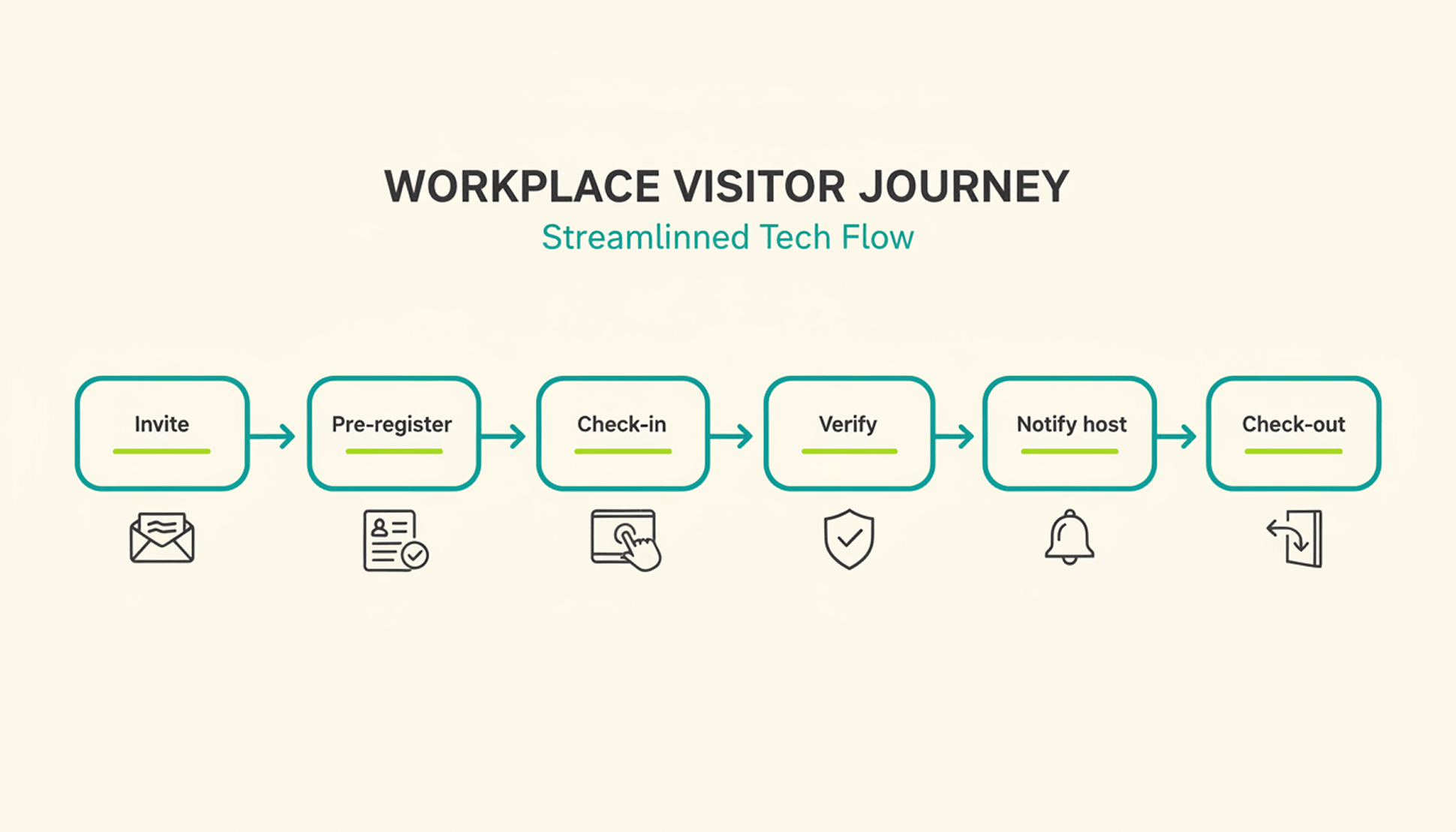
A typical visit runs through six steps. The host sends an invite, the visitor pre-registers, the visitor confirms their details on arrival, a badge can be issued, the host gets notified, and the system records check-out when the visitor leaves or at a configured time.
1
Pre-registration: the host schedules the visit and sends a link with arrival details, parking instructions, and building access notes.
2
Arrival and check-in: the visitor confirms their details at a kiosk or on a tablet or their own phone, usually in under a minute.
3
Optional identity and watchlist verification: depending on the platform and configuration, additional ID or security-list checks can be performed before building access is granted.
4
Badge issuance: a printed or digital badge identifies the visitor for the building and can be limited to that day's visit.
5
Host notification: the employee being visited receives an instant alert to come to reception, with the visitor's name and, if enabled, photo.
6
Check-out and logging: the visitor checks out on departure, or the system can close the visit automatically at a configured time, keeping the record administratively up to date.
What Are the Benefits of a Visitor Management System for the Office?
The clearest benefit is a complete, searchable record of who was on-site and when, something a paper log or verbal check-in can't provide.
Security and Compliance Benefits
A visitor management system can screen guests against a watchlist before they reach the office floor, depending on the platform and configuration. It can keep a timestamped log of visits for security and compliance reviews. Under GDPR, visitor data counts as personal data, so it needs a lawful basis for collection, an appropriate retention period or criteria for determining it, and safeguards against unauthorized access. A digital system can support these controls directly in the check-in process, reducing reliance on manual steps.
Visitor accountability also matters during an emergency. OSHA guidance notes that visitors need to be accounted for after an evacuation, and many employers use the sign-in list to run that headcount. A missing name on that list can delay an all-clear by several minutes, minutes that matter during a real evacuation.
Because PULT Presence tracks employees and visitors in one live view, a facilities team can pull an accurate roll call the moment an alarm sounds, not after searching through a paper binder.
Front-Desk Efficiency and Visitor Experience Benefits
Automated check-in cuts the time your team spends on manual sign-in, badge writing, and phone calls to announce a guest. A receptionist freed from clipboard duty can focus on greeting visitors and other front-desk work. Visitors move through reception faster, often in under a minute, and the first impression of your office improves the moment someone walks in the door. For client meetings or investor visits, that faster, more polished check-in becomes part of how your company presents itself.
How Do You Choose the Right Visitor Management Solution?
The right visitor management solution depends less on feature count and more on how well it fits your existing security setup, office size, and tool stack. A system built for a five-person startup office looks very different from one built for a 500-person campus with multiple buildings and a dedicated security team.
Calendar, HR, and communication tools your team already uses
Security and compliance
Data retention controls, audit logs, GDPR-aligned handling
Scalability
Pricing and setup across multiple locations
Price
Per-location vs. per-user pricing models
Ease of use
Kiosk setup time and how quickly staff can learn the system
Is a Standalone Visitor Management Platform Enough for a Modern Office?
A standalone visitor management platform solves the front-desk problem, but most offices also run desk booking, room booking, and parking through separate tools. Connecting these systems into one platform gives security and facilities teams a single, live view of who is on-site, employees and visitors together.
That connection matters most during a security incident or an office move, when facilities teams need one current view of occupancy rather than four separate logins to check. PULT pairs visitor management with desk booking software, room booking, and presence data, so a single dashboard shows recorded on-site employees and visitors. Office managers evaluating a broader workplace management software setup typically start here, since visitor data becomes far more useful once it's connected to the rest of the office.
{{onpage-cta}}
Turn Visitor Check-In Into a Security Advantage
A visitor management system turns a vulnerable front desk into a controlled entry point, giving you a searchable record of who checked in and when. The real payoff comes when it connects to the rest of your office, from desk booking to real-time presence data, giving you one live picture of recorded on-site users. For growing offices, that visibility is worth seeing in action.
✓
Visitor check-in, desk booking, room booking, and presence data live in one platform, so you manage all of it from a single login.
✓
A real-time view shows who is on-site, employees and visitors together, for faster emergency roll calls.
✓
Every visit is recorded in a searchable log, with records available for security and compliance reviews.
✓
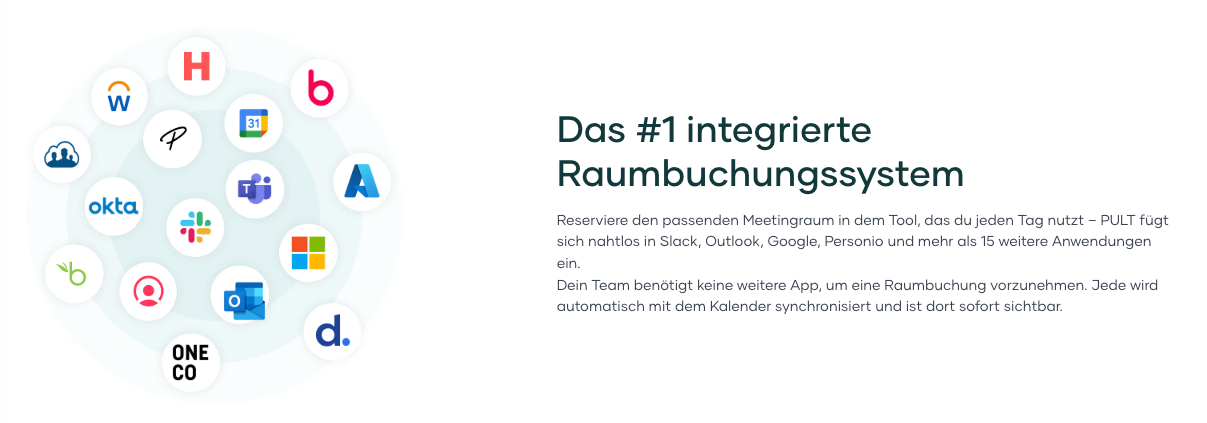
Microsoft Teams and Slack support visitor notifications, while Personio and HiBob connect employee data through built-in integrations.
{{onpage-cta-2}}
Alternatives
The best visitor management software for your company
Modern visitor management software replaces traditional paper lists at reception. It supports digital registration, check-in processes, ID printing, and automatic notification of the host. Many solutions also offer evaluations of office activities and the option to book meeting rooms or parking spaces for visitors.
The best visitor management software can offer many features. Which ones are crucial for you depends on your use case. If certain aspects are important to you, you should pay attention to the following when comparing:
Pre-registration: Handy if guests need to be registered in advance so that their name, company, or reason for visiting is available at reception.
Check-in and check-out: Helpful if you want to speed up the registration process digitally, e.g., via tablet, QR code, or invitation link.
Visitor badges: Relevant if you need badges with photos or additional data.
Notification of the host: Useful if those responsible need to be informed immediately: by email, text message, or via collaboration tools.
Documents and signatures: Interesting if NDAs or security guidelines need to be signed directly at check-in.
Integrations: Useful if the solution needs to connect to calendars, access controls, or communication tools.
The following information on features, prices, and services is based on publicly available sources from the providers (as of September 2025). It is for guidance only. Providers may make changes at any time; no guarantee can be given for the accuracy or completeness of this information.
This article contains a presentation of PULT as part of a market overview. It is based on careful research, but is not an objective test report, rather an editorially prepared comparison with some promotional elements. All brands mentioned are the property of their respective rights holders and are listed for comparison purposes only. PULT has no business relationship with the providers mentioned.
The 5 best visitor management software programs
#1 PULT
PULT is a software for visitor management from Germany that combines visitor management with desk booking, room booking, and office evaluation. It allows you to digitally map the reception of your guests and connect it with notifications to your employees and meeting room bookings.
Check-in and check-out directly via a tablet or iPad at reception
Automatic badge printing with all relevant guest information
Real-time notification of the host via MS Teams or Slack
Digital signatures for NDAs or documents directly at the terminal
Contact tracing with audit trail for compliance with legal requirements
White labeling: Customization of the check-in flow to corporate design, including logo and colors
Native iPad app that is fully customizable
Combination with desk and room booking: Workstations or meeting rooms can be reserved in advance for visitors
Insights: Reports on visitor traffic and an overview of which employees are receiving guests will be added soon
PULT pricing:
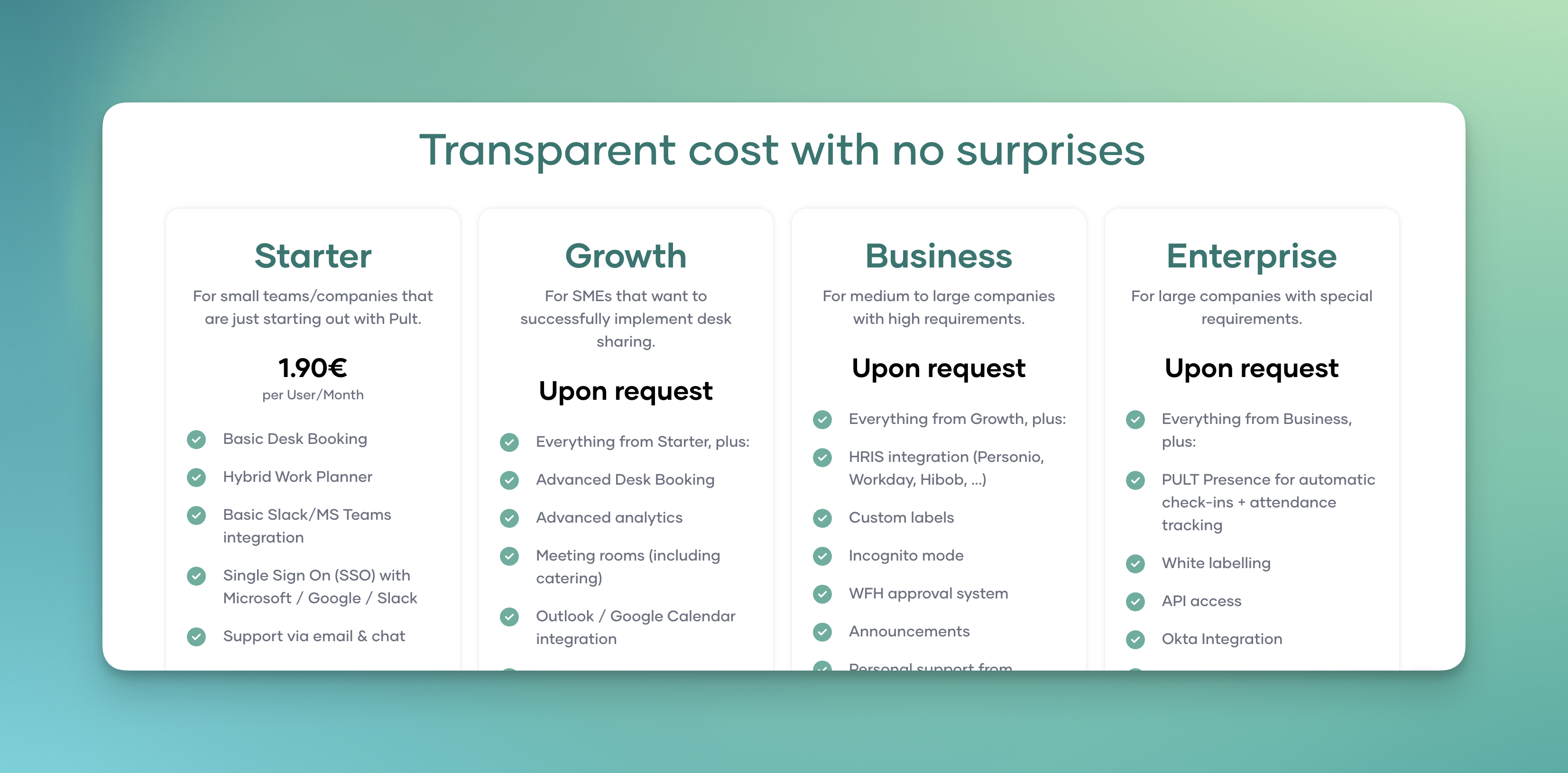
The price of PULT and visitor management starts at €99 per month per location. Desk sharing functions and room and parking space booking start at €1.90 per user per month. Other plans offer advanced features such as API access, single sign-on, and white label options. A free live-demoand product demonstration are available.
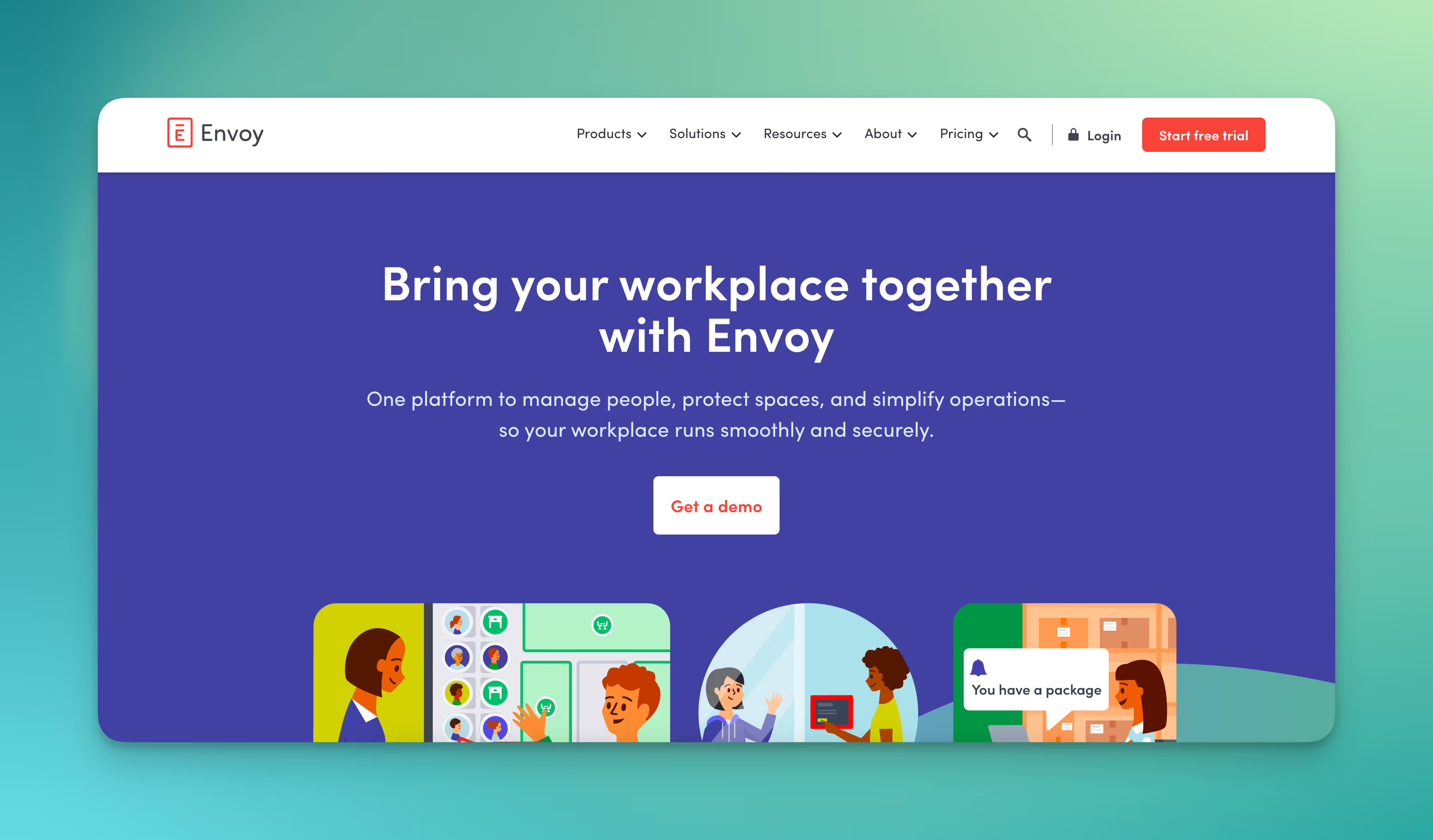
Envoy is a US provider with its own Envoy Visitors module, which is used internationally and has also been offering EU data locations since 2024.
Check-in via iPad kiosk or QR code
Automatic badge printing with photo and guest information
Host notification via email, SMS, or push notification
Digital signatures for NDAs or security policies
Pre-registration of guests with invitations
ID scan and watchlist comparison for security-critical areas
Integrations with Slack, Teams, Google Workspace, and access systems
Envoy offers a Data Processing Addendum (DPA) and complies with the requirements of the General Data Protection Regulation (GDPR). In addition, standard contractual clauses (SCC) are used for data transfers.
Envoy pricing:
Free visitor management software plan with basic features
Standard: $109 per location per month (billed annually)
Premium: $329 per location per month (billed annually)
Enterprise pricing available upon request
#3 SwipedOn
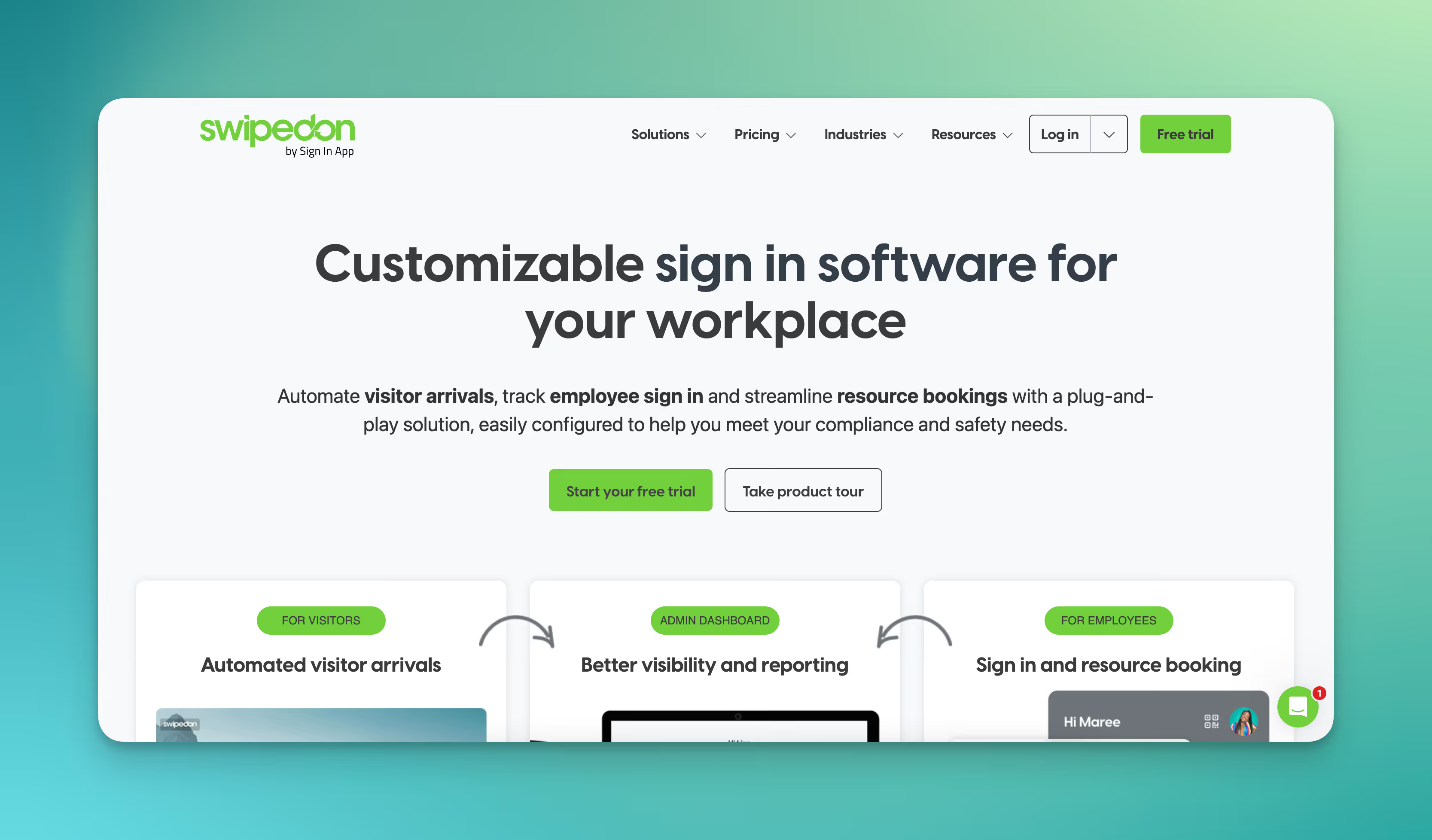
SwipedOn is based in New Zealand and offers cloud-based visitor management software with visitor pre-registration, tablet check-in, badge printing, and host notifications.
Pre-registration of guests via invitations
Check-in and check-out via tablet
Automatic badge printing with photo and visitor data
Host notification via email or push notification
Digital signatures for NDAs or agreements
Reporting on visitor numbers and trends
Multilingual user interface for international guests
SwipedOn has its own GDPR policy. Data is processed in data centers operated on AWS. The company is based in New Zealand.
SwipedOn prices:
SwipedOn prices start at $55 per location per month for the Standard package. Higher tiers include remote working, package management, priority support, and more. Premium costs $109 and Enterprise $169 per location per month.
#4 Lobbytrack
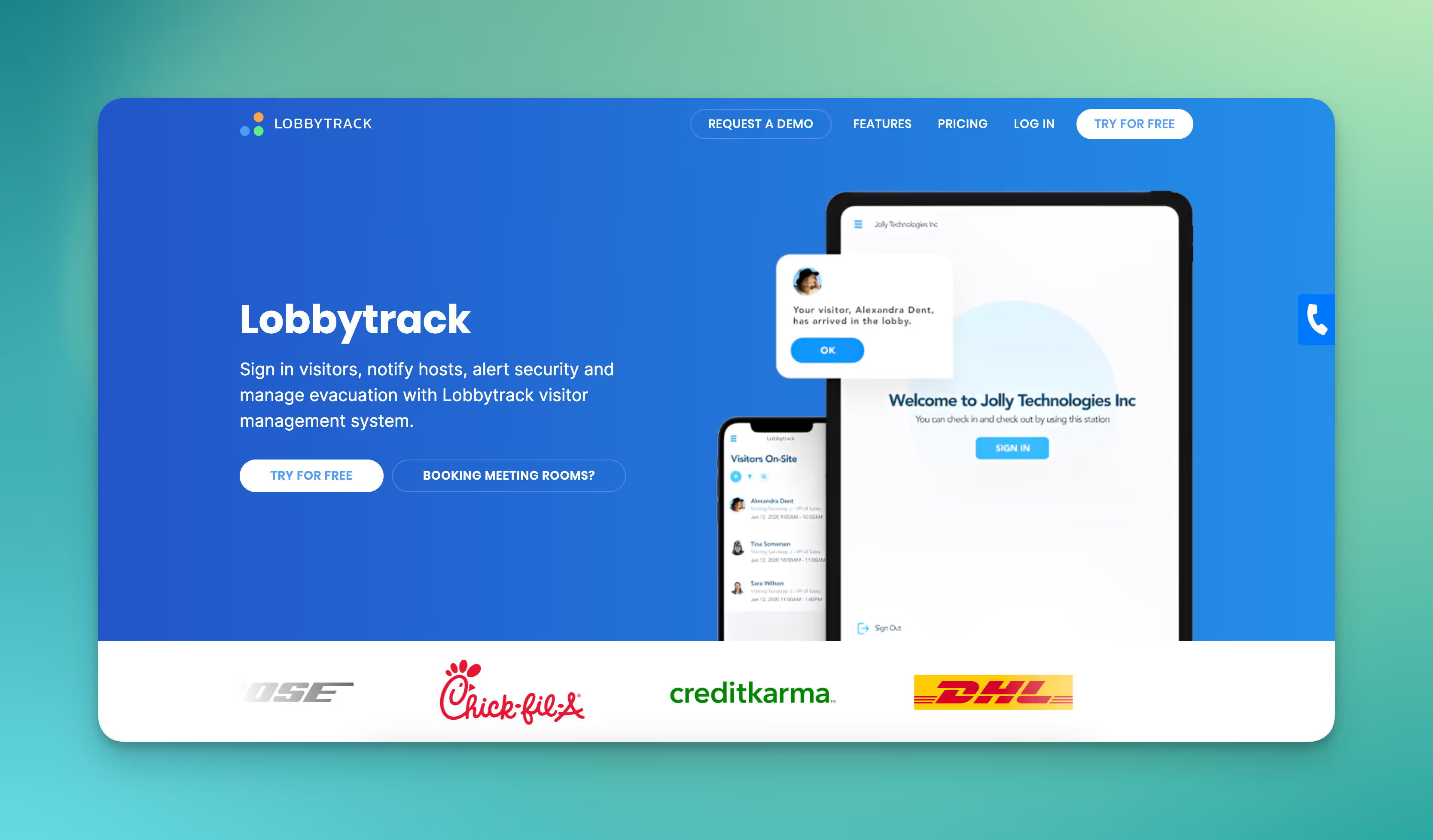
Lobbytrack is an office visitor management software that is developed in the USA and used internationally. The software digitally maps key steps in visitor management, including pre-registration, self-check-in, and badge printing.
Pre-registration and invitations for guests
Self-check-in via tablet or QR code
Check-out for complete attendance lists
Automatic badge printing with templates
Photo capture during the registration process
Host notifications, for example by email
Multi-step registration flows
Visit logs and reports
Visit agreements/signatures (in higher plans)
Lobbytrack pricing:
Lobbytrack's prices start with a free version for up to 100 visitors per month. The Basic package costs $50 per location per month, and Professional costs $100 per location per month. Prices for Enterprise are calculated on request.
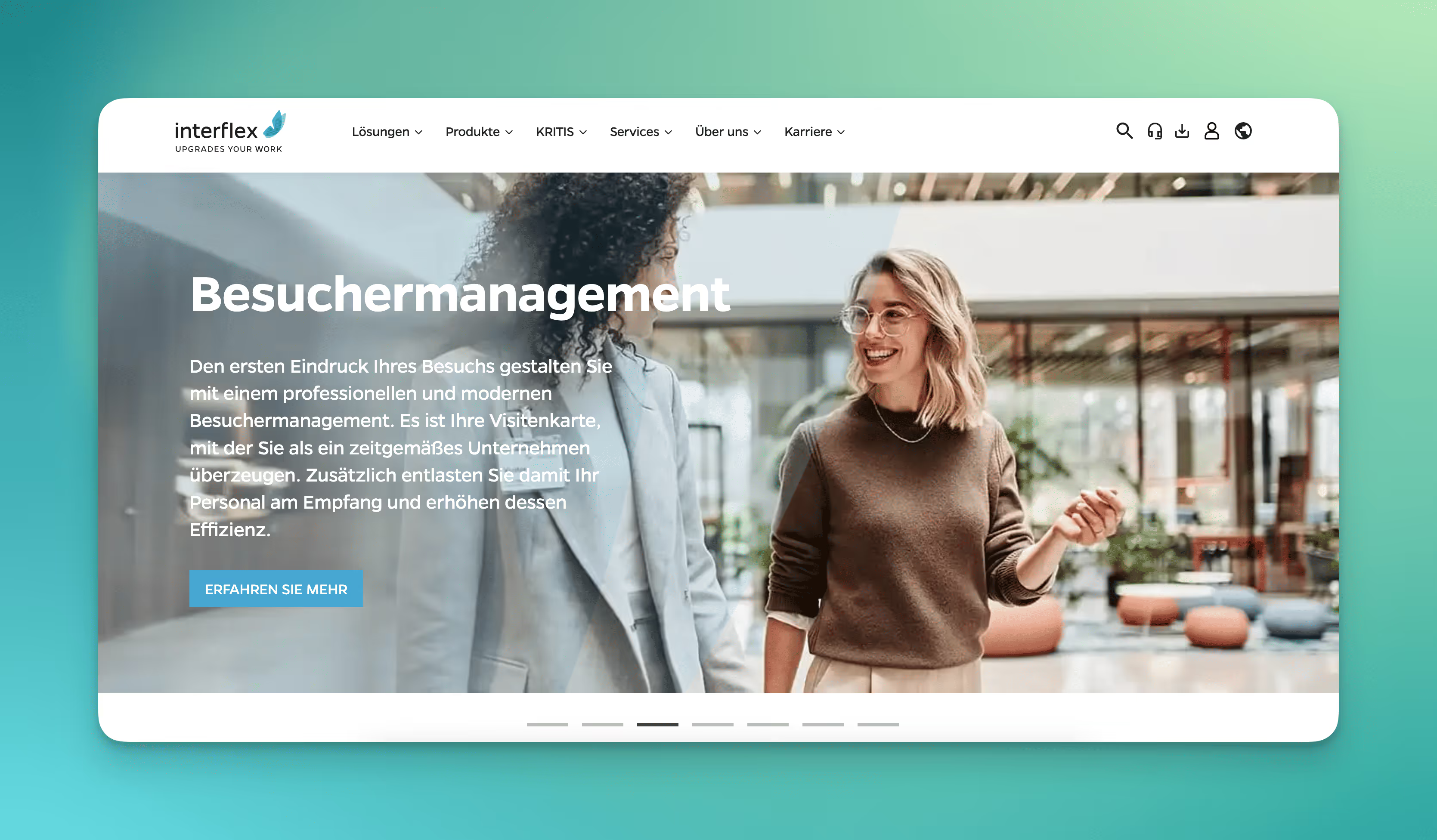
#5 Interflex
Interflex is a German provider of access and security systems that also offers its own visitor access management software module. The software is sometimes used in combination with access control systems and is suitable for companies with increased security requirements.
Pre-registration and invitation of visitors
Self-registration at the reception terminal
Check-in and check-out with automatic logging
Issuance of visitor badges with time-limited access rights
Photo capture and identity verification
Digital confirmation of security policies or instructions
Blacklists and escort rules for security-critical areas
Integration into access control and time recording systems
Interflex emphasizes the data protection-compliant management of personal data. The IF-6040 software is regularly tested according to OWASP and BSI standards and is available both on-premises and as a cloud service (Interflex Managed Services).
Interflex prices:
Interflex prices are not publicly available and are calculated on a project basis. The range of functions depends on the modules used and the selected operating mode (on-premises or cloud).
What features make PULT a popular visitor management software?
PULT combines visitor management with meeting room and workspace booking as well as office analytics. The Insights feature will be released soon. It provides you with analytics on visitor traffic and insights into which employees receive visitors and where.
Reserve workspaces for guests: Visitors can be assigned a desk in advance. This ensures that partners, applicants, and other day guests can use a space in the office.
Book meeting rooms directly: Hosts assign visitors an appointment and a suitable room.
Catering options:For longer meetings, workshops, or events, snacks, drinks, and full catering can be booked in the same system.
Real-time notifications for hosts:As soon as a visitor checks in, the host automatically receives a message via Slack, Microsoft Teams, or email and can immediately welcome their guest.
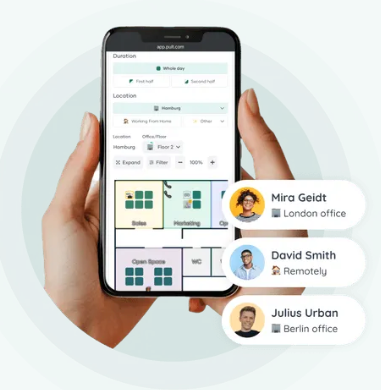
With PULT, you can also manage individual workstations, zones, and use the visitor parking management software. Your employees check in automatically with PULT Presence automatisch: as soon as your employees' laptops or smartphones connect to the company Wi-Fi, their presence is detected. This means that reception also knows whether the host is already in the building when the guest arrives.
{{logos}}
{{onpage-cta}}
Office Insights
Best Space Management Software (Comparison 2026)
With the increase in working from home, many office spaces remain unused. Companies are therefore paying more attention to the ratio of space used to running costs. Office evaluation software provides detailed data on this, enabling better planning and adaptation of space utilization.
How do I choose the best coworking space management software?
The best office evaluation software can consolidate and visualize many data sources. The criteria you use depend on your goals. For example, pay attention to:
Integrations & data sources: Important if you want to include booking and calendar data (e.g., Outlook, Google).
Display of space: Helpful if you want digital floor plans to give you transparency about occupancy and available spaces.
Mechanisms against unused bookings: Relevant if you want to avoid vacancies: e.g., through check-in functions or automatic releases.
Key figures & evaluations: Interesting if you want to use trends, utilization rates, or no-show rates for your planning.
The following information on features, prices, and services is based on publicly available sources from the providers (as of September 2025). It is for guidance only. Providers may make changes at any time; no guarantee can be given for the accuracy or completeness of this information.
This article contains a presentation of PULT as part of a market overview. It is based on careful research, but is not an objective test report, rather an editorially prepared comparison with some promotional elements.
All brands mentioned are the property of their respective rights holders and are listed for comparison purposes only. PULT has no business relationship with the providers mentioned.
The 7 best office space management softwares
#1 PULT
PULT is office analytics software from Germany that combines office analytics, room booking, and desk sharing in one platform. In addition to managing workstations, rooms, and zones, PULT provides detailed analytics of these resources based on both booking and actual attendance data.
Utilization reports for rooms, workstations, zones, and entire floors
No-show rates and automatic release of unused bookings
Trend analysis by day of the week, time of day, and team
Visualization in floor plans for quick identification of free or overloaded areas
Exports and API for connection to BI systems
Role-based access to provide management and HR with appropriate reports
Data is stored and processed in encrypted form. The software does not allow any conclusions to be drawn about the behavior of individual employees, which makes it compliant with data protection laws.
PULT pricing:
PULT pricing starts at €1.90 per user per month. Additional plans offer advanced features such as API access, single sign-on, and white label options. A free demo and product demonstration are available.
Robin is a US office space management software that offers workplace analytics in addition to room booking and desk sharing. It focuses on evaluating space utilization and occupancy rates for rooms and desks across multiple locations.
Dashboards for room and workspace usage with trend analyses
No-show detection and automatic release of booked but unoccupied rooms
Portfolio comparisons between buildings and locations
Sensor integration for real-time occupancy data
Reports on average and maximum utilization, occupancy patterns, and room size ratios
Robin provides a Data Processing Addendum (DPA) for customers from the EU and refers to the requirements of the General Data Protection Regulation (GDPR) in its privacy policy. Processing takes place in data centers in the US, operated by AWS.
Robin pricing:
Prices are not publicly displayed on the website.
Tip: If you don't want to install sensors in your company, you can still obtain accurate attendance data: PULT Presence detects the presence of your employees as soon as their smartphone or laptop connects to the company Wi-Fi. This also works with your existing Wi-Fi network.
#3 Eptura Engage
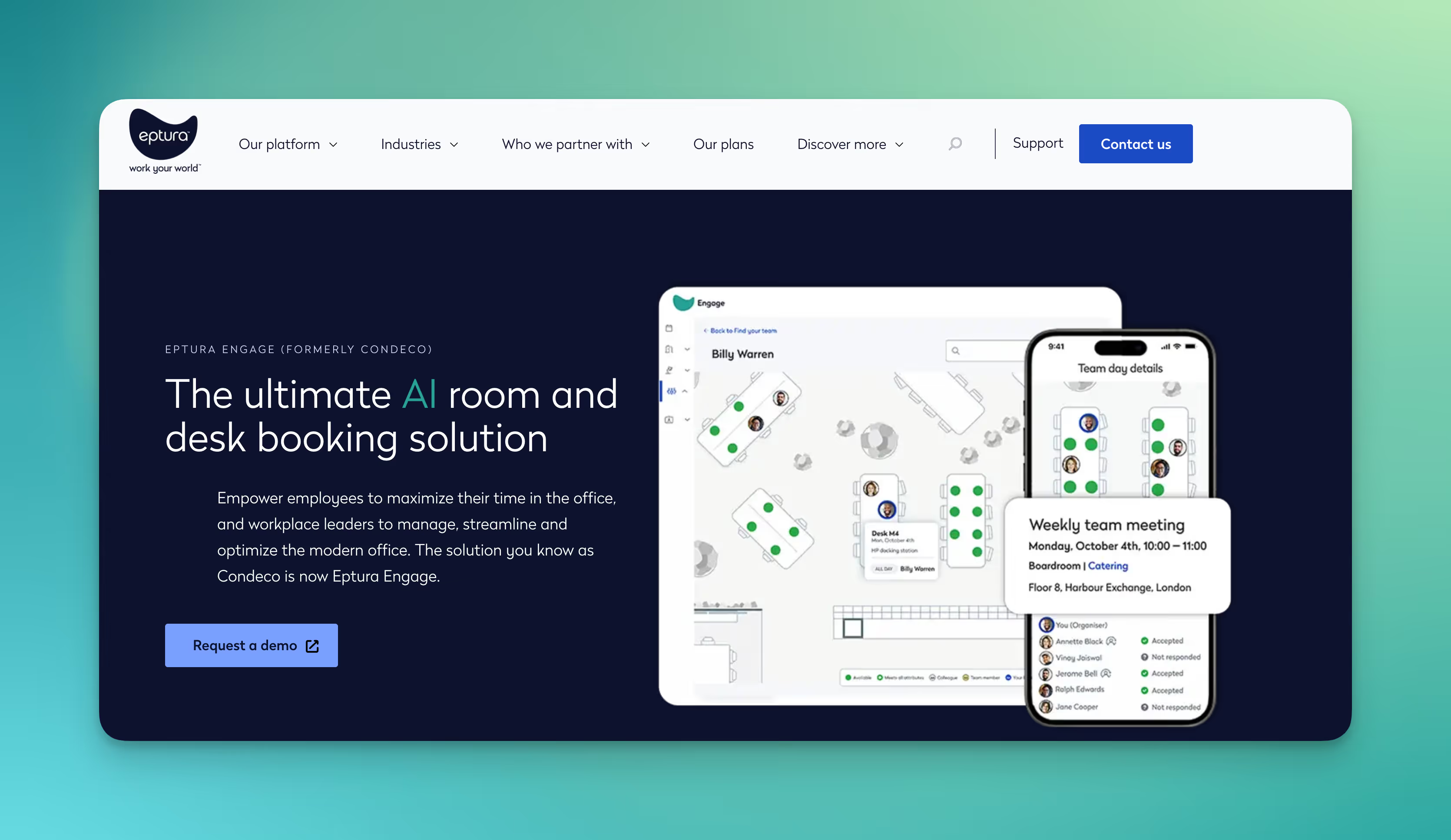
Eptura bundles several software offerings for workplace and space management, including Condeco for room booking and Archibus for office evaluation. The platform is designed for large companies and public authorities.
Reports and dashboards on the use of rooms, desks, parking spaces, and other areas
Sensor connection for real-time data on occupancy and utilization
Workflows and approvals for usage rights and reservations
Comparisons between buildings and locations
Integration with Office 365 for reporting and planning processes
Eptura offers a Data Processing Addendum (DPA) that explicitly refers to the General Data Protection Regulation (GDPR). Standard contractual clauses (SCC) apply to data transfers outside the European Economic Area. The provider does not publicly disclose specific cloud regions or server locations.
Prices for Eptura Engage:
Eptura Engage does not disclose prices on its website. The website also does not offer a free trial or product demo.
#4 Spacewell
Spacewell is a Belgian provider of smart building and workplace software. The platform combines room booking, IoT sensors, and office analytics and is aimed at companies that want to manage space utilization, work environments, and building operations in a unified manner.
Utilization reports for workstations, rooms, zones, and entire locations
Real-time data through sensor connectivity (occupancy, air quality, climate)
Dashboards for space planning, cost per workspace, and occupancy trends
Automated workflows for adjusting capacities or services
Portfolio comparisons of multiple buildings or branches
Spacewell pricing:
Spacewell does not provide publicly available pricing information for its software.
#5 Metrikus
Metrikus is a British provider specializing in connecting IoT sensors, sustainability data, and office analytics. The platform collects data from various sources and displays it in dashboards and reports.
Utilization analyses for rooms, workstations, and zones
Sensor integration for occupancy, temperature, CO₂, and air quality
Dashboards with KPIs on space utilization, productivity, and ESG indicators
Reports on costs per workstation, peak loads, and trends
Integration of sustainability metrics (e.g., energy consumption, CO₂ footprint)
Metrikus publishes a GDPR policy and is committed to complying with it. According to the privacy policy, data may also be processed outside the EEA, in which case safeguards such as standard contractual clauses are used. The provider does not publicly disclose specific data center regions.
Metrikus prices:
Prices are offered individually through sales and are not available on the website.
#6 XY Sense
XY Sense is an Australian space and workplace management software specializing in real-time occupancy analysis using sensor technology. The system is primarily used in large offices to record the actual use of workstations and rooms.
Real-time utilization of workstations, rooms, and zones
Sensors with privacy-by-design that only record movement patterns as X/Y coordinates
Dashboards with heat maps, utilization trends, and capacity analyses
Notifications in case of over- or under-occupancy
Exports and API for business intelligence systems
The sensors process data directly on the device; raw images or personal information never leave the sensor. Only anonymized occupancy data is transferred to the cloud. XY Sense is GDPR and CCPA compliant and ISO 27001 certified.
Prices from XY Sense:
XY Sense also requires a quote to determine pricing, as costs vary greatly depending on the application scenario (size of the area, number of sensors, desired functions).
#7 Locatee
Locatee is a Swiss space utilization software specializing in workplace analytics. The platform uses existing IT infrastructure data, supplemented by sensors, to generate evaluations of office space usage.
Dashboards with key figures on utilization, peak loads, and space efficiency
Portfolio comparisons across locations, buildings, and floors
Analysis of teams and departments with role-based access
Trend analysis for work patterns and hybrid use
Integration of existing systems (e.g., Wi-Fi, access control, desk booking)
API and exports for BI and FM systems
Locatee is GDPR-compliant. Personal data is already anonymized on the customer side, so that only anonymized usage data is transferred to the cloud. Data centers are ISO 27001 certified.
Locatee pricing:
Locatee is offered as an annual subscription, with costs based on floor space (square meters or square feet). Specific details are not provided.
What makes PULT a popular workplace management software?
PULT office evaluation provides you with booking data and values for the actual occupancy of workstations, rooms, zones, and parking spaces.
PULT Presence records the actual presence of your employees as soon as their laptop or smartphone connects to the company Wi-Fi. Check-in is automatic and completely independent of sensors. All you need is your Wi-Fi.
{{logos}}
{{onpage-cta}}
Room booking
The best room booking software for your business
Room booking software usually offers a wide range of functions: in addition to reserving meeting rooms, depending on the provider, it can also be used to manage catering, individual workstations, or parking spaces. Relevant criteria include handling no-shows and compliance with data protection regulations.
The best room booking software covers a range of requirements. Which features are important to you depends on your specific project. The following criteria can help you make your choice:
Booking rooms and workspaces: Useful if you want to switch flexibly between meeting rooms, individual workspaces, or zones.
Clarity: Advantageous if digital floor plans or calendar views are intended to make it easier to keep track of things.
Check-in & automation: Relevant if you want to reduce no-shows and have unused rooms automatically released.
Analytics & utilization: Helpful if you want to track the actual use of space and align your planning accordingly.
Integrations: Useful if you want to integrate Microsoft 365, Outlook, Google Calendar, or MS Teams directly.
The following information on features, prices, and services is based on publicly available sources from the providers (as of September 2025). It is for guidance only. Providers may make changes at any time; no guarantee can be given for the accuracy or completeness of this information.
This article contains a presentation of PULT as part of a market overview. It is based on careful research, but is not an objective test report, rather an editorially prepared comparison with some promotional elements.
All brands mentioned are the property of their respective rights holders and are listed for comparison purposes only. PULT has no business relationship with the providers mentioned.
The 8 best software programs for room booking
#1 PULT
PULT is a meeting room booking software from Germany that manages meeting rooms, workspaces, zones, and parking spaces in a single room booking software. It also includes visitor management, office evaluation with statistics, and special features such as automatic check-in via Wi-Fi connection in PULT Presence.
The software can be integrated into Microsoft Outlook, Microsoft 365, Google Calendar, MS Teams, and Slack. Booked but unused rooms and spaces are automatically released again. In addition, PULT provides evaluations of actual usage and booking behavior, which allows for better planning of rooms, spaces, and workstations.
All-in-one software for rooms, workstations, visitors, parking spaces, and catering
Interactive floor plans for easy booking
Integration with Outlook, 365, Google Calendar, MS Teams, and Slack
QR or Wi-Fi check-in, automatic release in case of no-shows
Analyses of utilization and space planning
PULT Pricing:
PULT pricing starts at €1.90 per user per month. Additional plans offer advanced features such as API access, single sign-on, and white label options. A free live-demo and product demonstration are available.
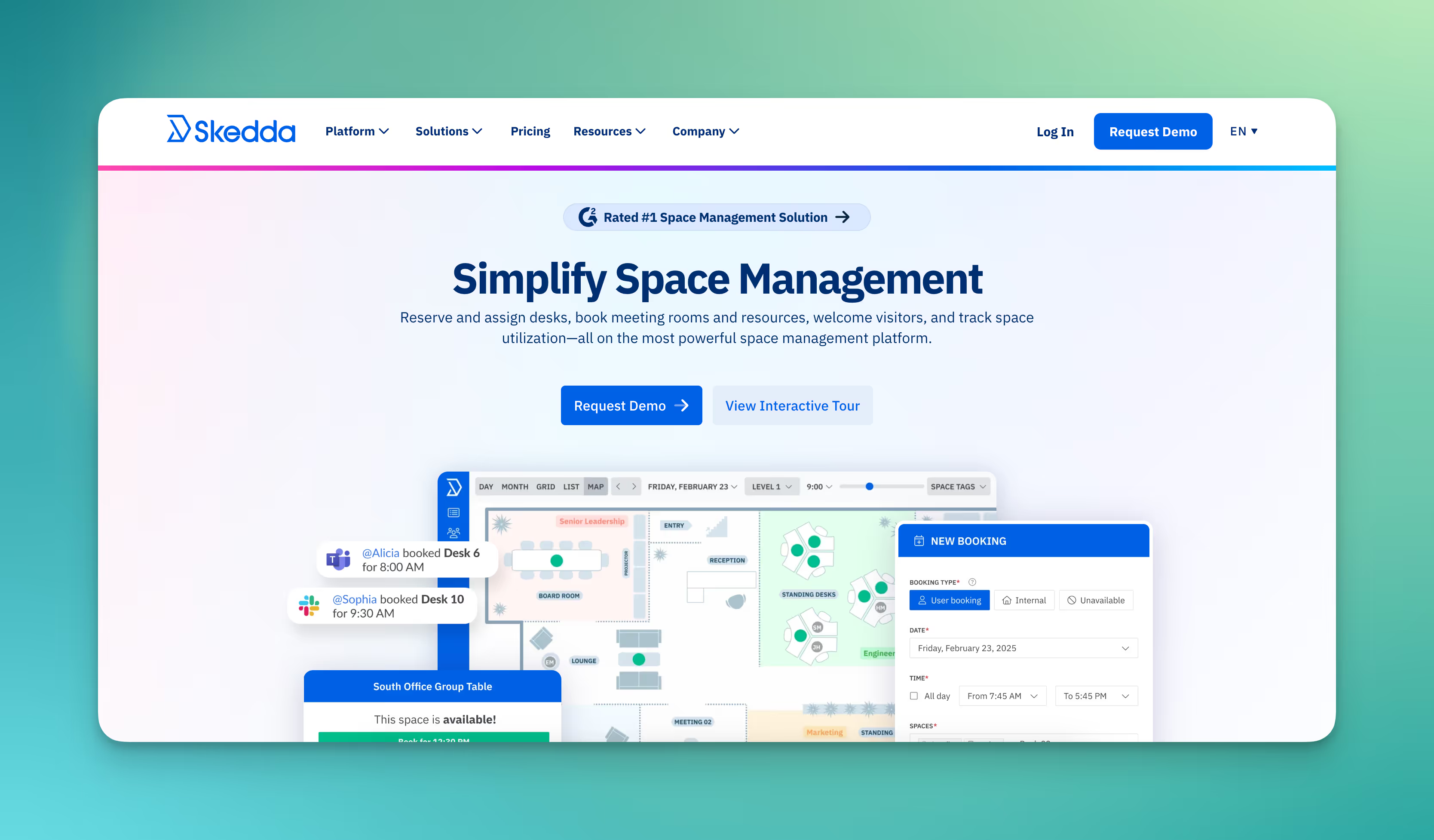
Skedda is an internationally used meeting room booking system headquartered in Australia. The software is cloud-based and designed to display reservations clearly and control them using rules.
Key features include interactive floor plans where workspaces or meeting rooms can be booked directly. Administrators can set rules for usage, time slots, or quotas. The platform offers calendar synchronization with Outlook and Google, single sign-on via Microsoft or Google, and a visitor management module. A statistics section provides insights into room usage.
Interactive floor plans for rooms and workspaces
Booking rules and quotas
Two-way sync with Outlook and Google Calendar
Single sign-on (SAML, Microsoft, Google)
Integrated visitor management
Room utilization analytics
Mobile app for iOS and Android
In terms of data protection, Skedda is hosted on Microsoft Azure.
Skedda pricing:
Skedda is licensed per room or resource, not based on the number of users. Prices start at $99 per month for 15 rooms. All plans include unlimited users and bookings. A 30-day trial period is available.
#3 Robin
Robin is a US room and equipment booking software that covers room booking, visitor management, and space analysis. The system is aimed primarily at larger companies that want to manage hybrid working models and plan their office space.
Features include integration with Outlook, Exchange, and Google Calendar, bookings directly in MS Teams or Slack, and mobile apps for iOS and Android. The software supports no-show handling: rooms that are not occupied are automatically released again. Sensors can also record actual usage.
Room booking, desk sharing, and visitor management
Integration with Outlook, Exchange, Google, MS Teams, and Slack
Mobile apps for iOS and Android
Automatic release of unused rooms
Support for room displays and service bookings (e.g., catering)
Analytics on usage, utilization, and space requirements
API for custom integrations
Robin provides a Data Processing Addendum (DPA) for customers and refers to the requirements of the General Data Protection Regulation (GDPR) in its privacy policy. Processing takes place in data centers in the US, operated by AWS.
Robin prices:
Prices are not publicly displayed on the website.
#4 Eptura Engage
Eptura Engage is an internationally used room scheduling software for room booking and workplace management with a focus on enterprise requirements. In addition to the software, the manufacturer also offers its own displays for meeting rooms that are directly connected to the system.
The software supports room booking, desk sharing, parking space and locker management. Bookings can be made via Outlook add-ins or directly in the web and mobile interface. Floor plans show available spaces, while rules and workflows control usage. In addition, analyses and reports on utilization are available, and services such as catering or technical equipment can be booked as needed.
Room booking, parking space and locker management
Integration with Outlook / Office 365
Digital door signs (own hardware)
Interactive floor plan view
Approval workflows and booking rules
Analyses and reports on utilization
Service and catering booking
Prices for Eptura Engage:
Eptura Engage does not disclose prices on its website. The website also does not offer a free trial version or product demo.
#5 YaRooms
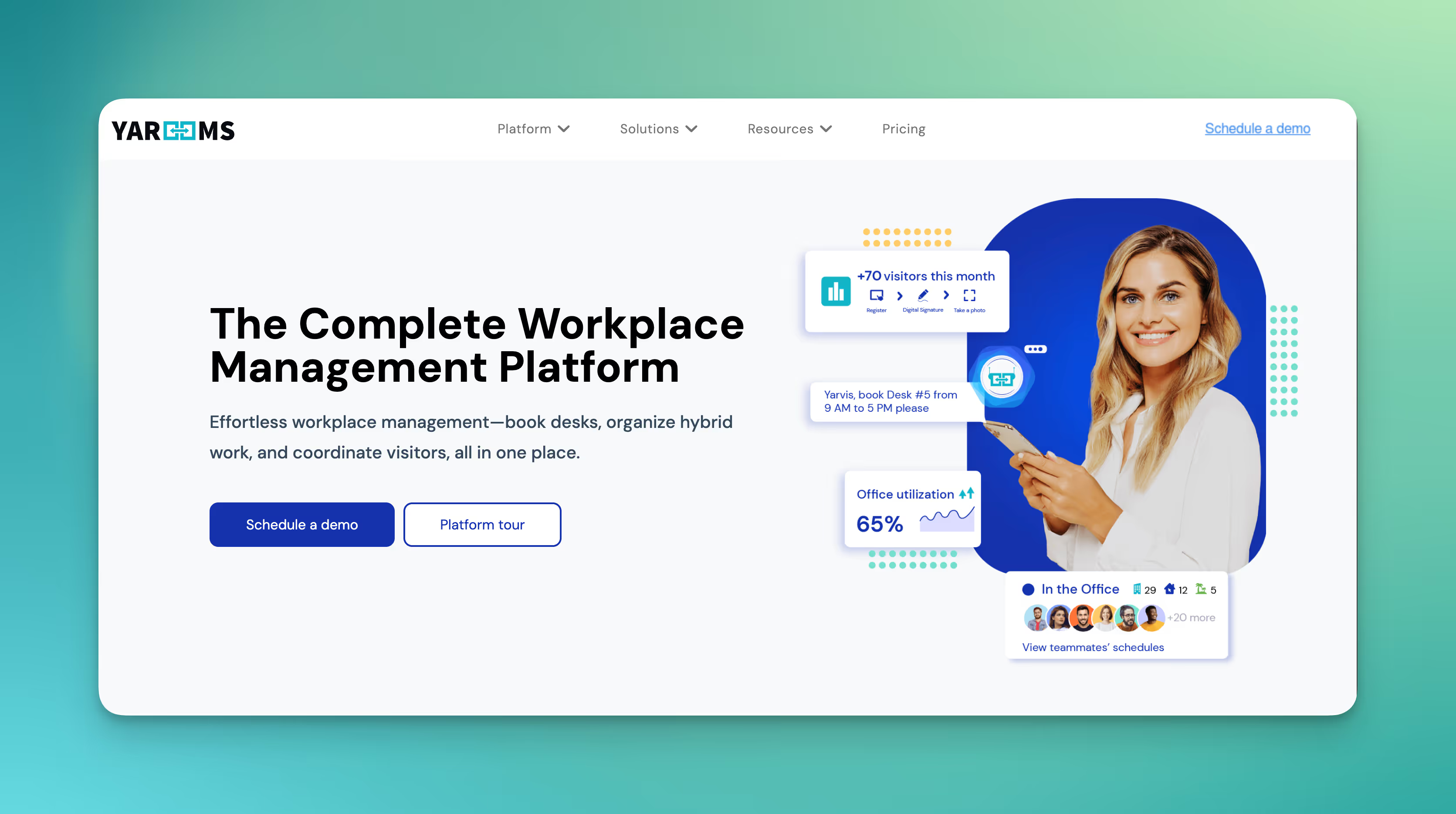
YaRooms is a European conference room scheduling software based in Romania that develops a modular platform for room and workspace booking. The system is geared toward hybrid working models and combines classic reservation functions with sustainability features such as CO₂ tracking.
In addition to room and desk booking, visitors can also be managed and digital door signs can be used. Bookings can be made via the web, mobile app, or directly in Outlook and Google Calendar. Reports and dashboards allow you to track utilization and usage data.
Room and workspace booking
Visitor and reception management
Digital door signs (signage)
Hybrid planner for attendance days
Interactive location maps and floor plans
Reporting and CO₂ tracking
Outlook and Google integration
YaRooms is certified according to ISO 27001 and ISO 27701. Customer data is processed in Azure data centers.
YaRooms pricing:
Prices start at $99 per month for the starter package and 10 users. Larger packages are priced at $399 and $899 per month. Billing is flat-rate, regardless of the number of users. Visitor management is an additional $99 per month per property.
#6 deskbird
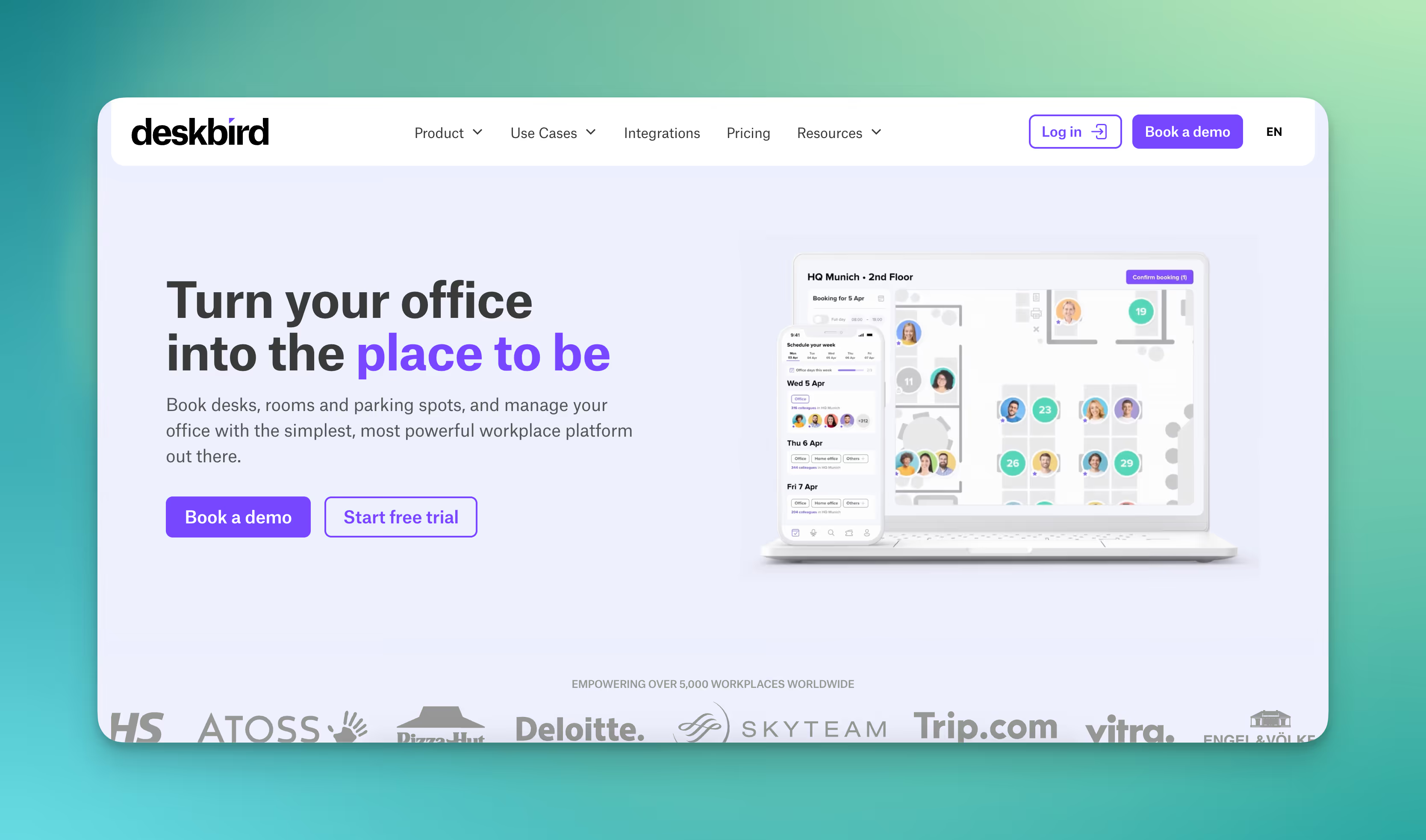
deskbird is a Swiss room reservation software specializing in booking solutions for hybrid workplaces. In addition to room booking, the platform also includes parking space reservations and team planning.
Workstations and rooms can be booked via the mobile app or desktop. Additional features include QR code check-in and a team calendar that shows when colleagues are in the office. An analytics dashboard provides insight into attendance and utilization.
Room booking, desk sharing, and parking space management
Mobile app for iOS and Android
QR code check-in
Team calendar with attendance overview
Integrations with Outlook, MS Teams, Slack, and HR systems (e.g., Personio, Workday)
Office utilization analyses
Prices for deskbird:
deskbird offers per-user licensing. The Starter package starts at $2.80 per user per month, while the Business package starts at $3.80 per user per month, with prices decreasing as the number of users increases. Individual enterprise plans are available for larger companies.
#7 Roomzilla
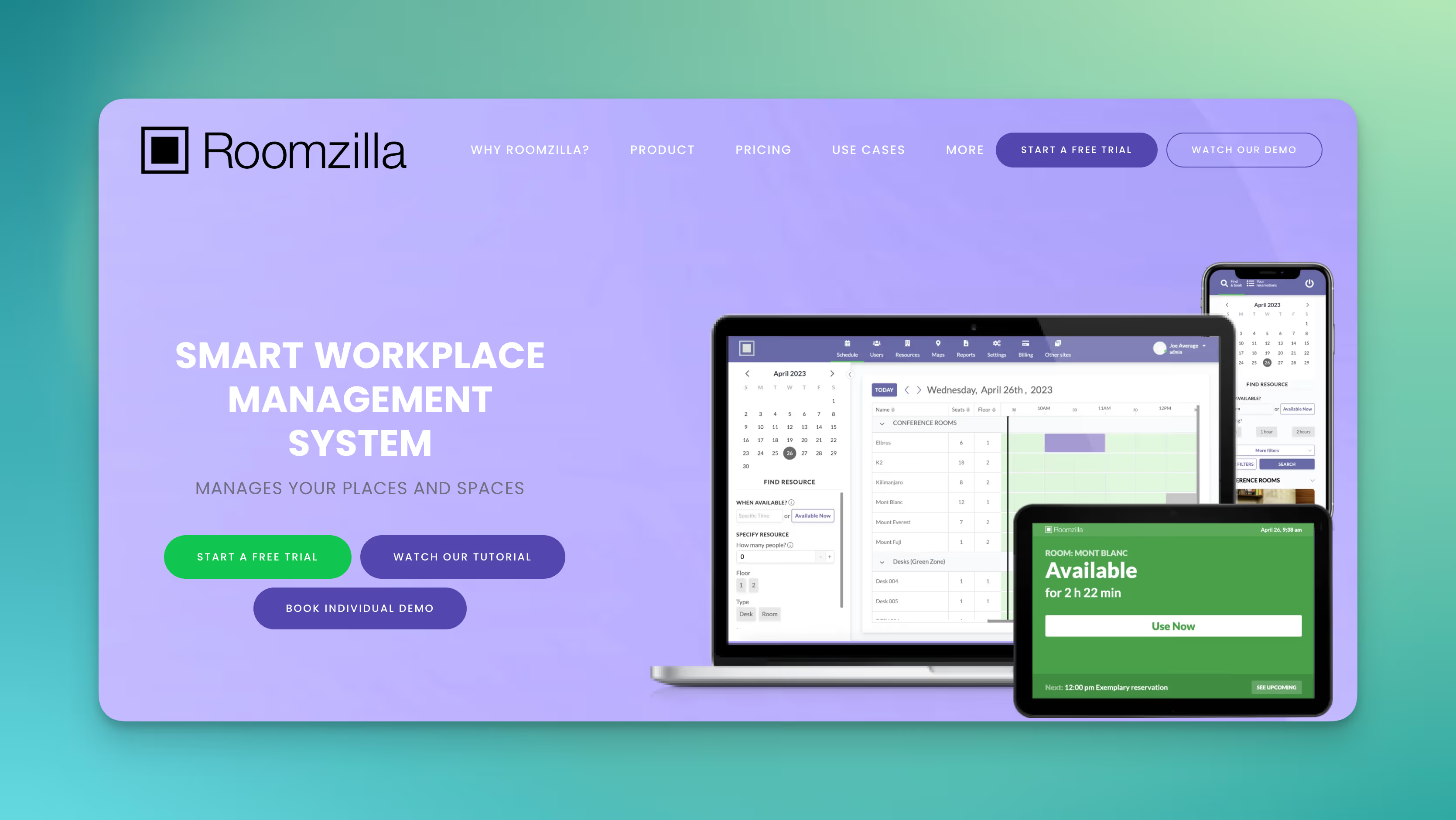
Roomzilla is a cloud-based room booking system for workspace booking with a focus on easy implementation and operation. The system is used internationally and is utilized in start-ups, coworking spaces, and educational institutions, among others.
The platform allows users to reserve rooms, desks, and equipment such as projectors or whiteboards. A special feature is the tablet app for door displays, which shows the current status of a room. Users can check in via QR codes; if they fail to check in, the booking is automatically canceled. Floor plans help with orientation, and calendar synchronization with Google and Outlook 365 is integrated.
Room and workspace booking
Management of equipment, e.g., projectors
Tablet app for door displays
QR code check-in and automatic cancellation for no-shows
Interactive floor plans
Reporting and export functions
Integration with Google Calendar and Outlook 365
Hosted by Roomzilla in the cloud; the provider does not specify the exact data center locations.
Roomzilla pricing:
Roomzilla offers a free package for up to three rooms or desks. Beyond that, the standard rate is $10 per resource per month (billed annually). In the business plan with advanced features, a room costs $17 per month, and a desk costs an additional $10 per month.
#8 Microsoft Bookings
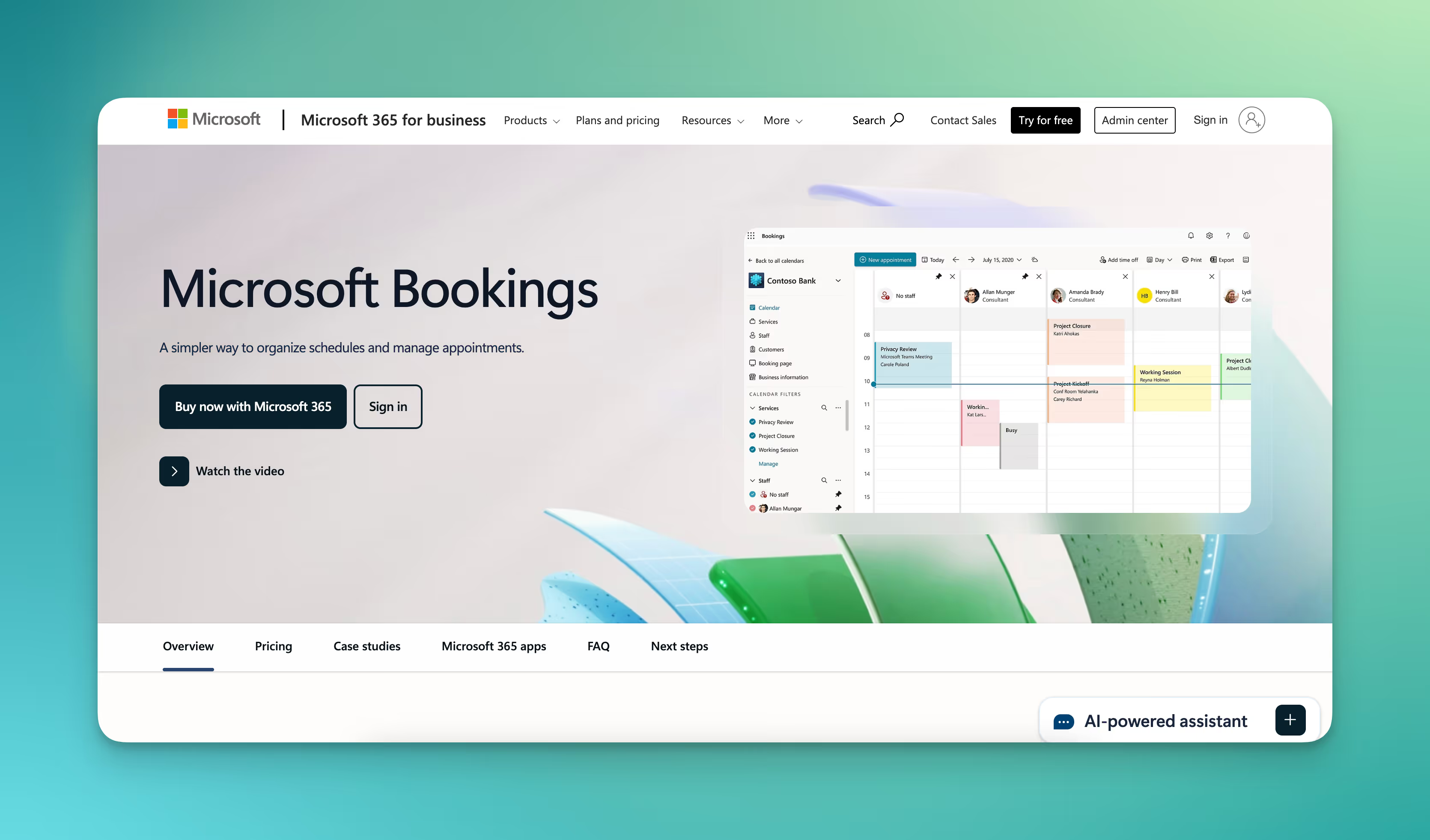
Microsoft Bookings is part of the Microsoft 365 suite and was originally developed as an appointment booking tool. In addition to traditional services such as consulting or training, it can also be used to reserve rooms and resources.
The system creates a public booking page where internal and external users can reserve appointments or rooms. Confirmations and reminders are sent automatically by email. Thanks to direct integration with Outlook and Microsoft Teams, bookings appear in the calendars of those involved, and Teams meetings can be added automatically.
Appointment and resource booking via a web interface
Automatic confirmations and reminders
Calendar integration with Outlook and Teams
Management of employees and resources in a central calendar
Mobile and desktop use
The software runs on the Microsoft 365 infrastructure. Microsoft has numerous security certifications (ISO 27001, SOC, C5).
Pricing for Microsoft Bookings:
Microsoft Bookings is included in most Microsoft 365 Business and Enterprise licenses. It is available starting with the Microsoft 365 Business Basic package ($6 per user/month). There is no separate charge.
What features make PULT a popular room booking software?
PULT shows you all available meeting rooms for your selected time period. Choose based on images, detailed descriptions, number of seats, and other amenities such as available technology or comfort features.
With smart filters, you can filter meeting rooms by availability, capacity, and amenities (such as screens or whiteboards).
Room bookings are synchronized directly and automatically with your calendar. At the same time, the invited colleagues are notified.
Add catering and service options to the room booking. This means your event is planned in full right away and you don't have to worry about it separately.
With PULT, you can also manage individual workstations, zones, and parking spaces. Check-in is automatic withPULT Presence as soon as your employees' laptops or smartphones connect to the company Wi-Fi, their presence is detected. Otherwise, the booking is automatically released and becomes available to others.
{{logos}}
{{onpage-cta}}
Hybrid Work
Return to Office 2026: Studies & Successful Measures
Return to Office (RTO) or back to office refers to the return to the office after periods of high remote working. Studies show that mandatory requirements for returning to the office increase staff turnover, reduce employee satisfaction, and have a negative impact on performance.
According to return to office surveys, a mandatory return to the office leads to declining satisfaction and has a negative impact on productivity.
If you introduce a mandatory return-to-office policy, you risk increased turnover, especially among women, high performers, and millennials.
The attractiveness of the office is the biggest lever for employees to voluntarily return to the office to enjoy its benefits.
What does “return to office” (RTO) mean?
Return to office (RTO) describes the return to the office after periods of high remote or home office work. The term has become established especially in the aftermath of the COVID-19 pandemic. Return to office can be organized voluntarily or mandatorily by the employer.
Distinction: Return to office vs. office first vs. hybrid work
Remote work: Working outside the office, either permanently or on certain days.
Hybrid work: A combination of office and home work, often with fixed team rules (e.g., two to three days in the office, the rest at home).
Office-first vs. remote-first: Basic attitude toward the place of work, either the office as the main place of work or the home office.
Return to office policy: binding requirement from the employer, for example, at least three days per week in the office.
Incentive-based return to office: offering attractive office space, team days, zones in the office for teamwork and desk sharing, so that office presence is perceived as added value.
The importance of returning to the office
The idea behind returning to the office is to strengthen collaboration, belonging, corporate culture, and innovation in the workplace.
However, if you roll out a return to the office as a compulsory measure, you risk dissatisfying parts of your workforce or causing them to look for new opportunities.
If, instead, you establish hybrid working models and make your office more attractive through desk sharing, quiet zones for silent and concentrated work, meeting areas, and zones for collaboration, you increase the likelihood that your employees will voluntarily be present in the office and enjoy its benefits.
Evaluate presence: PULT Presence
With PULT Presence, workplace check-in happens automatically as soon as employees connect their device to the company Wi-Fi.
✔ Uses existing infrastructure ✔ Real-time utilization & transparent attendance ✔ No additional hardware, no clicks, no effort ✔ Fully GDPR compliant
Several recent studies show that forcing employees to return to the office with back to office mandates does not increase productivity. Instead, satisfaction declines and loyalty to the employer weakens.
A study by the University of Pittsburgh analyzed over 100 publicly traded companies that have introduced a mandatory return to the office. The result: no measurable performance gains, but a decline in employee satisfaction.
Another study based on over three million LinkedIn profiles shows that employee turnover increases significantly after the introduction of return-to-office policies. Women, high performers, and younger generations are particularly affected.
At the same time, the time-to-hire (the time it takes to fill a position) increases. The rate of successful hires declines.
Studies from the US and Europe confirm that the motivation to come to the office voluntarily is strongly related to the design of the workplace and clear communication, but not to coercion.
If you want to introduce a mandatory return-to-office policy, you cannot expect performance to increase. On the contrary, you risk valuable members of your workforce becoming dissatisfied and/or leaving.
If you want employees to come to the office more often and enjoy doing so, you can achieve this by creating an attractive workplace that entices your employees with offers that working from home cannot provide.
How can I get employees to return to the office voluntarily?
The return to office concept works best when the working conditions in the office are attractive. The higher the quality of the working environment, the greater the incentive to return regularly. Your office should offer advantages that your employees do not experience when working from home.
1. Room concepts and zoning
Multispace principle: Plan differently designed zones for concentrated work, collaboration, exchange, and relaxation.
Retreat zones: Acoustically shielded workstations with partition walls, textile surfaces, and plants reduce noise levels. In an office that has been calmed in this way, people have been shown to concentrate better and for longer.
Team zones: Rollable furniture makes office spaces and specially designed zones convertible. Tables, seating, whiteboards, and partitions can be moved together as needed so that this furniture suits the respective project work.
Phone booths and small meeting rooms: These rooms reduce noise in open-plan offices and prevent phone calls or video conferences from disturbing the rest of the team.
2. Acoustics and quiet
Sound absorbers, ceiling panels, and partitions reduce reverberation and background noise.
Greenery in the form of plants or green partitions improves acoustics, indoor climate, and atmosphere.
You should keep areas for quiet work clearly separated from areas for discussion and teamwork. This clear zoning also makes it easy for your employees to find the right area for the task at hand.
Tip: In PULT, you can divide the office into zones and define their respective purposes.
3. Light and climate
Natural daylight is an important factor for people's personal well-being. Therefore, position workstations close to windows and use glass walls when room dividers are necessary to draw light deep into the space.
In Germany, artificial lighting must reach at least 500 lux at the workplace and be dimmable. Lights with a neutral white spectrum, i.e., from 4,000 to 5,000 Kelvin, have a positive effect on alertness and concentration.
Also consider the indoor climate: modern ventilation systems, CO₂ monitoring, and a temperature between 70 and 73 degrees Fahrenheit create better working conditions.
4. Relaxation and breaks
Lounges with sofas and armchairs offer your employees physical relaxation during the working day. They are a welcome and popular alternative to office chairs, at least temporarily, during calls or breaks. With laptop stands provided, your employees can also continue to work in a focused manner while sitting in the armchairs.
A well-equipped kitchen with a refrigerator, microwave, kettle, coffee, tea, and water stations enhances the office and break times.
Snacks and drinks, as well as a canteen, increase the quality of the stay and offer an advantage over working from home, where your employees have to take care of every meal themselves.
Tip: Fresh fruits as a supposed benefit in job advertisements has long since become a negatively connotated internet meme.
On the other hand, high-quality and comfortably furnished break areas, a constantly available supply of drinks and snacks, or even a canteen can boost return to office morale. These advantages can be effectively communicated to applicants.
5. Technology for switching between working from home and the office
If you want your employees to enjoy using your office, you should equip it with the technology needed to ensure that switching between home office, office, zones, and meeting rooms works smoothly. This also ensures that your employees can easily switch between the different zones.
Storage space for personal items: Lockers or cubicles are practical and convenient when many employees frequently switch between the office and home office. Jackets, backpacks, or bike helmets can be safely stored in them.
Personal work equipment such as mice, keyboards, headsets, or noise-canceling headphones can be stored in lockable compartments. This means that these items do not have to be transported every time.
Every workstation should be equipped with docking stations or monitor adapters. Your employees can then easily connect their laptops to the existing monitors and immediately have a large setup.
Meeting rooms: Equip your meeting rooms with high-quality conference technology (microphones, cameras, large displays). Make sure that all participants—whether in the room or remote—are equally involved.
Sensors and monitoring: Sensors for room occupancy, air quality, and temperature provide valuable data. You can see when rooms are heavily used, whether air quality is deteriorating, or whether the temperature needs to be adjusted. This data helps you to continuously optimize space, as you can see actual demand and act accordingly.
Desk booking software: With a booking app, employees can reserve workspaces, zones, and meeting rooms in advance. This ensures that your employees have fair access to the available space resources.
Make returning to the office easier with desk booking
Returning to the office works best when office space is used in a way that offers real advantages over working from home. Desk sharing can save up to 30% of the office space that was previously occupied by permanently assigned individual workstations.
You can convert this space into zones for collaboration, project work, and breaks. Surveys show that these areas are in greater demand than traditional individual workstations. This creates an office that is attractive, offers variety, and makes it worthwhile to be there.
For this to work in everyday working life, you need a platform that makes space allocation and booking easy. With seat booking in PULT, your employees can ensure that the room, zone, or desk is free and available at the right time.
Workplace booking: Reserve desks with a click, integrated into Slack and MS Teams.
Room booking: Use meeting rooms without conflicts, including equipment such as whiteboards, displays, and catering.
Weekly planner: Overview of who is in the office and when. This allows you to schedule team days sensibly.
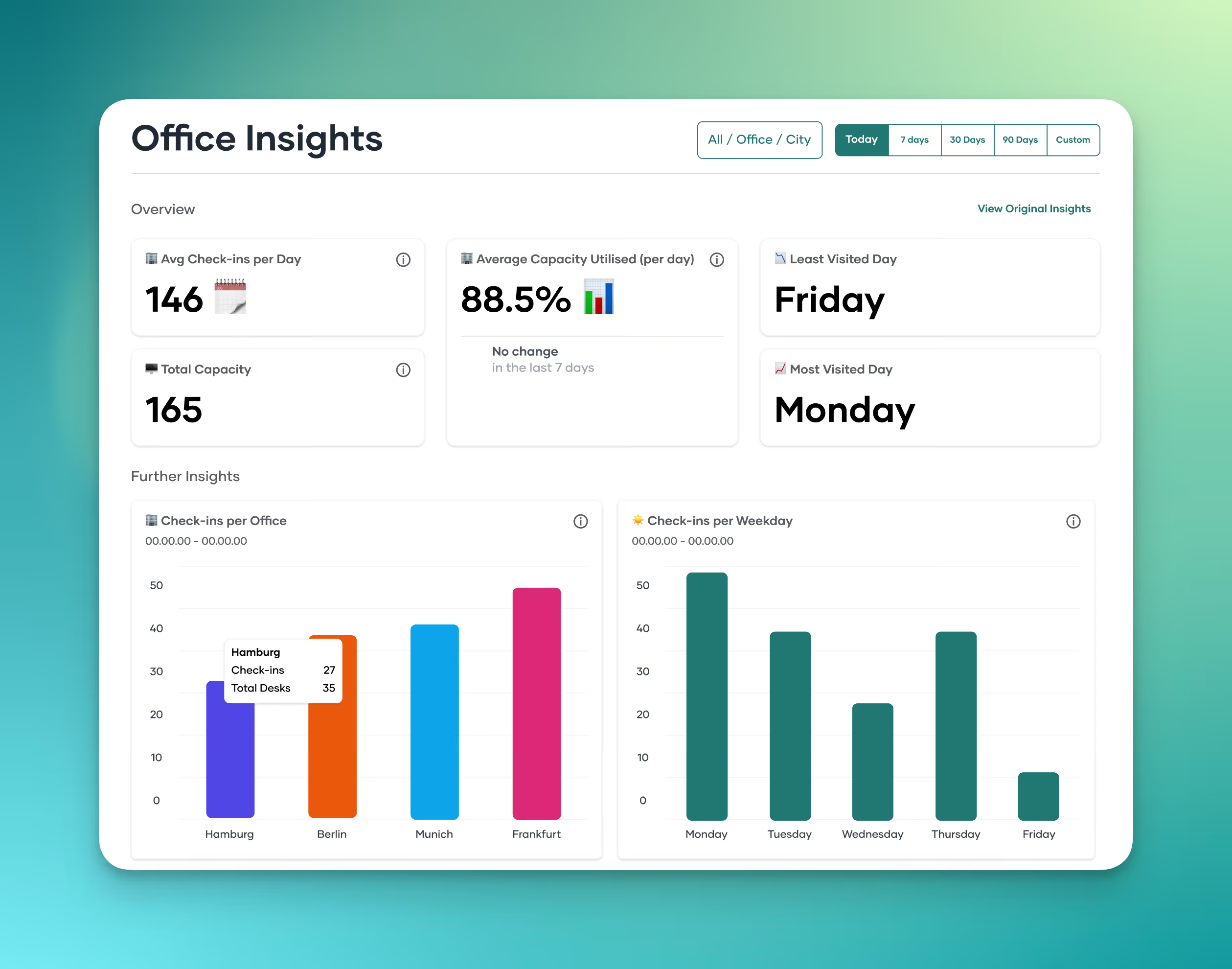
Office insights: Data on utilization to read out office utilization.

.png)
.png)

.avif)