Blog

Workplace operations insights

Practical guides for office managers building better hybrid workplaces. Learn how to optimize space utilization, automate operations, and support distributed teams.

Get workplace operations insights in your inbox

Subscribe for monthly guides on hybrid work management, space optimization, and workplace automation.

Oops! Something went wrong while submitting the form.
Office Insights

Workplace Safety in the Office: Legal Obligations, Ergonomics and Prevention

Workplace safety in the office serves to maintain employee health and provide legal protection for employers. In modern hybrid offices, safety places new demands on the organization of desk sharing and mobile work.

Workplace Safety in the Office: Key Takeaways

  • Legal framework for workplace safety in the office: The foundation consists of the Occupational Safety Act (ArbSchG), the Workplace Ordinance (ArbStättV) and DGUV Information 215-410.
  • Risk assessment in the office: The employer must identify and document the risks (physical and psychological) for each workplace.
  • Ergonomics: Desks, chairs and monitors must be adjustable to prevent musculoskeletal disorders.
  • Personnel: Depending on company size, safety officers, first aiders and fire safety assistants must be appointed in the required numbers.
  • Safety briefings: At least once a year, all employees must be instructed on the hazards and protective measures in the workplace.

What legal regulations apply to workplace safety in the office?

Workplace safety in the office is primarily governed by the Occupational Safety Act (ArbSchG) and the Workplace Ordinance (ArbStättV), which are further specified by DGUV Information 215-410.

These regulations require employers to systematically assess hazards, comply with technical standards for computer workstations and ensure employee safety through regular briefings and the provision of first aiders.

  • Occupational Safety Act (ArbSchG): It forms the foundation and obliges the employer under § 5 to conduct a risk assessment. The goal is to design work in such a way that hazards to life and physical and mental health are avoided.
  • Workplace Ordinance (ArbStättV): It defines minimum requirements for the operation of workplaces. This includes aspects such as room temperature, ventilation, lighting and the design of computer workstations.
  • DGUV Information 215-410 (formerly BGI 650): This guideline from the German Social Accident Insurance is the most important practical standard for offices. It contains detailed requirements for ergonomics, floor space and the safety-related design of work equipment.
  • Display Screen Equipment Regulation (now part of ArbStättV): It sets specific requirements for the quality of monitors, keyboards and software ergonomics to prevent strain on the eyes and musculoskeletal system.

Responsibility and Implementation of Workplace Safety in the Office

The employer is solely responsible for compliance with and implementation of all measures. For support, from the very first employee, the employer is required to provide proof of safety engineering and occupational health care (according to ASIG and DGUV Regulation 2).

Occupational safety specialists (Sifa) and company physicians provide advisory services, but keeping escape routes clear or correctly adjusting office furniture falls under the responsibility of the respective managers or office management.

How is a risk assessment created for office workplaces?

The risk assessment is the required tool for identifying risks to employee health and initiating countermeasures. According to § 5 of the Occupational Safety Act, every employer is obliged to conduct this assessment for all workplaces, document it and update it regularly.

  1. Define work areas: Divide the office into meaningful units, for example individual offices, open spaces, meeting rooms.
  2. Identify hazards: Record all physical and psychological stresses.
  3. Assess hazards: Evaluate the risk (probability of occurrence and severity of potential damage).
  4. Define protective measures: Select appropriate measures according to the TOP principle (Technical before Organizational before Personal).
  5. Implement measures: Carry out the planned improvements.
  6. Check effectiveness: Verify whether the measures have actually reduced the risk.
  7. Document and update: Legally compliant documentation of results and adaptation when changes occur (e.g. new office furniture or software).

Consideration of Psychological Stress in the Office

Since 2013, the Occupational Safety Act has explicitly required that the psychological risk assessment must also be part of the process. In the office, the focus is on factors such as work intensification, constant availability, lack of recovery periods or inadequate work organization. The goal is the prevention of stress-related illnesses and burnout.

Special Case: Risk Assessment for Hybrid Work (Office/Home Office)

Due to the alternation between office and home office, the assessment must extend beyond time spent in the office. The employer must also consider hazards for working from home and on the go. Since the employer has no direct right of inspection in the private space of employees, this is done through self-assessment questionnaires and instructions for the ergonomic design of the home workplace.

What ergonomic requirements must office workplaces meet?

Workplace ergonomics aims to adapt working conditions to the physical characteristics of people. The overarching goal is to prevent improper strain and chronic musculoskeletal disorders .

DGUV Information 215-410 and the standards DIN EN 527-1 (desks) and DIN EN 1335 (office chairs) define exact minimum requirements for this purpose.

The Ergonomic Office Chair

A suitable chair must allow dynamic sitting and be individually adjustable:

  • Seat height: The thighs should slope slightly downward, with feet flat on the floor (knee angle approx. 90° or slightly more).
  • Backrest: It must have lumbar support that supports the natural curvature of the spine in the lower back area.
  • Dynamics: The backrest should be movable (synchronous mechanism) to encourage alternating between leaning forward and backward.

The Office Desk

The desk must provide sufficient space for work equipment and the correct working height:

  • Dimensions: The standard surface area is 160 x 80 cm. A depth of at least 80 cm is necessary to maintain the viewing distance to the monitor.
  • Height: For fixed desks, the standard measurement is 74 cm (± 2 cm). However, height-adjustable sit-stand desks (switching between 65 cm and 125 cm) are ideal for reducing cardiovascular strain.
  • Surface: It must be low-reflection and matte to avoid glare from light sources.

Monitor and Input Devices for the Office

The placement of technology affects the strain on neck and eyes:

  • Viewing distance: Depending on monitor size, this should be between 50 cm and 70 cm.
  • Viewing angle: The top line on the screen should be well below eye level, so that the gaze is slightly tilted downward.
  • Arrangement: The monitor must be positioned directly in front of the user (no twisted posture). Keyboard and mouse should be placed so that the forearms can rest relaxed on the desk.

Light, Noise and Climate in the Office

  • Lighting: For office work, an illuminance of at least 500 lux is required. Natural daylight is preferred, while glare must be prevented using blinds.
  • Noise: The sound pressure level should not exceed 55 dB(A) for predominantly mental tasks.
  • Indoor climate: The recommended room temperature is between 20°C and 22°C. The relative humidity should be between 40% and 60%.

How many first aiders and safety officers do I need for the office?

The number of persons to be appointed for occupational safety is legally defined and depends on the number of insured persons present in the workplace according to DGUV Regulation 1.

  • First aiders: In offices with up to 20 employees present, one first aider must be appointed. From 21 employees onwards, at least 5% of the workforce must be trained as first aiders.
  • Safety officers (SiBe): From a company size of 20 employees, the appointment of at least one safety officer is mandatory. They support the employer on a voluntary basis in accident prevention.
  • Fire safety assistants: Here too, a quota of typically 5% of employees applies. Find all details about training and equipment for fire safety in the office.

Important for planning: The employer must ensure through vacation and sick leave periods as well as hybrid work models that the required number of helpers are physically present in the office at all times.

How is workplace safety implemented in the office with desk sharing and hybrid work?

The introduction of work models such as desk sharing and hybrid work fundamentally changes the requirements for occupational safety. Companies must ensure that the protection goals of the Workplace Ordinance (ArbStättV) are also achieved with daily user changes and in the home office.

  • Ergonomics: Since every employee has different physical requirements, shared workplaces (shared desks) must be versatile and easily adjustable.
  • Space utilization and capacities: In open-space concepts, there is a risk of overcrowding, which increases noise levels and can undermine escape route concepts.
  • Psychological stress: The uncertainty of not finding an adequate workplace in the morning ("desk hunting") creates additional stress and reduces concentration.
  • Hygiene: Frequent user changes require hygiene rules and adapted cleaning cycles.

How does booking software help with workplace safety and health in the office?

PULT is our software for workplace and room booking as well as automated presence detection. It serves many employers as a platform to fulfill their duty of care. The software includes features for ergonomics, emergency management and health protection:

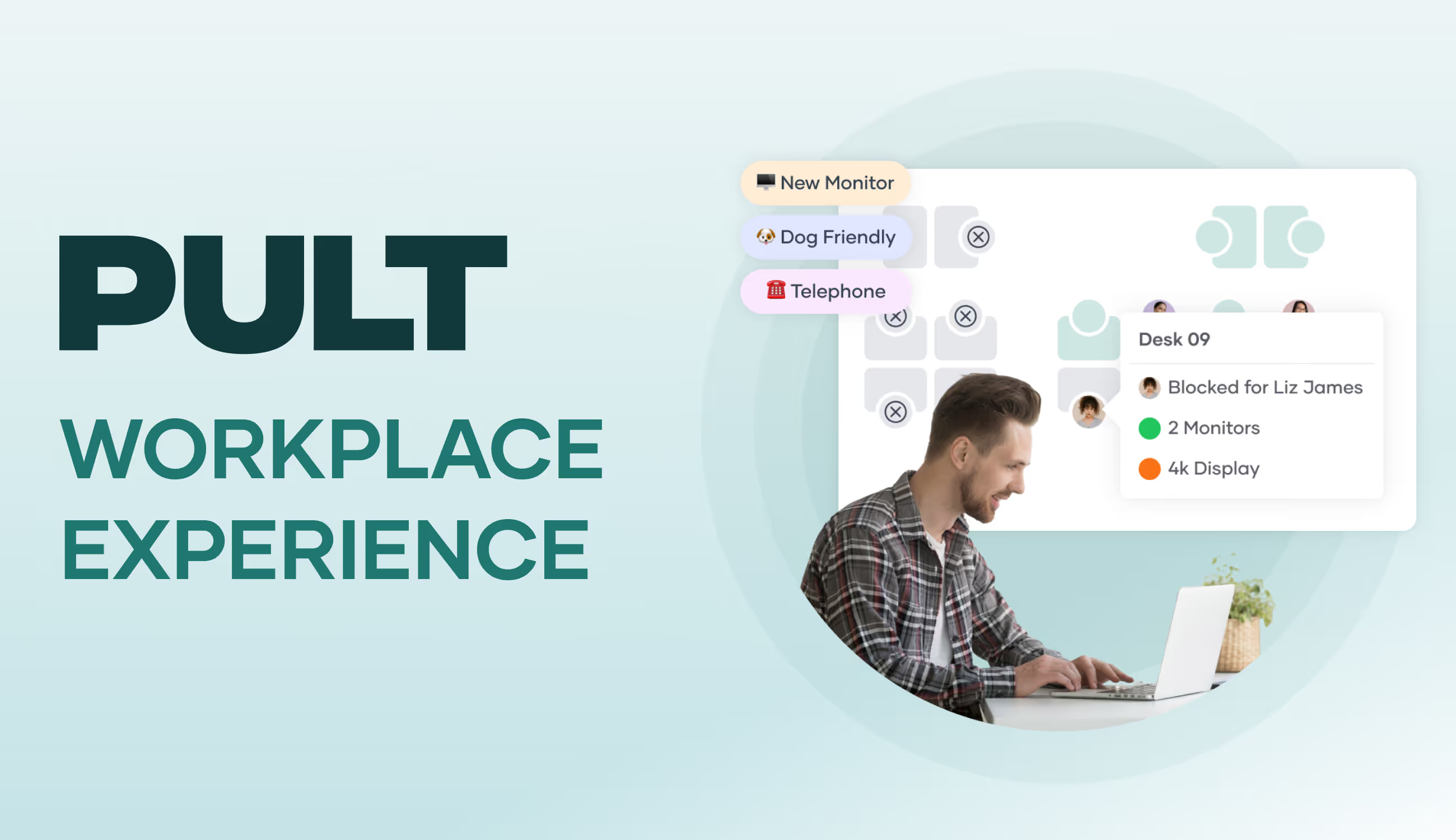
  • Equipment filter: Employees can specifically search for workplaces with height-adjustable desks (sit-stand desks), ergonomic chairs or special monitors.
  • Fixed assignments when needed: For employees with special medical or physical requirements, PULT enables permanent reservation of fixed workplaces as an exception to desk sharing.
  • Emergency Export: At the push of a button, administrators generate a list of all persons actually present. Thanks to WiFi detection (PULT Presence), "no-shows" or spontaneous visitors are also precisely recorded.
  • Capacity control: The software automatically prevents overcrowding of zones. This way, fire safety regulations and escape route capacities are technically accounted for.
  • AI Health & Safety Agent: Our AI agent helps convert occupational safety regulations into tasks and pre-fill compliance documents for audits with real presence data.
  • Noise and acoustic management: Through clear zoning into quiet and team zones as well as the bookability of phone booths, acoustic stress is reduced.
  • Psychological relief: The guarantee of a firmly reserved workplace eliminates the stress of morning searching and ensures a calm start to the workday.
Tip: Learn more about automatic presence detection via WiFi at PULT Presence.

{{onpage-cta}}

Hybrid Work

This Is Hot Desking: Concept, Advantages and Implementation in Companies

Die Bürokosten steigen, aber die Hälfte der Arbeitsplätze steht leer. Die Mitarbeiter wechseln zwischen Homeoffice und Büro und im Unternehmen kommt die Frage auf, ob sich der ungenutzte Platz nicht besser nutzen ließe. Hot Desking verspricht eine Lösung: Arbeitsplätze teilen, statt leer stehen lassen. In diesem Artikel erfährst du, was Hot Desking ist, ob es für dein Unternehmen funktioniert und wie du typische Einführungsfehler vermeidest.

What is hot desking? An overview of the definition

Hot desking is a workplace concept in which employees do not have a permanently assigned desk. Instead, they use a different free workstation each day.

The name is self-explanatory: if a workstation is used by several people in succession, it remains ‘warm’ or ‘hot’.

Typical hot desking scenarios:

  • Field teams: Sales employees are often on the road and only need an office workstation occasionally
  • Hybrid teams: Employees work from home 2-3 days a week and only come into the office occasionally.
  • Project-based work: Teams that require different ways of working depending on the project.

The advantages of hot desking

  • Cost savings: Fewer workstations means smaller office space and lower rental costs. This is the case when a new office space is planned with a hot desking concept.
  • Optimised office utilisation: Instead of empty desks, there are spaces and zones for collaboration, quiet areas or modern break areas. This is the case when existing large spaces are converted to hot desking.
  • Improved collaboration: Changing seats breaks down departmental boundaries. Employees get to talk to colleagues from other areas.
  • Attractiveness as an employer: Hot desking is a sign of a modern, well-thought-out office concept. The change usually goes hand in hand with a complete upgrade of the office equipment: high-quality, ergonomic furniture, modern technology, professionally designed quiet zones, inviting break areas and a well-equipped kitchen for coffee breaks together. For skilled workers, this signals that the company is investing in the well-being of its employees and offers a contemporary work culture.

Challenges and possible disadvantages of hot desking

The loss of workplace identity is the biggest problem for employees when switching to hot desking. Many employees value ‘their’ desk with personal items, photos and individual furnishings. This emotional aspect should not be underestimated.

  • Organisational effort: Hot desking requires clear rules and booking software. Without good organisation, it tends to become chaotic and harbours potential for conflict.
  • Technical challenges: All workstations must be identically equipped and adaptable for different users. This requires investment in height-adjustable furniture and multiple sets of equivalent IT equipment.
  • Hygiene and cleanliness: Shared workstations must be cleaned regularly. Employees must also pay more attention to cleanliness and leave their workstations in such a condition that they can be used by a colleague immediately.

{{hint-box}}

From an organisational perspective, data protection and workplace organisation are new challenges for hot desking: Shared workstations require a ‘clean desk policy’, which means that all documents, notes and personal items must be cleared away at the end of each working day.

This is not primarily a matter of cleanliness, but of data protection: confidential information must not be accessible to the next user of the workstation. Computers must be locked and laptops locked away.

Is hot desking right for our company?

Before you decide for or against hot desking, you should honestly consider whether it fits your company's reality.

Features that indicate hot desking is a good fit:

  • High proportion of home office workers: More than 40% of your employees regularly work remotely
  • Flexible working hours: Employees in the team have different attendance times
  • Project-based work: Teams work in changing constellations
  • Growth planned: You expect to hire more staff but do not want to rent more office space immediately
  • Open-minded culture: Your team is generally open to change

Indicators that hot desking is not suitable:

  • Document-heavy work: Employees need daily access to physical files
  • Special equipment: Workstations with very specific technical equipment, for example for video editing, graphic design, CAD workstations, technical equipment such as measuring systems, analysis devices, etc.
  • Fixed teams: Departments that need to work closely together throughout the day
  • Resistance within the team: Employees are very conservative in their approach to daily work and processes.

Implementation: Step by step to hot desking

Successfully introducing hot desking requires a well-thought-out approach in six key areas: Team involvement with employee surveys and a pilot group, technical preparation with standardised IT equipment and a booking system, room design with different work zones and storage solutions, clear rules for data protection and workplace use, a controlled test run with one department, and gradual expansion to the entire company.

1. Involve and convince the team

Conduct an employee survey

Before making any decisions, ask your team: What are their concerns? What are their expectations? Where do employees see advantages or problems? What structures (lockers, coffee kitchens, quiet areas, break zones) would they like to see?

Workshops and information events

Explain transparently why hot desking is being introduced. Highlight specific benefits, not only for the company, but also for employees (modern equipment, flexible working environment).

Identify a pilot group

Start with an open-minded department or volunteer participants who can act as multipliers.

2. Plan the technology and infrastructure for hot desking

Evaluate the IT infrastructure

  • Are all workstations equipped with the same technology?
  • Does the Wi-Fi work reliably everywhere?
  • Can employees log in to any PC without any problems?

Select a booking system

Important criteria: Can be used from any device (PC, laptop, smartphone, terminal), connection to existing systems (calendar), room booking, office evaluation and statistics (GDPR-compliant).
{{cta}}

Standardise furniture and equipment

All workstations must be identically equipped: height-adjustable desks, ergonomic chairs, lighting.

3. Redesign rooms and zones for hot desking

Plan zoning

  • Quiet areas for concentrated work
  • Zones for teamwork with rollable tables and partition walls
  • Upgrade break areas and kitchens
  • Telephone areas for conversations

Create storage solutions

Lockers, mobile roll containers or lockable cabinets for personal items, documents and private belongings.

4. Develop rules and guidelines for hot desking

Define a clean desk policy

Clear rules for handling documents and digital devices at the end of the working day (data protection).

Establish booking guidelines

  • How far in advance can bookings be made?
  • Are there minimum or maximum booking times?
  • What happens in the event of no-shows?

Create a code of conduct

Rules for noise levels, phone calls, eating at the workplace and respectful use of shared resources.

5. Start a trial run for hot desking

Start with one department

Introduce hot desking in a limited area first to gain experience and iron out any teething problems.

Collect feedback systematically

Hold regular discussions with the test participants: What is working well? Where are there problems? What should be adjusted?

Make adjustments

Be prepared to change rules or adapt technical solutions if problems arise.

{{cta}}

6. Expand hot desking step by step

Gradual introduction

After a successful trial run, expand hot desking to other departments. This will allow you to learn from experience and optimise each expansion.

Continuous monitoring

Even after full implementation: Collect feedback regularly and adapt the system to changing needs.

Make success measurable

Track key figures such as workplace utilisation, employee satisfaction and cost savings to document your success.

The most common mistakes when introducing hot desking

  • The team hears it through the grapevine: If employees only find out about the introduction of hot desking through the office grapevine, resistance is inevitable and fears and reservations build up that are very difficult to resolve later on. Talk openly about the reasons: cost savings, flexibility or growth plans. People are more likely to accept change if they understand the reasoning behind it.
  • From zero to one hundred: Completely transforming an office all at once overwhelms everyone involved. If you transform the entire company while it is still running, you risk chaos and frustrated employees. Start with one department, gather experience and make improvements before continuing.
  • First- and second-class workstations: Nothing creates a bad atmosphere faster than workstations with different equipment. If one desk has two monitors and another only has one, employees will fight over the better spots every morning. Invest in standardised equipment; it will pay off in the long run.
  • Lack of rules: Without clear rules, hot desking will be chaotic. Define how workstations are booked, what happens to documents and how employees should behave. Everyone must know and follow these rules, from interns to managing directors.

Successfully implement hot desking with booking software

Hot desking stands and falls with the right implementation. Many typical problems, such as conflicts over popular workstations, unnoticed unpopular desks or disputes over meeting rooms, can be avoided from the outset with the right software.

The use of suitable hot desking software solves these problems and ensures that workstations can be booked fairly and reliably. With PULT, every employee can be sure that they will actually find the desired space free after their commute to work. The most important features at a glance:

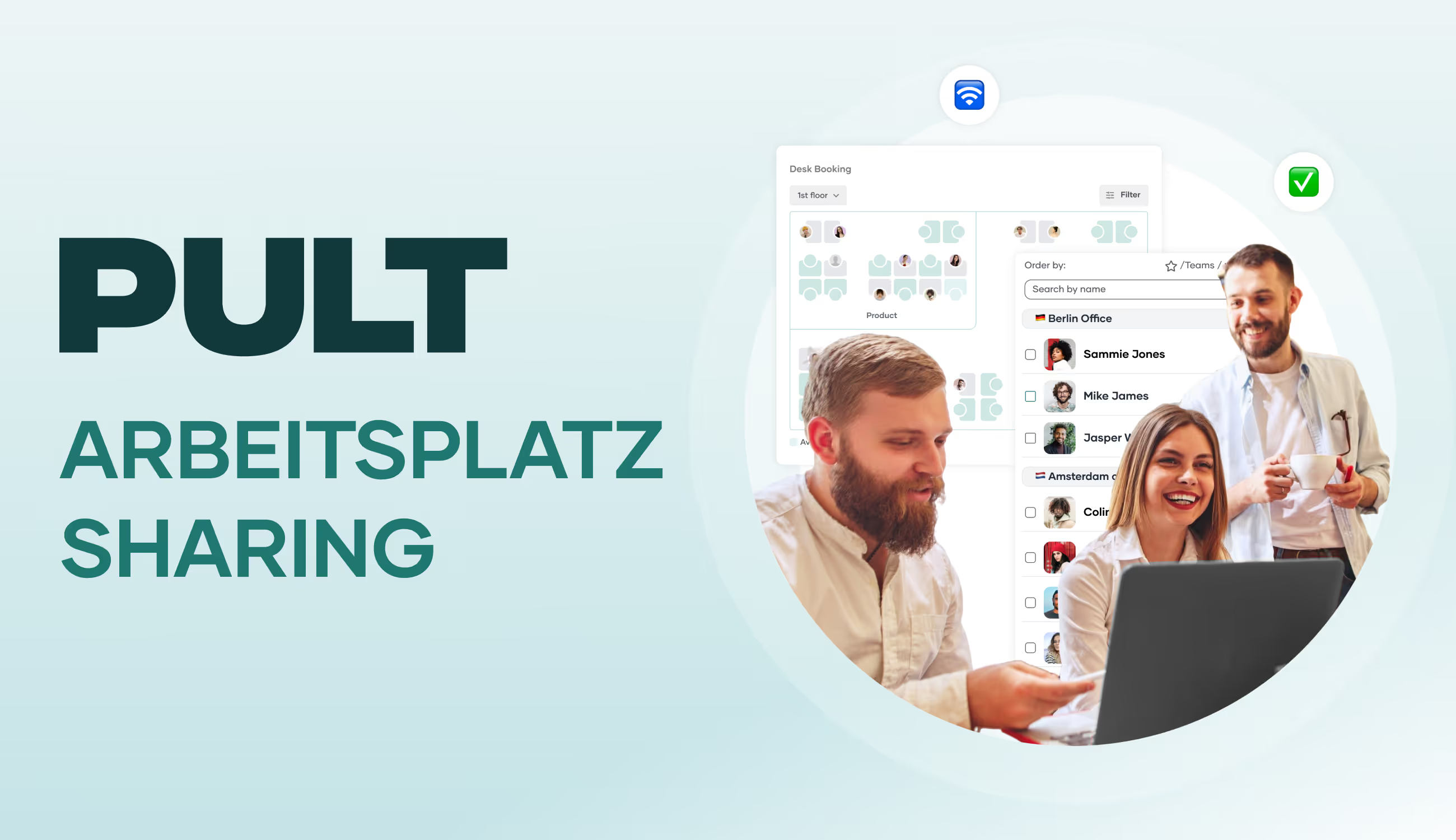
  • Desk booking with floor plan, from smartphone, laptop or PC
  • Filter by equipment and book next to your favourite colleague
  • Room reservation for meetings, workshops or focused work
  • Visitor management including check-in and attendance overview
  • Team find function to see who is in the office and when
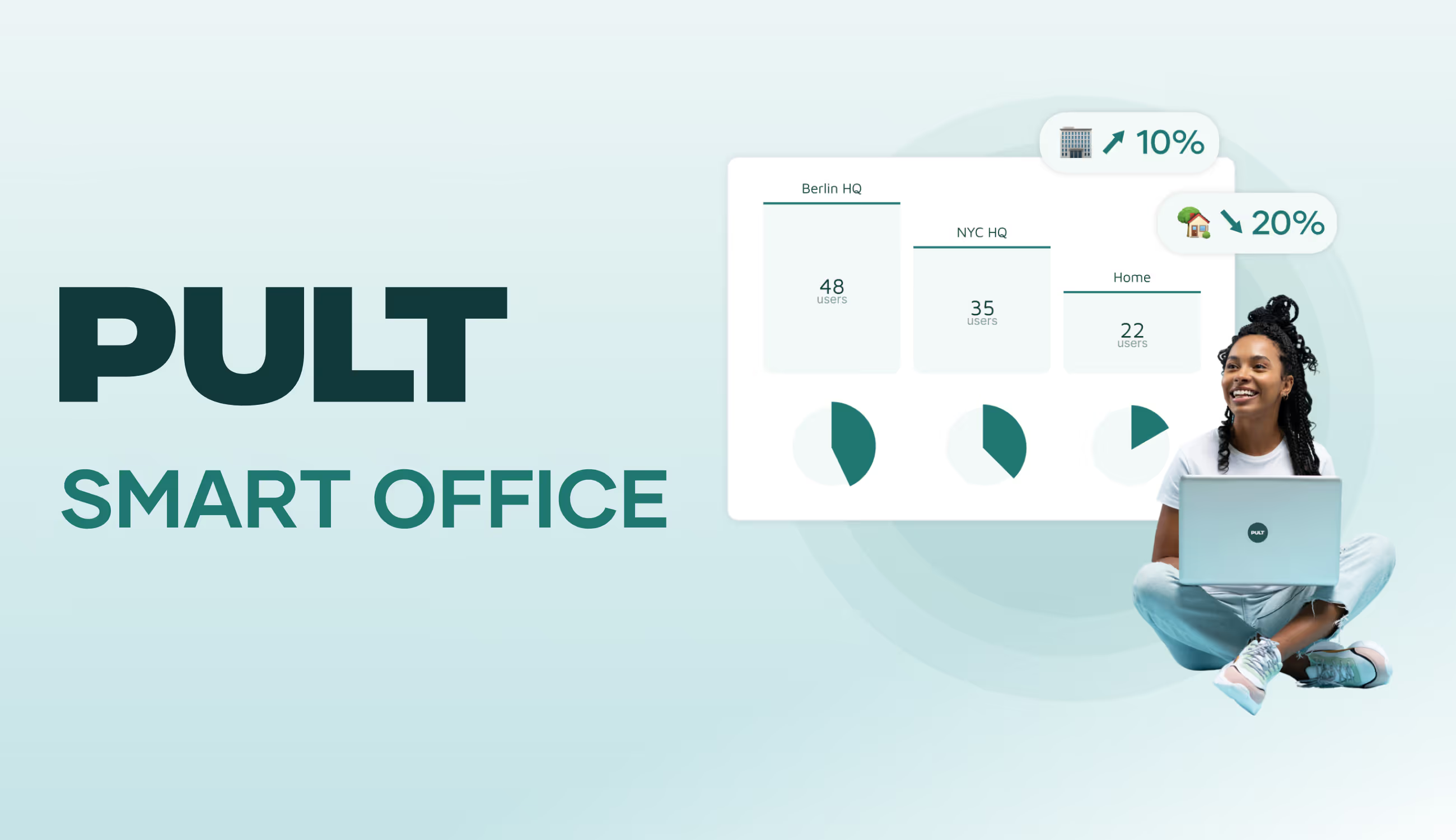
  • Data-driven evaluations of space and workstation usage
  • Integration into existing tools such as Microsoft Teams or Slack

Hot desking – frequently asked questions and answers

News & Updates

Guide: How Desk Sharing Works in Public Administration

In this article, you will learn what legal considerations need to be taken into account, how other authorities have handled this issue, and what specific steps will lead to success. No theory, just tried-and-tested experience.

A recent IAG study with almost 2,000 participants shows that 60% of employees are satisfied with desk sharing. Almost half of those surveyed came from the public sector.

But desk sharing in public administration has its own rules. Data protection, co-determination, accessibility: the legal hurdles are higher than in the private sector.

In this article, you will learn what legal considerations need to be taken into account, how other authorities have done it and what concrete steps lead to success. No theory, just tried-and-tested experience.

{{hint-box}}

What is desk sharing in public administration?

Desk sharing means that several employees share the same workspaces. Instead of everyone having a fixed desk, they book a free space as needed. This is particularly relevant in public administration, as many colleagues now work from home and many workspaces are empty.

Employees use software to book their workspace for the desired day. In the morning, they sit down at their reserved space, work as usual and tidy up in the evening. Nothing is left behind; lockers are typically provided. The space is available to others the next day.

Particularly interesting for public authorities: Due to home office regulations and flexible working hours, many administrations have an office utilisation rate of only 60 to 70%. Desk sharing makes optimal use of this free capacity and saves rental costs. At the same time, new opportunities for interaction arise between departments that otherwise have little contact.

The difference to fixed workspaces: Instead of 100 employees with 100 workspaces, you work with 70 to 85 workspaces. The space saved can be used for other purposes, such as attractive break areas or collaboration zones, which increases the overall appeal of the workplace. Another option is to reduce the amount of space rented and thus save costs.

The legal basis for desk sharing in public administration

Desk sharing in public administration is generally permitted. This has also been confirmed by the latest ruling of the Baden-Württemberg Regional Labour Court. However, you must observe staff council representation rights, data protection and GDPR, accessibility and occupational health and safety regulations.

Staff representation rights: According to Section 80 (1) No. 4 BPersVG, the staff council has a say in workplace design. This means that you need to involve them from the outset. No. 21 of the same section also covers technical equipment such as booking systems.

The practical consequence: involve the staff council in the planning phase. Subsequent co-determination procedures are complicated and time-consuming.

Data protection: The GDPR applies particularly strictly to public authorities. Although Art. 6 (1) (e) GDPR legitimises data processing for public tasks, you must observe the principle of data minimisation in accordance with Art. 5 (1) (c) GDPR. Only record the name/personnel number, booking time and workplace ID. Recording the content of activities or performance evaluations is not permitted.

Accessibility: Section 12a BGG requires you to use WCAG 2.1 AA-compliant booking systems. This means screen reader compatibility, sufficient colour contrast and keyboard operability.

Occupational health and safety: Section 5 of the German Occupational Safety and Health Act (ArbSchG) requires a specific risk assessment for changing workplaces. Mental stress caused by changing workplaces must be explicitly taken into account.

Create a structured service agreement that regulates all aspects, from workplace equipment and the booking procedure to data protection and accessibility.

Examples of desk sharing in public administration

Metzingen municipal administration: 400 employees, three locations, one software. The city in Baden-Württemberg introduced desk sharing in August 2022. IT manager Jörg Stritzelberger reports rapid acceptance after a short familiarisation period. Features that mark the presence of other colleagues on the office plan and filter workstations according to their characteristics are particularly appreciated.

Heidelberg University Hospital: This is an example of how the gradual expansion of desk sharing works in an institution. The hospital started with pilot areas and continuously expanded desk sharing based on the optimised experiences from areas that had already been implemented.

University of Hamburg: A legally binding pilot project with a clear service agreement has been running here since March 2024. The concept integrates mobile working with standardised workplace equipment and clear rules for personal belongings.

The documented added value: better employee exchange, time and resource savings, optimal workplace utilisation. Measurable cost savings through a 20 to 40% reduction in space, with typical rents of £50 to £150 per m²/month, means significant budget relief.

Sharing rates range from 0.67 to 0.83 workstations per employee, with safety buffers planned for peak times.

{{cta}}

Preparing public administration employees for desk sharing

Younger colleagues (Generation Z, Millennials) generally show a high level of acceptance for flexible working models. You will encounter more resistance from older colleagues (Baby Boomers, Generation X), not out of stubbornness, but because of legitimate security needs and a preference for tried-and-tested structures.

Main resistance factors: Data protection concerns (21% according to a Bitkom/DStGB study), traditional administrative culture with hierarchical decision-making processes, practical concerns such as the time required to find a workplace and legal uncertainties.

Proven strategies: Hold informative workshops to raise awareness. Communicate concrete improvements in work-life balance, rather than abstract efficiency gains. Offer systematic training for all age groups, but with different focuses.

Cultural characteristics of the administration: Hierarchical decision-making processes prolong implementation, but they also offer stability. Legal frameworks create higher compliance requirements, but ensure legal certainty. Greater intrinsic motivation through social benefits and lower staff turnover enable sustainable planning.

Communication: Use multiple channels (intranet, newsletters, personal conversations). Be transparent and openly highlight advantages and disadvantages. Plan interactive elements such as Q&A sessions and feedback loops. You can win over sceptics with concrete benefits and security guarantees. You can get supporters on board by giving them opportunities to shape the process. Don't ignore the ‘silent majority,’ because they often decide whether something succeeds or fails.

Technical implementation of desk sharing in public administration

Desk sharing software is an important part of the technical implementation, along with GDPR compliance, accessibility, and IT security in accordance with BSI standards.

GDPR compliance: German servers, EU data protection compliance, order processing agreements in accordance with Art. 28 GDPR. Make sure providers have ISO 27001 certification.

IT security: Multi-factor authentication, role-based permissions and TLS 1.3 encryption.

Clean desk policy: Workstation reset after each use, secure storage of confidential documents in lockable rolling containers, automatic screen lock when not in use.

Minimum hardware requirements: Standardised docking stations for laptops, dual monitor sets, height-adjustable desks and ergonomic input devices.

Your path to successful desk sharing

The 60% satisfaction rate for implemented solutions demonstrates the potential, while the 47.6% preference for fixed workstations illustrates the change management at the heart of the transformation.

The success factors: early involvement of employee representatives in accordance with Section 66 of the German Federal Personnel Representation Act (BPersVG), GDPR-compliant technology and software with German server locations, generation-specific communication and step-by-step pilot project implementation.

The figures speak for themselves: Cost savings of 20 to 40% in office space justify investments of €180,000 to €250,000 for 100 employees with a payback period of 2-3 years.

Your next steps:

  1. Conduct a systematic analysis of the current situation with an employee survey
  2. Involve the staff council from the outset
  3. Choose GDPR-certified software with German servers
  4. Develop a multi-stage training concept for all age groups
  5. Start with a pilot area and evaluate continuously

Desk sharing software for public administration

PULT is booking software for your desk sharing concept. It is browser-based and therefore works on any device, including smartphones, laptops and PCs. The interactive office plan accurately maps your office, shows available workstations and can be filtered by equipment.

Automation with PULT Presence: As soon as employees connect to the office Wi-Fi, they are automatically checked in without having to use an app or make any manual entries. This makes the solution attractive even for sceptical colleagues, as it does not create any extra work for them.

Suitable for public authorities: PULT is GDPR-compliant and meets the strict compliance requirements of public institutions. German servers, ISO27001 certification and role-based access control provide the necessary legal security. The existing Wi-Fi infrastructure can also be retained.

Practical features: Interactive floor plans not only show available spaces, but also where colleagues are sitting. This simplifies collaboration and removes the anonymity from desk sharing. Comprehensive analytics help to optimise office space based on data and document the ROI.

Desk sharing in public administration – Frequently asked questions and answers

Hybrid Work

Desk Sharing: Definition, Explanation, Advantages

Desk sharing done right: fewer empty desks, better use of space. More and more offices are underutilized due to home offices and remote work, and desk sharing offers a smart solution. But what is behind the concept? How can the transition to flexible workplace use be designed sensibly without risking chaos? In this article, you will learn how desk sharing works, what models are available, what advantages and disadvantages are associated with it, and how companies can successfully master the transition.

The strong trend toward remote work and home office days means that many desks in offices remain empty. This raises questions for companies: How can we reduce the number of unused desks? How many do we need to keep available so that everyone still has a place when they come into the office? And how can we plan for this? In this article, you will learn what desk sharing means, what issues are associated with it, and what advantages the concept offers.

What is desk sharing?

Desk sharing, also known as shared desks or flex desks, means that employees no longer have fixed desks. Instead, they have flexible workspaces at their disposal. Either they sit down anywhere, or there is a booking system.

Thanks to the possibilities offered by home offices and other remote working methods, more and more desks are remaining empty in companies. The concept of the traditional office with desks that are sometimes assigned for years is being called into question. Studies and experience reports also show that not all employees are in the office every day. Vacation, sick days, field work, and working from home result in an average attendance rate that is often well below 70%, which means that the number of desks in the company could be significantly reduced.

An important and useful control variable in planning is the so-called desk sharing ratio. It describes the ratio of available desks to the number of employees. A ratio of 0.7, for example, means that 10 employees share 7 desks. The lower the ratio, the more employees share a workstation.

To avoid bottlenecks at workstations, desk sharing should not focus solely on sheer efficiency. The concept is accompanied by changes in corporate culture, fair cooperation, redesigned office equipment, and new tools such as software for booking workspaces.

How does desk sharing work?

Essentially, there are two basic approaches to desk sharing:

  • First come, first served: Employees who arrive at the office early have free choice of the available workstations. This model works particularly well in small teams where coordination can be done personally and informally.
  • Seat allocation using software: Especially in larger companies, seat allocation is organized using apps or platforms. The tools allow you to view and reserve available workstations, taking into account the seating preferences of team members. Some systems also offer room plans, notifications, and integration with calendar tools.

Both approaches offer different advantages depending on the size of the company and the work culture. The choice of the right system depends on how desk sharing is to be implemented in the respective organization.

Successful desk sharing depends heavily on how well the organizational processes, technology, and corporate culture work together. Without clear rules, appropriate communication, and supporting tools, the newly gained flexibility can quickly turn into chaos.

The 4 types of desk sharing

In addition to the two approaches mentioned above, there are various forms of desk sharing that companies can implement:

Hot desking

Easy to implement, but rather problematic in everyday life: employees spontaneously choose a free seat every day. Without a booking system, this can lead to a constant battle for the best seats. This model is based on the “first come, first served” principle and is therefore not really fair. Hot desking is suitable for co-working spaces, for example.

Desk sharing combined with home office

Desk sharing offers many advantages, especially in hybrid working models. If employees regularly work from home, the need for permanent workstations is significantly reduced, as described above. The company's hardware requirements and costs are reduced, and the space that becomes available can be used for other purposes – including for the benefit of employees. The space gained can be used for quiet zones, collaboration areas, etc. The binding nature of seat reservations ensures fair cooperation.

Zone-based desk sharing

A modern approach: the office is divided into functional zones, for example for concentrated work, creative collaboration, phone calls, or relaxation. Employees choose the seat that suits their daily tasks. This model promotes personal responsibility and adapts to different working styles.

Hoteling including desk booking

Particularly suitable for mobile employees or those who are rarely in the office: a workstation is booked in advance using a tool, similar to a hotel reservation. This is especially useful for field staff or colleagues who usually work at other locations.

These variants are sometimes difficult to distinguish from one another and are not absolutely defined. Every company should combine all options that benefit the way its team works.

The advantages and disadvantages of the desk sharing concept

Desk sharing offers many opportunities to bring the workplace up to a modern standard. At the same time, however, it also creates difficulties.

{{cta}}

Advantages of desk sharing

  • Promotes creativity and collaboration: Changing seats every day encourages interaction between teams, enables spontaneous conversations, and opens up new perspectives.
  • Efficient use of space: Office space can be dynamically adapted to actual usage, enabling a rethinking of how space is used.
  • More autonomy: Employees have more control over where, when, and in what environment they work without permanently occupying a space.
  • Equal opportunities: Every employee has the same options when it comes to choosing a workspace, regardless of their working style, position, or role.
  • Greater adaptability: The company retains freedom in terms of space design and can more easily adapt to growth, restructuring, or newly determined home office quotas.
  • More open working atmosphere: Managers and employees sit close to each other, which promotes trust and strengthens cooperation on an equal footing.
  • Productivity: The ability to switch between quiet and communicative zones depending on the task at hand benefits the way people work.

Disadvantages of desk sharing

If desk sharing is not well established, lacks clear rules, or is not sufficiently supported by managers and software, disadvantages can arise:

  • Different needs are not always met: Employees who need a quiet and secluded workplace may find it difficult to find a suitable environment due to frequent changes of seats.
  • Loss of familiarity: The loss of a personally furnished workplace can affect the sense of belonging.
  • Competition for space: Popular desks or quiet areas are limited, and conflicts are possible.
  • Technical effort: Every workplace should be fully and equally equipped.
  • Organizational hurdles: The daily search for a free desk can lead to stress if structures are poor.
  • Less team cohesion: If colleagues do not sit next to each other regularly, personal interaction can suffer.
  • Data protection risks: Without a clean desk policy, there is a risk of unwanted access to sensitive information.
  • Lack of space for personal belongings: Personal work materials and items cannot be left at the desk permanently.

None of the disadvantages mentioned are an integral part of desk sharing. Instead, all issues can be resolved with good structures. You can find more information on this in the chapter on tips for successful desk sharing.

7 tips and guidelines for successful desk sharing

  • Involve employees: Participation increases acceptance and reduces silent resistance.
  • Transparent communication: Disclose goals and rules to avoid misunderstandings.
  • Clear rules: Clearly define clean desk, booking, and behavior in zones.
  • Accessible booking systems: Tools must be intuitive to use and work on all devices.
  • Ensure cleanliness: Regular cleaning, clear responsibilities, no personal items left at the desk.
  • Provide storage space: Lockers or rolling containers allow personal work equipment to be stored securely.
  • Integrate feedback: Desk sharing is not a rigid system. Regular evaluation and adjustment maintain and increase its effectiveness.

In addition to complying with technical standards, the social component should not be neglected: Companies should strive to create an appreciative workplace culture in which mutual consideration and team responsibility are a matter of course.

The right desk sharing equipment

A functioning desk sharing model stands or falls with the right equipment. If workstations are not only shared but also used differently every day, they must be designed so that every employee can start working productively right away, without having to search for things, reconnect cables, or improvise.

To achieve this, you need:

  • Uniform workstations: Height-adjustable desks, ergonomic chairs, monitors, docking stations, easily accessible power and network connections.
  • Personal peripherals: Each person uses their own mouse, keyboard, and headset, ideally stored in a lockable box or locker.
  • Cleanliness and hygiene: Stations with disinfectants and cleaning wipes, clear rules for leaving desks clean.
  • Personal storage space: Lockers or mobile rolling containers for bags, jackets, helmets, change of shoes, documents, personal items.
  • Ergonomic standards: Monitor at eye level, glare-free lighting, training on ergonomic workplace setup
  • Retreat and break areas: Zones for quiet, concentrated work away from shared desks
  • Coffee kitchens: Well-equipped kitchens for preparing drinks, heating up food brought from home, etc.

It is important that the equipment covers what was previously available at desks or in smaller offices. Figuratively speaking, employees will not complain about the loss of a kettle if a fully equipped kitchenette is available instead.

{{hint-box}}

Perspective: Desk sharing in the long term

Desk sharing works best and equally well for everyone when certain conditions are met.

Organizational requirements:

  • Consciously shape cultural change and lead by example
  • Launch pilot projects before rolling out across the board
  • Hold introductory training or information events
  • Feedback loops for continuous improvement

Technical and spatial requirements:

  • Design zones (focus, team, communication, break)
  • Standardized technical equipment for workstations
  • Stable Wi-Fi and location-independent access to all work equipment
  • Software for workplace and room booking

The use of suitable desk sharing software replaces reservation lists on meeting room doors and ensures that workstations can be booked fairly and reliably. With PULT, every employee can be sure that they will actually find the desired space free after their commute to work. The most important functions at a glance:

  • Desk booking with floor plan, from smartphone, laptop, PC
  • Filter by equipment and booking next to your favorite colleague
  • Room reservations for meetings, workshops, or focused work
  • Visitor management including check-in and attendance overview
  • Team find function to see who is in the office and when
  • Data-supported evaluations of space and workstation usage
  • Integration into existing tools such as Microsoft Teams or Slack

Desk sharing – Frequently asked questions and answers

Visitor Management

Getting Visitor Management Right

Waiting times, paper lists, a colleague's phone being busy when they should know the answer. Professional visitor management solves problems like these. In this article, you will learn what matters—from security requirements and GDPR to digital check-ins—and how these processes can be made suitable for everyday use with little effort.

Approach visitor management correctly and keep costs low

Monday morning, standing in front of the reception desk are a tradesman with a toolbox and a job applicant nervously glancing at his watch. Behind the desk, a substitute employee is leafing through a paper list and trying to figure out what to do on the phone. This is still what visitor management looks like in many places today. In this article, you will learn how visitor management works, what the challenges are, and how the right software can make everything easier.

What is visitor management?

Visitor management refers to all measures associated with receiving, controlling, and tracking guests. This includes customers, applicants, partners, service providers, and sometimes temporary staff or temporary workers.

The requirements for visitor management are diverse:

  • Security: Who is in the building? Who is allowed where? Who is responsible in an emergency? These questions can only be answered if visitor data is complete, up-to-date, and available across all locations.
  • Internal processes: How does registration work, manually or digitally? Who informs the respective host?
  • Data protection: How is personal data collected, stored, and deleted? This is not just a matter of legal requirements, but also of visitor trust.
  • User experience: How does the guest feel when they arrive? Are they treated courteously and in an organized manner, or does it seem improvised? The reception is often the first real contact with an organization and shapes the impression.

Well-thought-out visitor management creates structure and contributes positively to the external image. Especially in larger companies, hotels, or government agencies, it becomes a task that can no longer be done on the side. Instead, it requires a great deal of organization.

Typical problems in visitor management

Visitor management is still sometimes carried out with a great deal of manual work. Guests sign in on paper lists, receive a badge from a drawer, and are directed from reception to the meeting room. However, this and similar processes have a number of disadvantages:

  • Poor overview: It is often impossible to determine conclusively who is in the building or who has already left. An incorrect visitor list is a problem during audits, fire safety inspections, or evacuations if, in an emergency, no one can say who is currently in the building.
  • Prone to errors in visitor registration: Handwritten entries are sometimes made under time pressure and are difficult to read, incomplete, or forgotten. This leads to queries, searching, and information gaps.
  • Unprofessional impression: Not only, but especially during first visits, an improvised reception can make a negative impression, for example, if no contact person has been informed or a name tag is missing.
  • High effort: Reception teams have to take care of registration, ID cards, directions, and notifying the host, often simultaneously and under time pressure. With higher visitor numbers, this is sometimes almost impossible to manage. And even when it is, it is not error-free.

The traditional reception desk comes under pressure when visitor numbers increase or new locations, new working models, or external service providers are added. The limitations of manual processes become apparent at this point at the latest and become a noticeable burden in everyday work.

Security and data protection in visitor management

Security, data protection, and user-friendliness are often difficult to reconcile. This is particularly due to the high demands placed on them. The entire process should be as convenient as possible for visitors, while at the same time fully protecting their data. For the company, the effort involved in visitor management should be minimal, but the level of professionalism displayed should be as high as possible.

  • User experience (UX): The reception area is the first point of contact with the company. A digital check-in, clear signage, and a prepared host ensure a smooth process and avoid unnecessary waiting times or confusion.
  • Access control: Guests should only be granted access where they are authorized, such as the meeting room, not the server room. In many companies, this means temporary authorizations, digital door systems, or approvals via the visitor system. Without such a system, it is often unclear who is where at any given time.
  • General data protection: Visitors can see each other's data; data is not deleted properly. This can always have consequences, not only in particularly sensitive institutions such as research or administration.
  • GDPR compliance: Companies must be able to prove what data they collect, for what purpose, how long it is stored, and who has access to it. A digital system can help here by automatically enforcing deletion deadlines and fulfilling information obligations in a structured manner.

In everyday work, it is often precisely this balancing act that poses a challenge: a process that is secure, legally compliant, and pleasant for visitors without overburdening the reception team.

{{cta}}

What types of visitor management systems are available?

a) Old-school visitor management

Traditional, but very outdated, visitor management relies on pen and paper. In principle, this can be used to gather information and get an overview, but only on one condition: the visitor has provided their correct name and has reasonably legible handwriting. Apart from that, filling out a paper form takes time and leads to waiting times at reception.

b) On-site software

A software solution installed on the PCs at reception makes work easier than visitor management with pen and paper. However, typical problems include a lack of synchronization of data, appointments, and other entries, as well as the isolation of the software. The team calendar and internal attendance overviews are not linked to it. From a technical standpoint, manual updates of the local software are an additional task.

c) Cloud-based management system

Cloud software is always up to date and data is synchronized across the company. This means that colleagues at reception can be confident that they are working with the right information. Another major advantage of a cloud-based visitor management system is the ability to integrate it with other platforms. This allows calendars and room bookings to be linked.

Examples of visitor management and best practices

The most important requirements for visitor management sometimes vary between different companies, institutions, and organizations.

Companies with high visitor traffic

Multiple guests at the same time, meetings in different buildings, external service providers on site: Digital check-in systems have proven their worth here, enabling quick visitor registration, often in multiple languages and without direct assistance from employees. The host is automatically informed and the visitor receives access to predefined areas via a badge or QR code. This reduces waiting times at reception.

Public institutions and authorities

Here, data protection and traceability are paramount. Visiting times, contact persons, and rooms must be precisely documented. Digital visitor lists help to reliably implement these requirements.

Shared offices and coworking spaces

Changing users, different companies, a high degree of flexibility: Centralized visitor management creates transparency about who is receiving which guests and when, and enables easy integration with room and access management. This is crucial for security and clarity, especially with teams that change daily.

Visitor management for desk sharing and flexible working

Hybrid working models, changing occupancy, shared desks: the way we work is changing, and with it the requirements for visitor management. As soon as the office concept no longer functions in the traditional way, structures are needed that:

  • work even without a permanent reception staff,
  • can handle spontaneous visits,
  • are linked to room and workstation booking,
  • manage visitor data centrally – across locations and in real time.

Structures created in-house can rarely meet these requirements. Tailored software is more reliable and significantly easier to use.

{{hint-box}}

Software for visitor management

There are many individual software solutions that only address one aspect of the overall problem. If you try to combine software of this kind into a functioning system on your own, you will usually quickly reach its limits. When making your selection, therefore, make sure that the software covers all your requirements as far as possible. Examples of important software functions in visitor management:

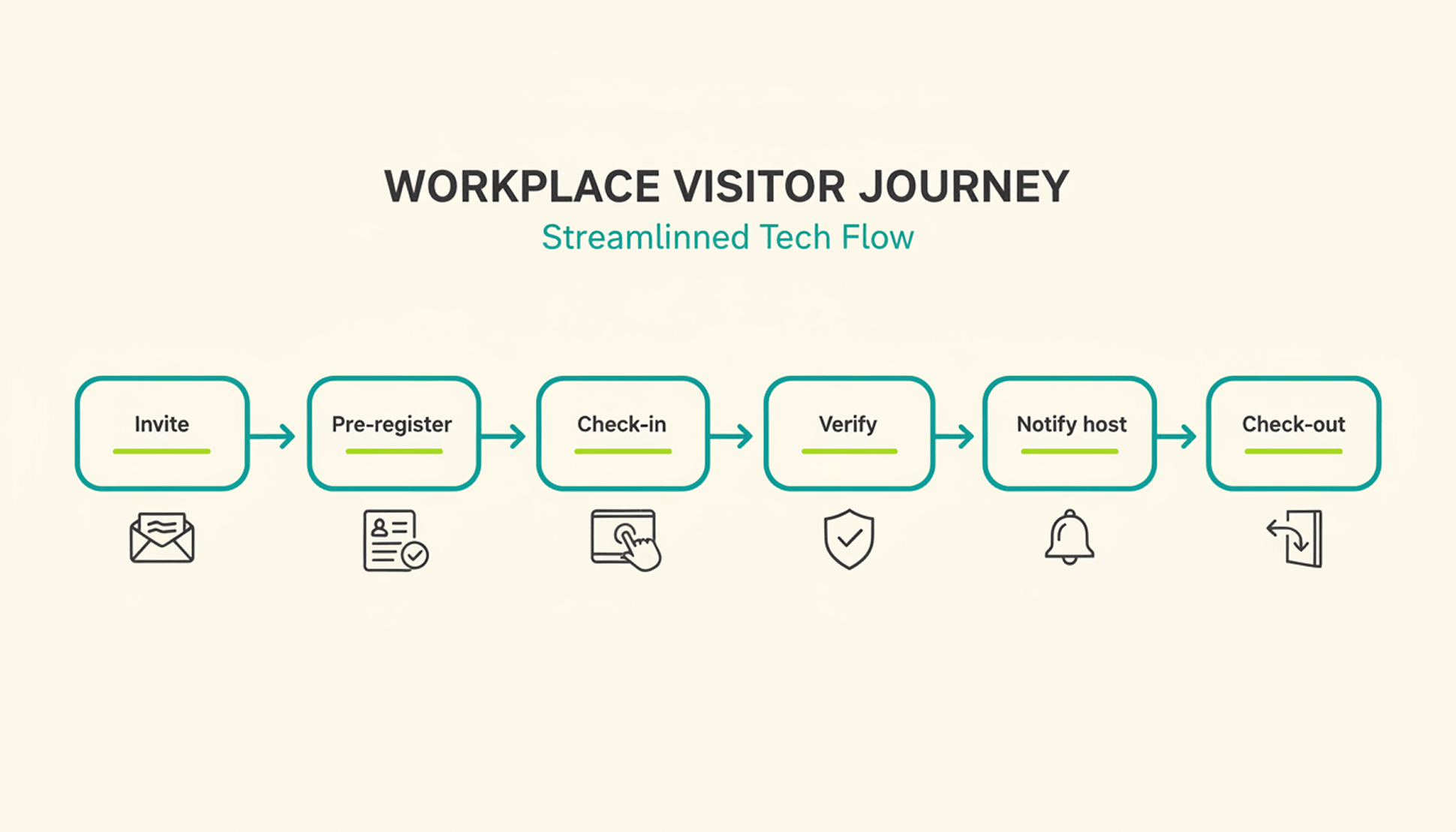
  • Advance registration and sending invitations: Visitors can be registered in advance and automatically receive an invitation with all relevant information, including a QR code or link for check-in. This reduces the workload at reception and ensures that guests are well prepared.
  • Self check-in on site: Visitors can register themselves using a tablet or terminal. Depending on your requirements, information such as name, company, reason for visit or safety instructions can be recorded.
  • Automatic ID printing: After check-in, a visitor badge with name, company or photo can be generated immediately. This ensures clear identification in the building and visually supports security concepts.
  • Notification to the host: As soon as a guest arrives, the responsible contact person is automatically informed: by email, messaging system, or in the calendar.
  • Overview of all guests: Reception, security, or facility management can see at any time who is in the building, where they are, and for what purpose. This is not only relevant for evacuations, but also for data protection and compliance.
  • GDPR-compliant data handling: Visitor data can be deleted or archived on a time-controlled basis, access can be logged, and inquiries can be answered.
  • Integration with existing systems: It makes sense to link visitor management with other elements of everyday work, such as room or workstation booking, access systems, or calendar services.

PULT provides all visitor management functions in one system: from pre-registration with a QR code and self-check-in at reception to automatic ID printing. The right employee is notified immediately, visitor data is documented in accordance with GDPR, and security officers can see who is in the building at any time.


What makes PULT special: Visitor management is directly linked to the work and parking space booking functions. This means your team has everything in one place and doesn't have to switch between different software. The same applies to the calendars used: bookings can be made directly from Outlook or Google Calendar. A new feature is 0-click check-in via Wi-Fi, which means your employees no longer have to actively log in and you can still see who is registered.

Visitor management – Frequently asked questions and answers