Workplace Experience: Redesigning work in the office

Employees expect to feel comfortable in the office and be able to work productively, i.e., to have a positive workplace experience. This experience is multifaceted and, from the employer's perspective, can be measured and improved in several ways.

Workplace Experience: TL;DR

  • Workplace experience describes the overall experience that employees have in their working environment: consisting of rooms, technology, services, and culture.
  • A good workplace experience is created when employees experience a positive culture and office space, digital systems, and organizational processes work well together.
  • Hybrid working is changing the requirements for the workplace: fewer fixed desks, more zones for teamwork, quiet, and breaks.
  • The quality of the workplace experience can be measured through employee feedback, utilization data, attendance measurements, and external evaluations.
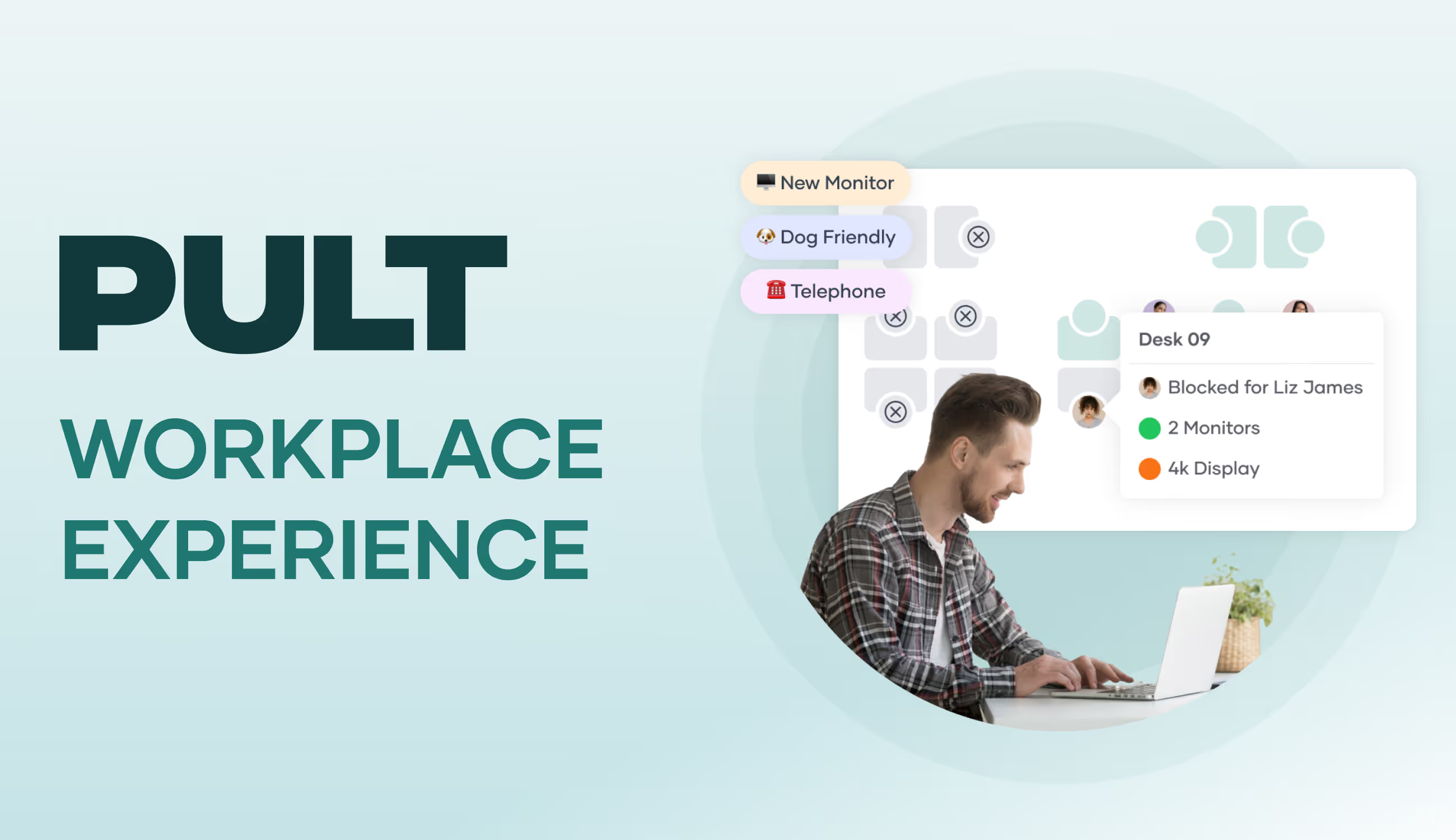
  • With PULT, you can visualize the workplace experience, identify trends in usage, and make targeted improvements to your office.

What does “workplace experience” mean?

Workplace experience describes the overall experience of employees at their workplace and the associated environment. This includes three closely related areas: the spaces in which they work, the technology they use, and the culture they encounter and help shape.

Why is workplace experience important?

A positive and managed workplace experience is important because the shift between working from home and working in the office (hybrid work), competition for skilled workers, and rising expectations of the workplace are creating new requirements.

You need to design your spaces, the technology you use, and your organization in such a way that they keep pace with new ways of working. Only then will your office remain a place that people enjoy using and where they can work productively.

Hybrid working is changing office space

Because many employees regularly work from home, permanently assigned desks are often empty. At the same time, employees want spaces for collaboration, project work, or quiet zones for concentrated work.

To offer this variety in the office, you need to repurpose space. A reduced number of individual workstations creates room for zones that are actually needed and desired.

To ensure that the remaining desks can be fairly distributed and used, you need a booking system that allows employees to reserve workstations and rooms in advance.

Tip: Desk booking in PULT enables your employees to access all workplaces, rooms, zones, and parking spaces fairly and to make binding reservations.

The workplace determines employer attractiveness

Workplace design plays an important role in the competition for skilled workers. Applicants pay attention to whether an office offers modern areas for teamwork, quiet spaces, good technical equipment, and services that make everyday work pleasant and differ from both their former company and working from home.

If your office space offers something that is superior to that of your competitors and working from home, you increase your chances of attracting new employees and retaining existing ones.

Processes for workability

Every interruption in everyday office life has a noticeable effect on your employees. Such interruptions can include:

  • A technically disrupted video call with a customer
  • Double-booked meeting rooms
  • Noisy open-plan offices without acoustic dampers
  • Lack of opportunities for physical relaxation

Disruptions of this kind add up and have a negative impact on your employees' ability to concentrate. With a well-designed workplace experience, on the other hand, you can ensure that rooms and technology function reliably and that personal workflows are not unnecessarily disrupted.

The workplace experience strengthens loyalty

An office that offers a variety of working options has a direct impact on satisfaction. When employees feel that their needs for peace and quiet, interaction, and comfort are being taken into account, they are more likely to stay with the company. A positive workplace experience thus contributes directly to reducing staff turnover.

What influences the workplace experience?

The workplace experience encompasses three areas: spaces, technology, and culture. Only when you consider all three together can you create a working environment that truly improves everyday life.

Spaces and floor plans for a positive workplace experience

Because many employees regularly work from home, individual workstations can be reduced. Convert some of this space into areas that are in greater demand: zones for project work, meetings, quiet work, or even breaks.

Studies show that this variety of spaces is a significant factor in whether people enjoy coming to the office. The core idea is to offer your employees advantages with the layout and equipment that they don't have at home. 

A desk booking system ensures that the remaining workstations, rooms, and zones are available for planning purposes.

Technology for a good workplace experience

Digital equipment is an integral part of the workplace experience. Hardware and software should enable your team to work as freely as possible and never become a bottleneck for productivity.

This includes powerful Wi-Fi, video conferencing systems, large and sometimes multiple monitors per workstation, docking stations or monitor adapters for laptops, and software for communication and planning.

Equally important are sensors and software that make utilization, air quality, and temperature measurable and visible. By consistently using this technology, you ensure that employees can use workstations and rooms without disruption and in high quality.

Culture and services along the workplace experience

Workplace experience also means how work feels in the office. This includes collaboration between departments, the design of rules and processes, but also offerings such as team events or even hiring a workplace experience manager.

These elements influence whether your office is a place where people enjoy spending time. They complement spaces and technology with a social and organizational dimension.

Tip: An active desk sharing concept can have a positive effect on the workplace experience in this regard. Desk sharing breaks down departmental boundaries. Colleagues who would otherwise have nothing to do with each other sit next to each other. This encourages conversation and company-wide exchange.

How can I provide a good workplace experience?

A good workplace experience is the result of careful planning and gradual implementation in your company.

  • 1. Assess the current situation: Start by taking stock of the available space and how it is used, the existing technology and furniture, and employees' expectations of the company. Use occupancy data, feedback surveys, and discussions to do this.
  • 2. Clarify responsibilities: The workplace experience affects several areas: IT, HR, and facility management. Determine who is responsible for which tasks and how you will make decisions together.
  • 3. Adapt office space: Reduce unused individual workstations and use the space for areas that are actually in demand: team rooms, quiet zones, break areas. Add a booking system so that workstations and rooms are distributed fairly at all times.
  • 4. Check technology: Ensure stable conference systems, docking stations at workstations, and software that facilitates processes.
  • 5. Integrate workplace experience services and culture: Snacks & drinks, canteen offerings, lounge areas, sports activities, employee events, joint workations, workshops, training courses on private financial security or healthy lifestyles, career opportunities, psychological counseling, job bikes, etc.
  • 6. Get feedback: Regularly ask how the workplace experience is perceived. Use short surveys, digital feedback tools or a workplace experience app.
  • 7. Continuously improve: Work on the workplace experience is never finished. Needs change and technology evolves. Therefore, plan regular adjustments and check whether and which measures are effective.
Tip: In the workplace experience platform PULT, you can measure office utilization, gradually replan and optimize office space, and easily conduct surveys among employees.

How do I measure the quality of the workplace experience?

You can measure the quality of the workplace experience by combining several sources of information. These include feedback from your employees, objective usage data, the functionality of your systems, and external evaluations.

Employee perception of the workplace experience

  • Surveys: Short monthly or quarterly surveys give you an up-to-date picture of the mood.
  • In-office NPS: A simple scale (“How likely would you be to recommend the office as a place to work?”) provides you with a comparable value that you can track regularly.
  • Feedback and annual reviews: Personal conversations give you deeper insights that are not likely to be revealed in standardized surveys.

Objective usage data

  • Space utilization: Booking systems or sensors allow you to see whether workstations, meeting rooms, or quiet areas are being used as you planned.
  • Attendance rates: These show on which days and at what times your office is used particularly heavily.
  • Length of stay: Provides information on whether employees only use the office for individual appointments or spend longer periods of time working there.
Tip: With PULT Presence, employee office attendance is automatically recorded as soon as their laptop or smartphone connects to your company Wi-Fi. Unlike simple booking data, this gives you real attendance figures.

Technical functionality

  • System stability: Failure rates for video conferencing, Wi-Fi, or software.
  • Ticket processing times: How quickly problems are resolved.

External reviews and signals

  • Review platforms such as Kununu or Glassdoor: Comments and reviews show you how (former) employees perceive the working environment, with regard to factors such as workplace design, equipment, or atmosphere.
  • Turnover and application rates: An increasing resignation rate or declining applicant numbers are also signals that the workplace experience is out of balance.

Evaluate data in context

The most meaningful insight into the quality of the workplace experience comes when you combine the various sources. If internal surveys show dissatisfaction with space availability, occupancy data shows high utilization, and criticism of office design appears on review platforms, you know that action is needed.

Similarly, you can check whether new measures such as additional team zones or improved technology are reflected positively in feedback, data, and reviews. This can also be handled by a workplace experience coordinator.

Measure and improve workplace experience with PULT

A positive workplace experience for your employees is created by the interplay of many factors: spaces and zones that enable different ways of working. Technology that works reliably. Offers and services such as catering or lounge areas that enrich everyday working life and surpass the comforts of working from home. And a culture that ensures people feel comfortable in the office. All these elements interact and determine how the workplace is experienced.

To ensure that you can evaluate this experience not only based on gut feeling, but also control it in a targeted manner, you need reliable data, such as that provided by the workplace experience software PULT:

  • Office Insights: PULT allows you to see in real time how heavily your office space is being used. Based on this, you can gradually adjust the room layout, reallocate space, and gather direct feedback from employees via surveys.
  • PULT Presence: In addition to booking data, Presence provides you with real attendance figures. As soon as laptops or smartphones connect to the company Wi-Fi, office attendance is automatically recorded. This gives you a realistic picture of how many employees are actually in the office, regardless of whether they have made a booking in advance.
  • Workplace and room booking: Your employees can reliably reserve workstations, meeting rooms, zones, and parking spaces. This ensures that everyone has fair access to available resources and no one is left standing in front of occupied spaces.
  • Actively shape desk sharing: Departmental boundaries become more permeable, colleagues from different areas sit next to each other, and exchanges take place that would not otherwise occur in everyday life.

{{onpage-cta}}

Trusted by 1000+ innovative workplaces

Offer your employees a workplace where they feel comfortable. Get started with PULT now.

FAQ

Have questions?

How does workplace experience differ from employee experience?

Employee experience in the workplace encompasses an employee's entire journey within a company, from application to departure. Workplace experience is part of this and focuses on the day-to-day experience in the workplace.

What is the difference between workplace experience and digital employee experience (DEX)?

DEX refers exclusively to digital factors such as software, devices, and IT services. Workplace experience also includes spaces, services, and cultural aspects.

How can workplace experience be measured?

You can measure workplace experience through employee feedback, booking and occupancy data, attendance figures, and external evaluations. PULT provides you with data on actual attendance that goes beyond mere booking data.

What measures improve workplace experience?

The most important measures include sensible room layout with zones for different ways of working, reliable technology, transparent processes, and services such as catering or lounge areas.

What role does desk sharing play in workplace experience?

An actively designed desk sharing concept improves workplace utilization and creates space for team zones, quiet areas, and attractive break areas that benefit employees.

About author

Isolde Van der Knaap

Hybrid Work Enthusiast and Account Executive

At PULT we're designing the future of the hybrid workplace for companies and their employees. Focused on SME and mid market customers in Eruope, I'm working on everything from Customer Discovery to Onboarding. I'm very passionate about new work and moved to Hamburg in 2024 even though I'm originally from France.

Resources

Learn how to run better workplace operations

Visitor Management System: What It Is and How It Works
Visitor Management

Visitor Management System: What It Is and How It Works

A visitor management system replaces the paper sign-in sheet with a digital process that screens, logs, and tracks every guest who enters your office. It captures who's on-site, notifies the host, and creates a searchable record for security and compliance reviews. For growing offices, this single change closes a security gap most reception desks still carry today.

Visitor Management System: Key Takeaways

✓

A visitor management system digitizes guest check-in, replacing paper logs with pre-registration, badge printing, host notifications, and a searchable visitor record.

✓

Visitor management software reduces front-desk workload while creating the audit trail organizations need for security screening and regulatory compliance.

✓

A standalone visitor tracking system solves check-in but leaves desk booking, room booking, and office data in separate tools, creating gaps in a company's overall presence picture.

✓

PULT combines visitor management with real-time presence, desk and room booking, and emergency response in one platform, so security teams see who's on-site, employees and visitors alike, from a single source of data.

What Is a Visitor Management System?

A visitor management system is software that replaces the manual guest sign-in process with a digital, trackable one. It records a visitor's details, their arrival and departure, and notifies the employee they're there to see, all without a paper logbook at the front desk.

Companies adopt one for three reasons: security, compliance with regulations like GDPR, and a faster, more professional check-in experience for guests.

Standalone check-in tools handle the front desk in isolation. Platform-based visitor management, like PULT's, feeds that same data into a company's broader presence and office management system, so security teams see visitors and employees in one place.

What Does a Visitor Management System Do?

A visitor management system replaces manual sign-in with a digital workflow that handles the entire guest experience, from pre-registration to check-out. It records a visitor's details, notifies the right host, can issue a badge, and stores visits in a searchable log. Visitor management software runs this process on a tablet, kiosk, or mobile phone instead of a clipboard.

Core Features of a Modern Visitor Management System

✓

Pre-registration and invites: hosts send a visitor a link before arrival, with the visit details and parking or building information included.

✓

Self-service check-in: guests confirm their name, host, and purpose at a kiosk or tablet in under a minute.

✓

Optional ID and watchlist screening: depending on the platform, the system can check visitor IDs or flag names against a security or denied-entry list before a badge is issued.

✓

Badge printing and QR codes: guests can receive a visible, time-stamped credential that identifies them for that day's visit.

✓

Host notifications: the employee being visited gets an instant alert by email, Slack, or Teams, with the guest's details and, if enabled, a photo.

✓

NDA and agreement signing: legal documents are signed digitally during check-in, with a copy stored automatically for compliance records.

✓

Visitor logs and reporting: every visit is timestamped, searchable, and exportable, so front-desk trends are easy to review monthly.

✓

Emergency roll-call export: the current visitor list can be pulled during an evacuation, showing who is recorded as still in the building.

Visitor Management Software vs. a Paper Logbook

Criterion Paper Logbook Visitor Management Software
Data accuracy Illegible entries, missing fields Structured, mandatory fields
Security screening None Watchlist and ID checks
Emergency roll call Manual count from paper Instant, exportable list
Compliance records Hard to search or retire Searchable, with retention rules

How Does the Visitor Journey Work, From Invite to Check-Out?

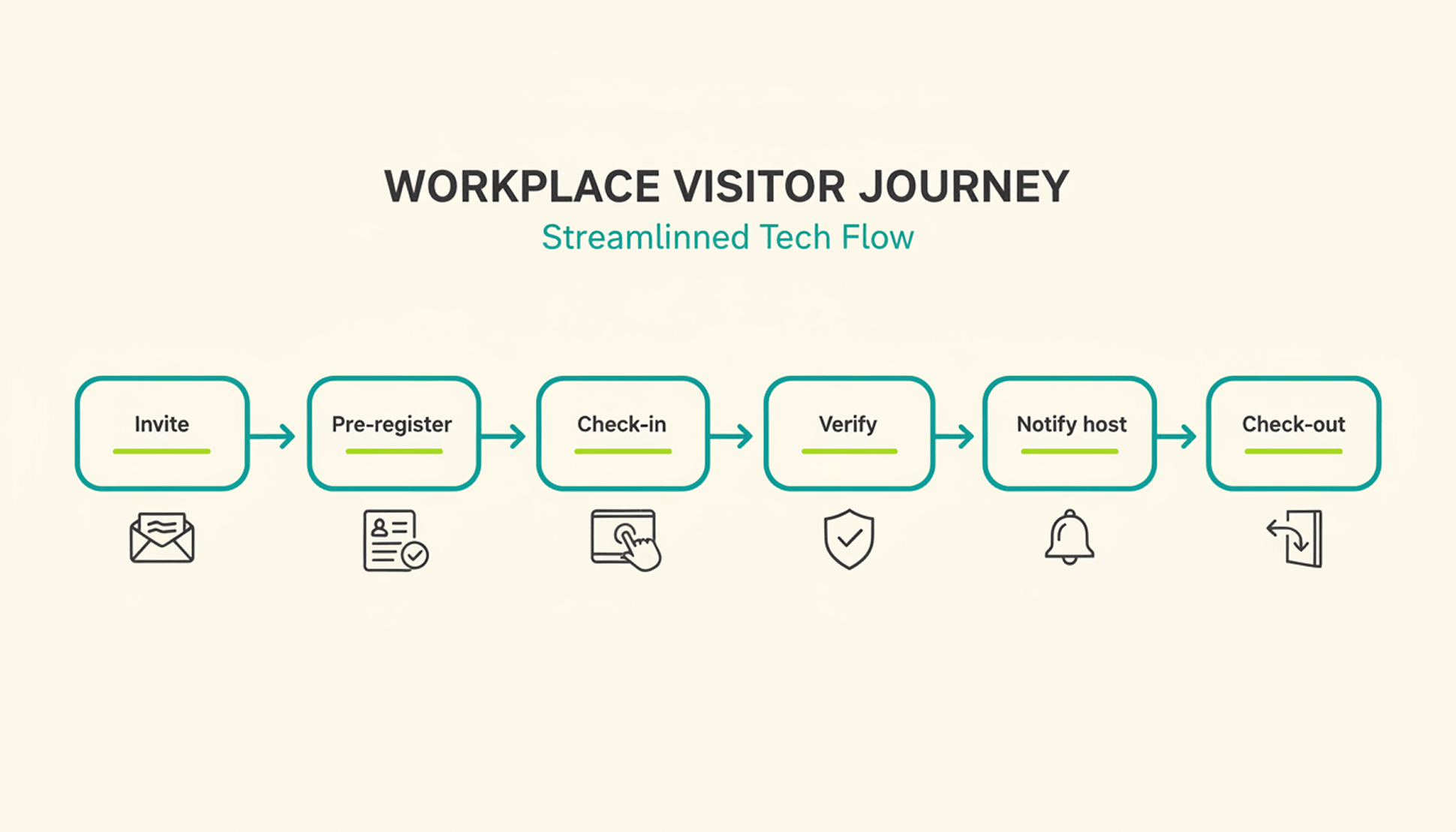
A typical visit runs through six steps. The host sends an invite, the visitor pre-registers, the visitor confirms their details on arrival, a badge can be issued, the host gets notified, and the system records check-out when the visitor leaves or at a configured time.

1

Pre-registration: the host schedules the visit and sends a link with arrival details, parking instructions, and building access notes.

2

Arrival and check-in: the visitor confirms their details at a kiosk or on a tablet or their own phone, usually in under a minute.

3

Optional identity and watchlist verification: depending on the platform and configuration, additional ID or security-list checks can be performed before building access is granted.

4

Badge issuance: a printed or digital badge identifies the visitor for the building and can be limited to that day's visit.

5

Host notification: the employee being visited receives an instant alert to come to reception, with the visitor's name and, if enabled, photo.

6

Check-out and logging: the visitor checks out on departure, or the system can close the visit automatically at a configured time, keeping the record administratively up to date.

What Are the Benefits of a Visitor Management System for the Office?

The clearest benefit is a complete, searchable record of who was on-site and when, something a paper log or verbal check-in can't provide.

Security and Compliance Benefits

A visitor management system can screen guests against a watchlist before they reach the office floor, depending on the platform and configuration. It can keep a timestamped log of visits for security and compliance reviews. Under GDPR, visitor data counts as personal data, so it needs a lawful basis for collection, an appropriate retention period or criteria for determining it, and safeguards against unauthorized access. A digital system can support these controls directly in the check-in process, reducing reliance on manual steps.

Visitor accountability also matters during an emergency. OSHA guidance notes that visitors need to be accounted for after an evacuation, and many employers use the sign-in list to run that headcount. A missing name on that list can delay an all-clear by several minutes, minutes that matter during a real evacuation.

Because PULT Presence tracks employees and visitors in one live view, a facilities team can pull an accurate roll call the moment an alarm sounds, not after searching through a paper binder.

Front-Desk Efficiency and Visitor Experience Benefits

Automated check-in cuts the time your team spends on manual sign-in, badge writing, and phone calls to announce a guest. A receptionist freed from clipboard duty can focus on greeting visitors and other front-desk work. Visitors move through reception faster, often in under a minute, and the first impression of your office improves the moment someone walks in the door. For client meetings or investor visits, that faster, more polished check-in becomes part of how your company presents itself.

How Do You Choose the Right Visitor Management Solution?

The right visitor management solution depends less on feature count and more on how well it fits your existing security setup, office size, and tool stack. A system built for a five-person startup office looks very different from one built for a 500-person campus with multiple buildings and a dedicated security team.

Criterion What to Check
Feature depth Pre-registration, watchlist screening, badge printing, reporting
Integrations Calendar, HR, and communication tools your team already uses
Security and compliance Data retention controls, audit logs, GDPR-aligned handling
Scalability Pricing and setup across multiple locations
Price Per-location vs. per-user pricing models
Ease of use Kiosk setup time and how quickly staff can learn the system

Is a Standalone Visitor Management Platform Enough for a Modern Office?

A standalone visitor management platform solves the front-desk problem, but most offices also run desk booking, room booking, and parking through separate tools. Connecting these systems into one platform gives security and facilities teams a single, live view of who is on-site, employees and visitors together.

That connection matters most during a security incident or an office move, when facilities teams need one current view of occupancy rather than four separate logins to check. PULT pairs visitor management with desk booking software, room booking, and presence data, so a single dashboard shows recorded on-site employees and visitors. Office managers evaluating a broader workplace management software setup typically start here, since visitor data becomes far more useful once it's connected to the rest of the office.

{{onpage-cta}}

Turn Visitor Check-In Into a Security Advantage

A visitor management system turns a vulnerable front desk into a controlled entry point, giving you a searchable record of who checked in and when. The real payoff comes when it connects to the rest of your office, from desk booking to real-time presence data, giving you one live picture of recorded on-site users. For growing offices, that visibility is worth seeing in action.

✓

Visitor check-in, desk booking, room booking, and presence data live in one platform, so you manage all of it from a single login.

✓

A real-time view shows who is on-site, employees and visitors together, for faster emergency roll calls.

✓

Every visit is recorded in a searchable log, with records available for security and compliance reviews.

✓

Microsoft Teams and Slack support visitor notifications, while Personio and HiBob connect employee data through built-in integrations.

{{onpage-cta-2}}

Envoy Alternatives: 7 Office Management Platforms Compared (2026)
Alternatives

Envoy Alternatives: 7 Office Management Platforms Compared (2026)

Envoy alternatives worth a closer look share one trait: they cover more of daily office management than a single visitor kiosk. If Envoy's per-location pricing or iPad-based visitor kiosk has you looking elsewhere, this comparison walks through seven platforms, including PULT, across visitor management, desk and room booking, parking, and office insights.

What Is Envoy? A Quick Overview

Envoy is a workplace platform originally built around visitor management and reception. Over time, the company expanded into desk booking, room booking, and parking under the Envoy Workplace product line, alongside its original visitor and delivery management tools.

Envoy's Core Features

Envoy's visitor check-in runs on iPad kiosks paired with a supported Brother printer for badges. The platform handles ID scanning, digital NDAs, health screenings, and delivery tracking, and it integrates with Slack, Microsoft Teams, Okta, and several badge-entry systems.

Envoy Pricing

Envoy recently moved away from per-active-user billing for new contracts and now prices in tiers by location and by workplace module, with Visitors, Response, Reservations, Screens, and Deliveries licensed and billed separately. For the Visitors product:

✓

Basic: free, with limited features (100 entries per month).

✓

Premium: $362 per location per month, billed annually.

✓

Enterprise: custom pricing for organizations with more complex security and compliance needs.

What Makes a Good Envoy Alternative?

Core Selection Criteria

A genuine Envoy alternative covers more than one office function. Look for desk booking, room booking, and visitor management under a single login, transparent pricing that doesn't require a sales call for a ballpark number, and integrations with the calendar and chat tools your team already uses. Multi-location support matters once you operate more than one office, since per-location fees add up fast.

Quick Checklist: What to Look For

✓

Visitor management available, with pricing clearly disclosed.

✓

Published pricing (per user, per space, or per resource).

✓

Native Microsoft Teams, Slack, or Google Workspace integration.

✓

Office insights and occupancy analytics on standard plans.

✓

Support for parking and multi-location rollouts.

7 Envoy Alternatives for Desk Booking, Visitor Management & More in 2026

Note: The features, prices, and capabilities shown in the following comparison are based on publicly available information from each provider (as of August 2026) and are intended solely for neutral orientation. Providers may change these details at any time, and no guarantee is given for their accuracy or completeness. All brand names belong to their respective owners and are used for comparison purposes only. PULT has no business relationship with the other brands listed. The order below does not represent a ranking.

‍

#1 PULT

Origin & Concept: PULT is an all-in-one office management platform built for hybrid teams, combining desk, room, visitor, and parking management in a single system.

Technology: PULT runs as a cloud-based platform with native integrations into calendar, chat, and HR tools, and includes WiFi-based desk booking that detects desk usage automatically over the existing office network.

Target Audience: The platform is aimed at SMEs and enterprise companies with roughly 50 to 2,000 employees running a hybrid work model, often across more than one office location.

Strengths

✓

Platform breadth: Desk, room, visitor, and parking management run in one system instead of separate tools for each function.

✓

WiFi Desk Booking: Desk usage is detected automatically over the existing office WiFi without requiring employees to check in manually.

✓

Integration depth: Native connections to Microsoft Teams, Slack, Personio, and HiBob.

Plans & Pricing

(as of August 2026, source: PULT):

PULT Workplace (desk booking, meeting rooms, parking, and analytics):

✓

Starter: free, for up to 20 users and 1 location.

✓

Growth: from $3.40 per user/month.

✓

Business: from $4.60 per user/month.

✓

Enterprise: custom pricing, with white labeling and API access.

Visitor Management is priced as a separate product:

✓

Business: from $114 per location/month.

✓

Enterprise: custom pricing.

Additional costs may apply, for example:

✓

Presence AI: WiFi-based automatic attendance and desk-occupancy tracking is a separate product, starting at $119/month on the Business plan.

#2 Deskbird

Origin & Concept: Deskbird is a workplace app built around hybrid work scheduling, letting employees plan office days and book desks, rooms, and parking from one interface.

Technology: SaaS platform with web, mobile, Slack, and Microsoft Teams apps. Business, Professional, and Enterprise include unlimited desks, users, admins, locations, and parking spots; pricing is based on active users.

Target Audience: According to the provider, deskbird is used by hybrid companies of various sizes, from small teams to global enterprises.

Strengths

✓

Published entry pricing: The Business tier price is listed publicly, unlike several competitors on this list that require a sales quote.

✓

Unlimited scope on every tier: Users, admins, locations, desks, and parking spots are unlimited even on the entry plan.

✓

Chat-tool integration: Desks, rooms, and parking can be booked directly from Microsoft Teams or Slack.

Plans & Pricing (as of August 2026, source: deskbird):

✓

Business: €2.75 per active user/month; covers desk, room, and parking booking, native mobile apps, and MS Teams integration.

✓

Professional: custom pricing; adds advanced booking rules, AI-powered floor plan design, automated check-in, workplace ticketing, and public API access.

✓

Enterprise: custom pricing; adds workplace surveys, custom analytics and reporting, advanced SLAs, and a dedicated Senior CSM.

Additional costs may apply, for example:

✓

Add-ons: Visitors Plus (reception kiosk and pre-visit registration), Rooms Plus (meeting-room signage and catering requests), and User & Data Management Plus (SAML, SCIM, HRIS sync) are priced separately from the core plan.

#3 Robin (Robin Powered)

Origin & Concept: Robin is a workplace management platform covering desk, room, parking, and locker booking, space management, meeting management, and visitor management, positioned as a single unified platform for larger organizations.

Technology: The platform syncs natively with Microsoft Outlook, Google Calendar, Microsoft Teams, Slack, Microsoft Entra, and Okta. According to the provider, point solutions such as standalone room-display software are a better fit for smaller, single-purpose needs.

Target Audience: According to the provider, Robin fits organizations with more than 150 hybrid employees using an office, and works best for companies managing multiple floors, offices, or buildings.

Strengths

✓

Platform breadth: Resource booking, space management, meeting management, workplace analytics, visitor management, and employee experience tools sit under one platform.

✓

Calendar depth: Native sync with Microsoft Outlook, Google Calendar, Teams, and Slack.

✓

Multi-site design: Built for organizations coordinating several offices or buildings at once.

Plans & Pricing (as of August 2026, source: Robin): Robin does not publish per-user or per-resource pricing. According to the provider, pricing is tailored per organization and requires a call with the sales team, with all subscriptions billed annually. Room displays and other hardware may come at an extra cost.

#4 Skedda

Origin & Concept: Skedda is a space-booking platform for desks, rooms, and other bookable areas, built around a configurable rules engine and an Organization Hub for managing multiple offices from one dashboard.

Technology: The platform is priced per space rather than per user, includes native Microsoft Teams and Slack apps, mobile apps for iOS and Android, and supports SSO via SAML 2.0.

Target Audience: According to the provider, Skedda serves organizations of all sizes, including universities, coworking spaces, and corporations with strict compliance needs.

Strengths

✓

Unlimited users and bookings: Every plan includes unlimited users and bookings because pricing scales with spaces, not headcount.

✓

Visitor management available: Visitor management is available alongside the existing space-booking tools as a separate add-on.

✓

Multi-office dashboard: The Organization Hub lets admins manage several offices from one place.

Plans & Pricing (as of August 2026, source: Skedda):

✓

Starter: from $99/month, priced per space, includes 15 spaces, a basic rules and roles engine, and a limited insights dashboard.

✓

Plus: from $149/month, priced per space, includes 20 spaces, a limited rules and roles engine, and a full insights dashboard.

✓

Premier: from $199/month, priced per space, includes 25 spaces, a full rules and roles engine, and a full insights dashboard.

✓

AllBooked (for sports, studios, coworking, and community booking): custom pricing.

An Administrators add-on is available on every plan for $99/month.

#5 Archie

Origin & Concept: Archie is a modular workspace platform covering desk booking, room scheduling, visitor management, and coworking software as separately priced products.

Technology: The platform requires no proprietary hardware and works with existing tablets and screens, with native integrations into Microsoft 365, Slack, and access-control systems such as Kisi and Brivo.

Target Audience: According to the provider, Archie is used by more than 1,000 organizations, spanning small and mid-sized businesses on the Starter plan to large, multi-location companies on Pro and Enterprise.

Strengths

✓

No proprietary hardware: Existing tablets and screens can be used instead of a fixed device.

✓

Transparent, published pricing: Rates per desk, room, and visitor product are listed publicly rather than hidden behind a sales call.

✓

Free trial after demo: According to the provider, a 14-day test environment is available following a product demo.

Plans & Pricing (as of August 2026, source: Archie):

✓

Desk Booking Starter: $2.80 per desk/month, minimum $159/month, covers 1 location with floor plans, QR check-ins, and occupancy analytics.

✓

Desk Booking Pro: $3.50 per desk/month, minimum $249/month, adds multiple locations, booking from Teams and Outlook, Slack integration, SSO, and SCIM.

✓

Desk Booking Enterprise: custom pricing, adds security and compliance support, custom data residency, and white-glove onboarding.

✓

Room Booking: from approximately $8 to $12 per room/month.

✓

Visitor Management: from approximately $109 per location/month, priced as a separate module.

Room displays and other add-on hardware may come at an extra cost.

#6 YAROOMS

Origin & Concept: YAROOMS is a workplace management platform combining hybrid work scheduling, desk and room booking, and visitor management under one system, with a dedicated Enterprise tier for large organizations.

Technology: The platform includes interactive office maps, an AI assistant called Yarvis, Microsoft Teams integration, and Single Sign-On on the Business tier, with API access and custom cloud deployment (Azure, AWS, or on-prem) available on Enterprise.

Target Audience: According to the provider, YAROOMS fits small offices on the Starter plan, growing businesses on the Business plan, and large, multi-location teams of up to 1,000+ users on Enterprise.

Strengths

✓

Published tiered pricing: Plans and per-year rates are listed publicly rather than hidden behind a sales call.

✓

AI assistant included: Yarvis is included from the Business plan rather than sold as a separate add-on.

✓

Multi-location scaling: Higher tiers add more locations and unlimited workplace analytics.

Plans & Pricing (as of August 2026, source: YAROOMS):

✓

Starter: from $99/month for 10 users, covers 1 location, 2 floors with an interactive office map, hybrid work scheduling, and desk and room booking.

✓

Business: from $399/month for 50 users, covers 2 locations, 90 days of workplace analytics, the Microsoft Teams app, Yarvis AI, and Single Sign-On.

✓

Enterprise: from $899/month for 300 users, covers 5 locations plus add-ons, unlimited analytics, API access, and custom integrations.

#7 Joan

Origin & Concept: Joan is an all-inclusive workplace platform covering meeting room booking, visitor management, desk and parking booking, digital signage, and analytics, with pricing based on active usage rather than which features are turned on.

Technology: The platform combines a base subscription with per-user and per-device add-on pricing, covering both the Joan app and registered screens or tablets.

Target Audience: According to the provider, Joan is used by organizations across tech, education, and hospitality, from small offices to global enterprises.

Strengths

✓

Pay-for-what-you-use model: Solutions you don't activate don't add to the cost.

✓

Free tier to start: A free plan is available before moving to a paid subscription.

✓

Full feature access on every plan: According to the provider, all solutions are available from the start rather than gated behind higher tiers.

Plans & Pricing (as of August 2026, source: Joan): Plans start at €49 per month as a base subscription with included users and devices.

✓

Additional users: €0.99 per user/month.

✓

Additional device licenses: €9.99 per device/month.

Custom quotes are available for larger setups.

How to Choose Your Envoy Alternative

Once you've narrowed the list by features and price, three factors can help assess how well a platform holds up as your office grows.

Scalability & Multi-Location Support

If you operate more than one office, check whether pricing adds a flat fee per location or scales with total users or spaces across all sites. That difference determines whether a second or third office meaningfully changes your bill.

Flexibility & Integrations

Your team already works inside Microsoft Teams, Slack, or Google Workspace. A platform that books directly inside those tools sees far higher adoption than one that requires a separate app nobody opens.

Security & Data Privacy

Visitor and badge data may qualify as personal data when it relates to an identified or identifiable person. Confirm how long visitor logs are retained, whether data stays in your required region, and whether the vendor supports SSO for admin access.

{{onpage-cta}}

Muster Point: Definition, Location Rules, and How to Run a Headcount
Office Insights

Muster Point: Definition & Setup

A muster point is the designated spot where employees, visitors, and contractors gather after evacuating a building, so someone can confirm everyone made it out safely. Under OSHA 29 CFR 1910.38, covered emergency action plans need a procedure to account for employees after an evacuation, and a designated assembly area is one common way to do that in practice.

Muster Point: Key Takeaways

✓

A muster point is a designated, safe location outside a building where employees, visitors, and contractors gather and get counted after an emergency evacuation.

✓

Under OSHA regulation 29 CFR 1910.38, employers subject to the standard must include procedures for accounting for all employees after an evacuation.

✓

A safe muster point stays clear of the building's hazard zone and emergency vehicle access routes, and remains visible to evacuees in smoke, rain, or darkness.

✓

PULT is an office management platform whose Presence feature detects who is on-site through a company's existing WiFi network, giving office and security teams a live, automatic headcount during an emergency.

What Is a Muster Point?

A muster point is a fixed, pre-identified location outside a building where everyone gathers after an evacuation alarm. Its purpose goes beyond simply getting people outside: it gives a warden or safety officer a single place to run a headcount, confirm who made it out, and flag anyone still unaccounted for.

Muster Point vs. Assembly Point vs. Muster Station

Muster point and assembly point generally describe the same function, while muster station is a related term commonly used in maritime and offshore settings. Onshore offices and warehouses in the US typically say muster point or assembly point.

Maritime operations commonly use muster station, including in contexts covered by SOLAS muster and drill requirements. For offices and other onshore workplaces, the location and headcount process generally work the same way regardless of whether you use muster point or assembly point.

Where Should You Place a Muster Point?

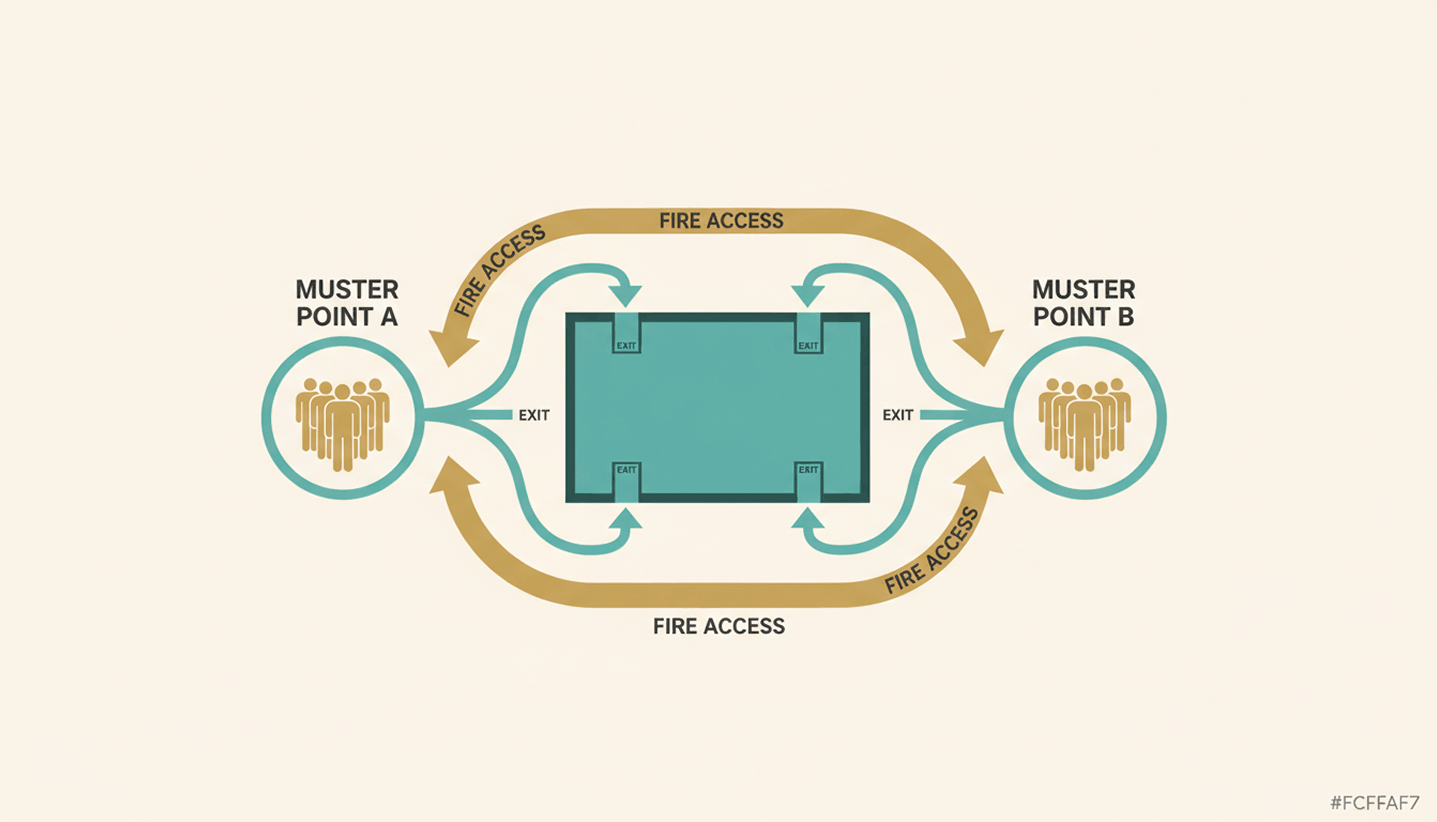
A good muster point sits far enough from the building to stay clear of smoke, debris, and structural risk, but close enough that people reach it within minutes. Beyond distance, a handful of practical criteria decide whether a location actually works during a real emergency.

✓

Distance from hazards: Keep the point away from the building itself, parking structures, and anything storing flammable material.

✓

Clear of emergency access: Don't block the routes fire trucks and ambulances need to reach the building.

✓

Reachable from every exit: Every evacuation route on the floor plan should lead to a muster point without crossing back through the building.

✓

Visible in poor conditions: Choose a spot that stays identifiable in smoke, rain, or after dark, and mark it with high-visibility signage.

If your evacuation plan needs a broader refresh beyond the muster point itself, our guide to office fire safety covers alarm systems and drill schedules in more detail.

How Do You Set Up and Mark an Emergency Muster Point at the Office?

Setting up an emergency muster point takes three things: clear signage, a person responsible for the headcount, and enough capacity for everyone who might be on site. Multi-floor or multi-tenant offices may need more than one muster point where building size, occupancy, or evacuation routes would otherwise create a bottleneck.

✓

Mark it clearly: Use clear, high-visibility signage so the location remains easy to identify by day and in poor visibility.

✓

Assign responsibility: Designate trained personnel to manage the headcount and report the result to the incident commander.

✓

Plan for scale: Add a second or third muster point for large floors, multiple buildings, or shared office space, and split the roster accordingly.

✓

Put it on the map: Add every muster point to your floor plan and walk new hires through it as part of onboarding.

How Do You Take a Headcount at the Muster Point?

Once people reach the muster point, the warden runs a headcount, sometimes called a fire roll call, and checks names against a roster before reporting the result to the incident commander. The harder part is making sure that roster actually reflects who was in the building, including people who don't show up on a payroll list.

Accounting for Visitors and Contractors

Employees usually appear on a standard roster, but visitors and contractors often don't. A guest who checked in an hour earlier or a contractor working on the third floor still needs a headcount at the muster point. A visitor log that isn't tied into the emergency plan leaves wardens guessing how many people are actually missing.

Manual Fire Roll Call vs. Real-Time Presence Data

A paper roll call at a mid-size office can take valuable time, and it only counts people already written down. PULT Presence uses office network data to show which employees are on site, while visitor and contractor records can supplement the on-site roster during an emergency.

{{onpage-cta}}

Give Every Muster Point a Fast, Accurate Headcount

A muster point only works if people know where it is and someone can confirm who made it there. Distance, signage, and a designated warden solve the location half of the problem. The headcount half comes down to whether your roster actually reflects everyone on site that day, employees, visitors, and contractors included. That's the gap most manual processes leave open.

✓

You see live on-site presence data to support the muster point headcount instead of relying only on a manual roster.

✓

Digitally checked-in visitors and contractors can be included without relying on a separate paper log.

✓

Presence tracking runs through your existing WiFi network and takes under 30 minutes to set up.

✓

Emergency Response activity can provide timestamped records of key actions for your safety files.

{{onpage-cta-2}}